Generic Filters
Feature Description
Generic filters control which products, variants, and warehouse data are synced from your supplier to your Shopify store. You can filter based on various attributes and conditions to ensure only the relevant data is imported. This helps you avoid cluttering your catalog with unwanted SKUs and keeps inventory aligned with your business strategy.
Setup Instructions
-
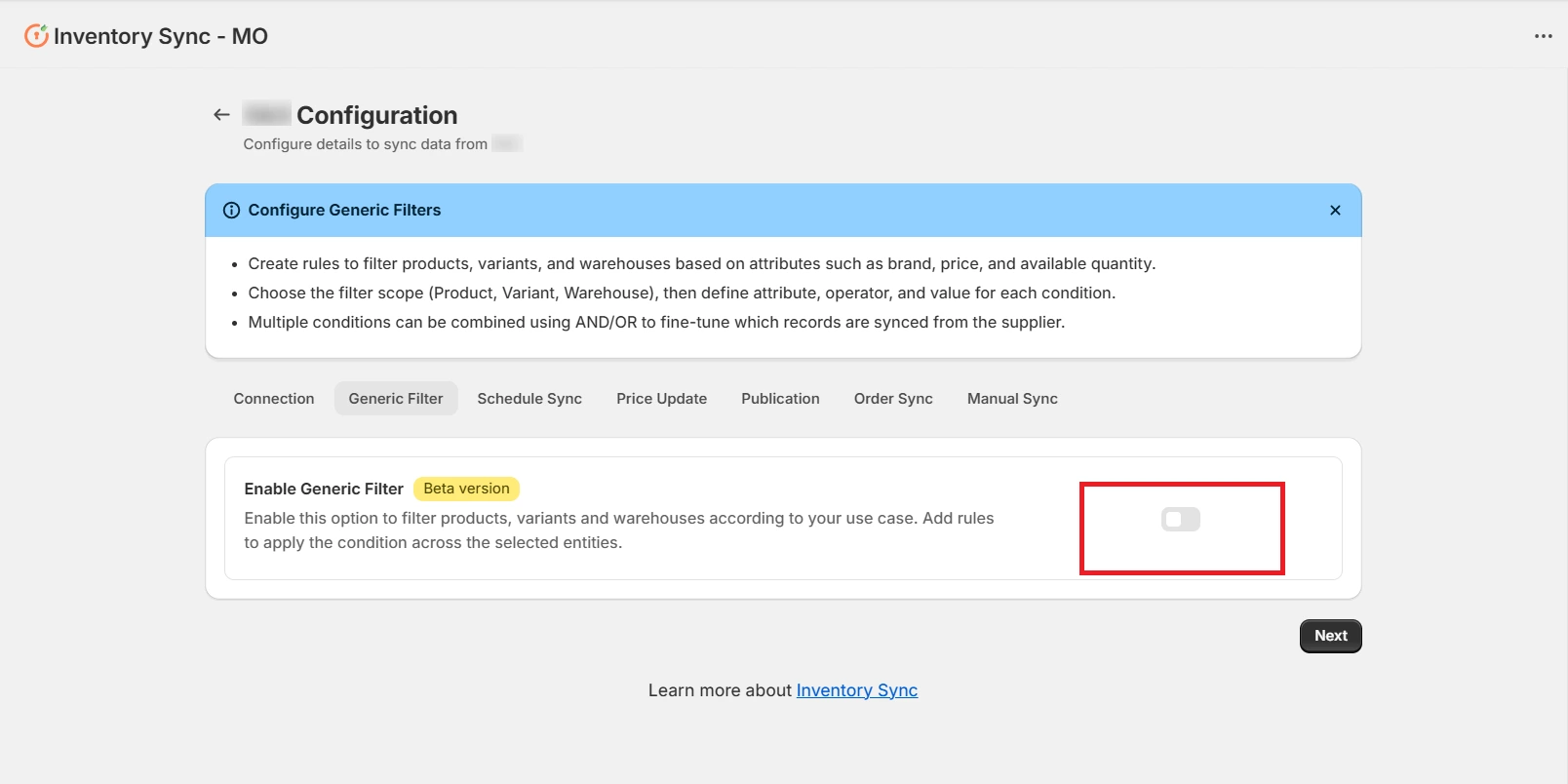
In the Inventory Sync application, locate the Enable Generic Filter section and switch the toggle to enable it.
-
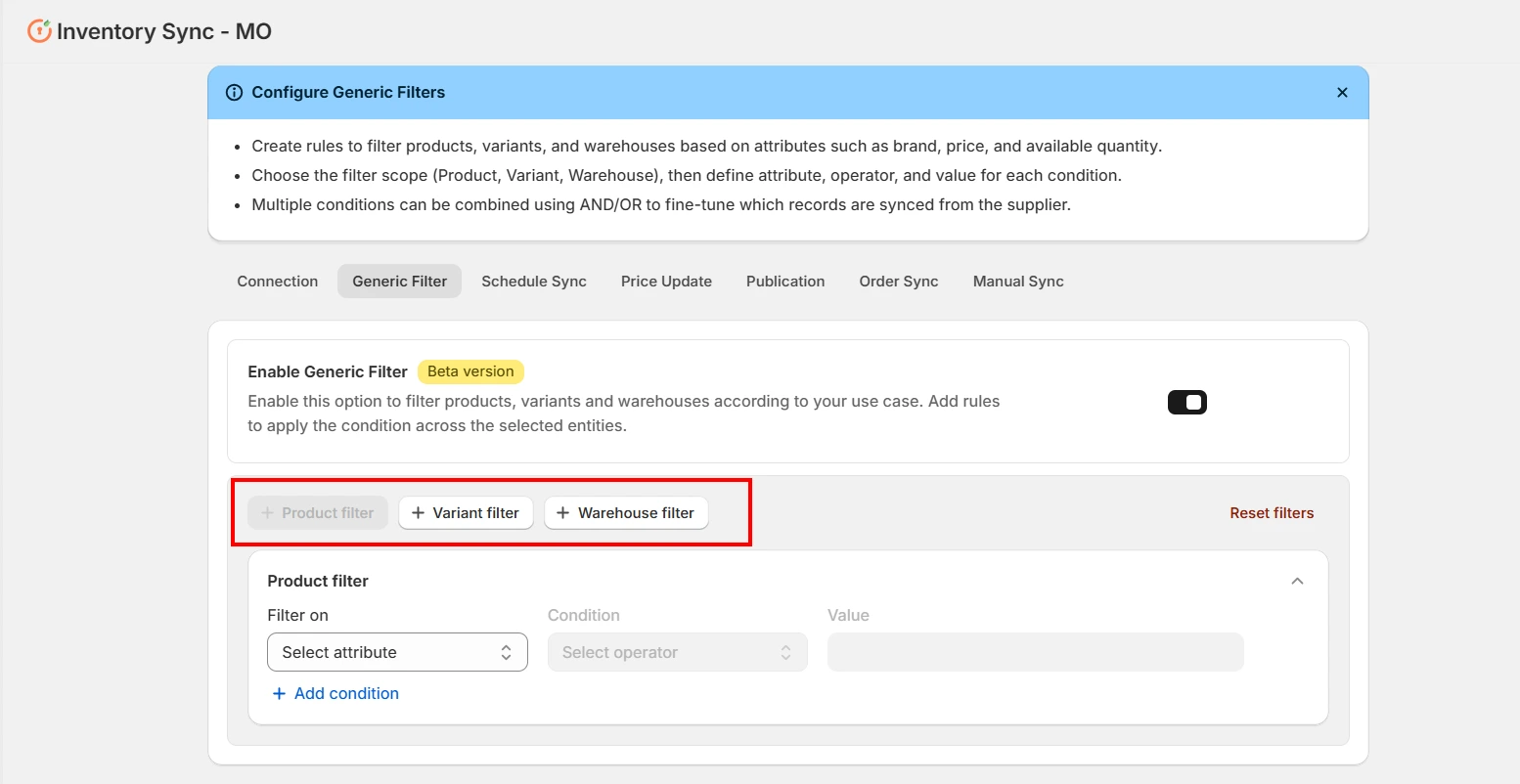
Once enabled, the filter categories for Product, Variant, and Warehouse will become active.
-
Choose which level of data you want to filter by clicking the corresponding filter.
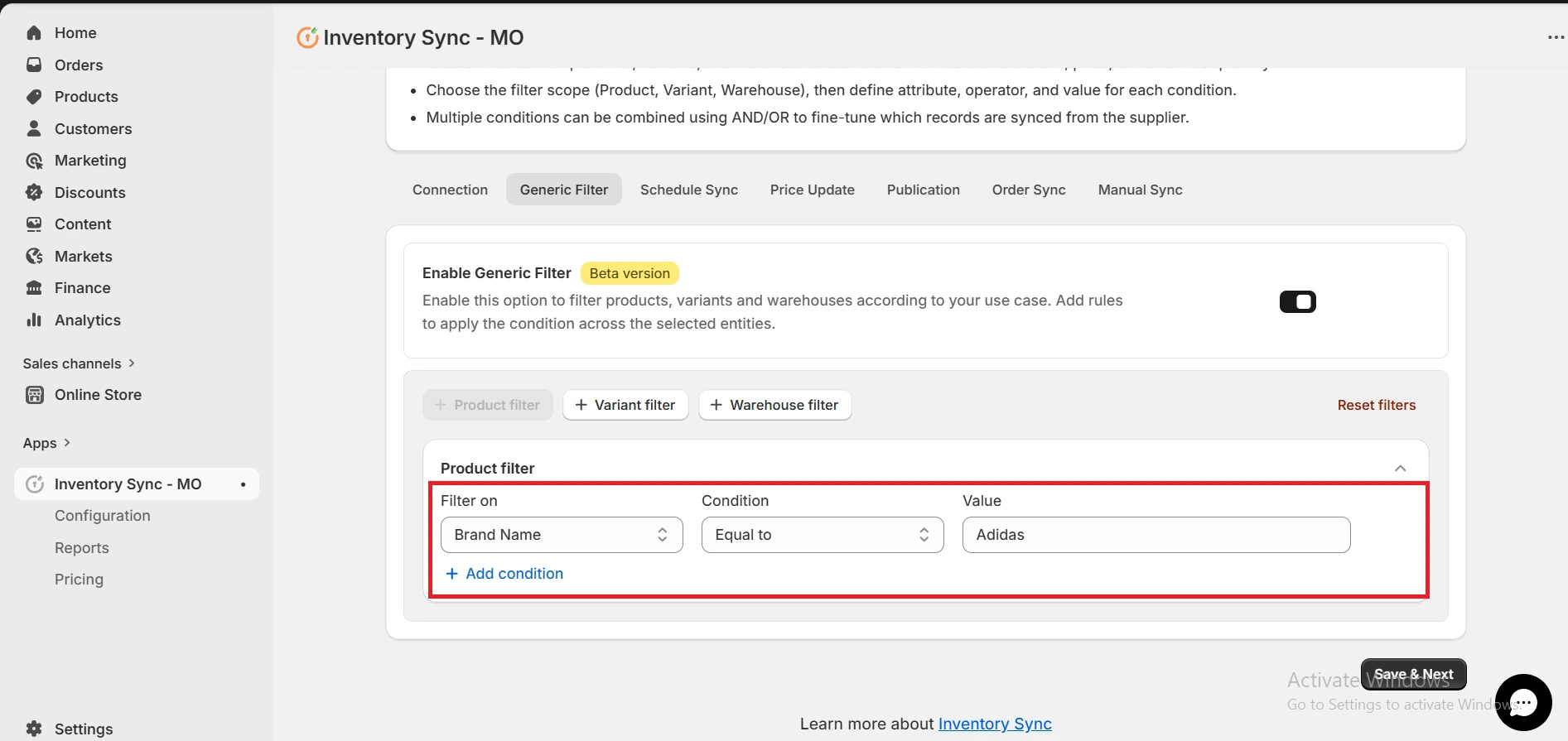
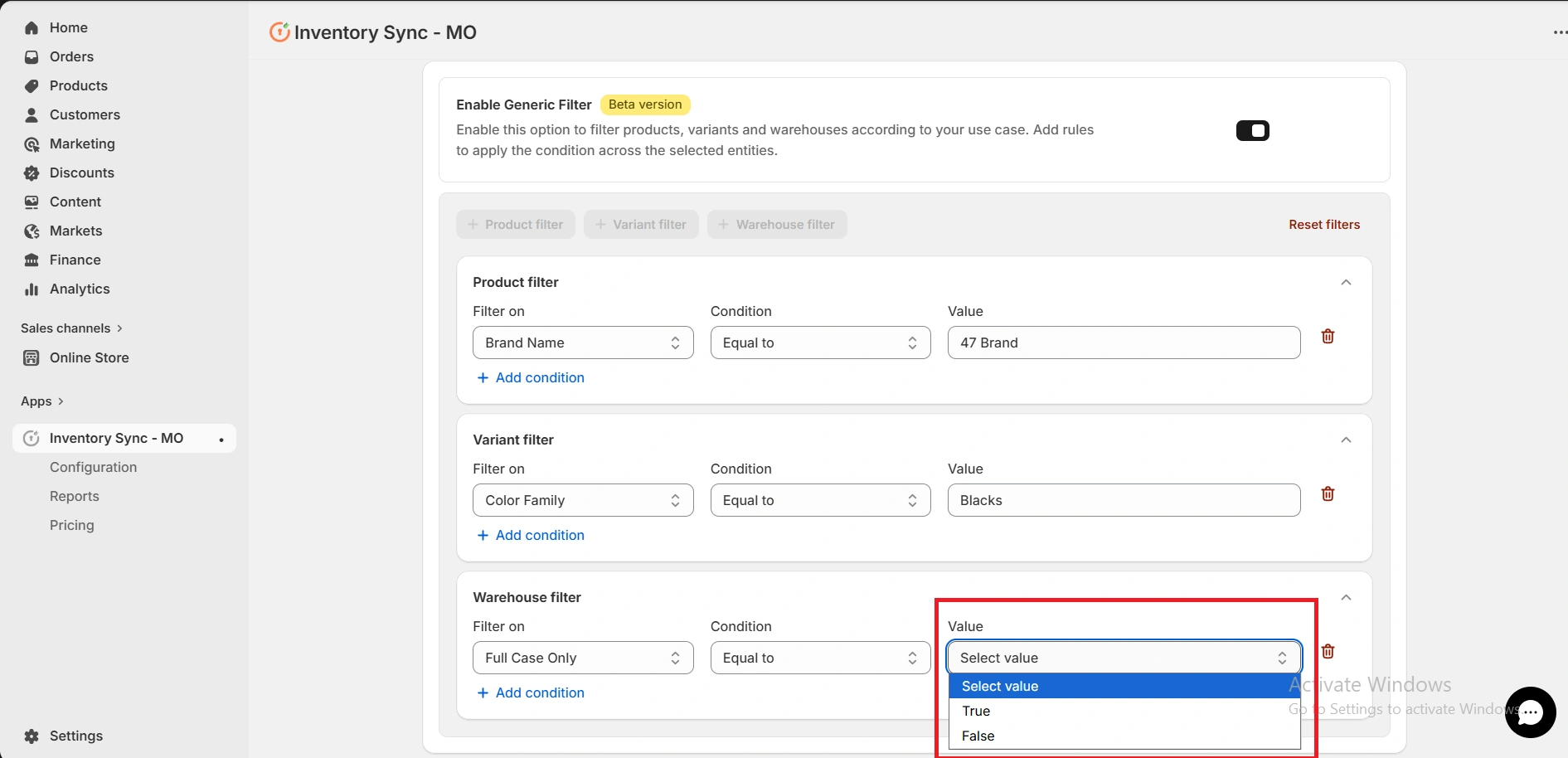
Product Filter - Configure high-level attributes such as Brand Name, Style ID, or Category.
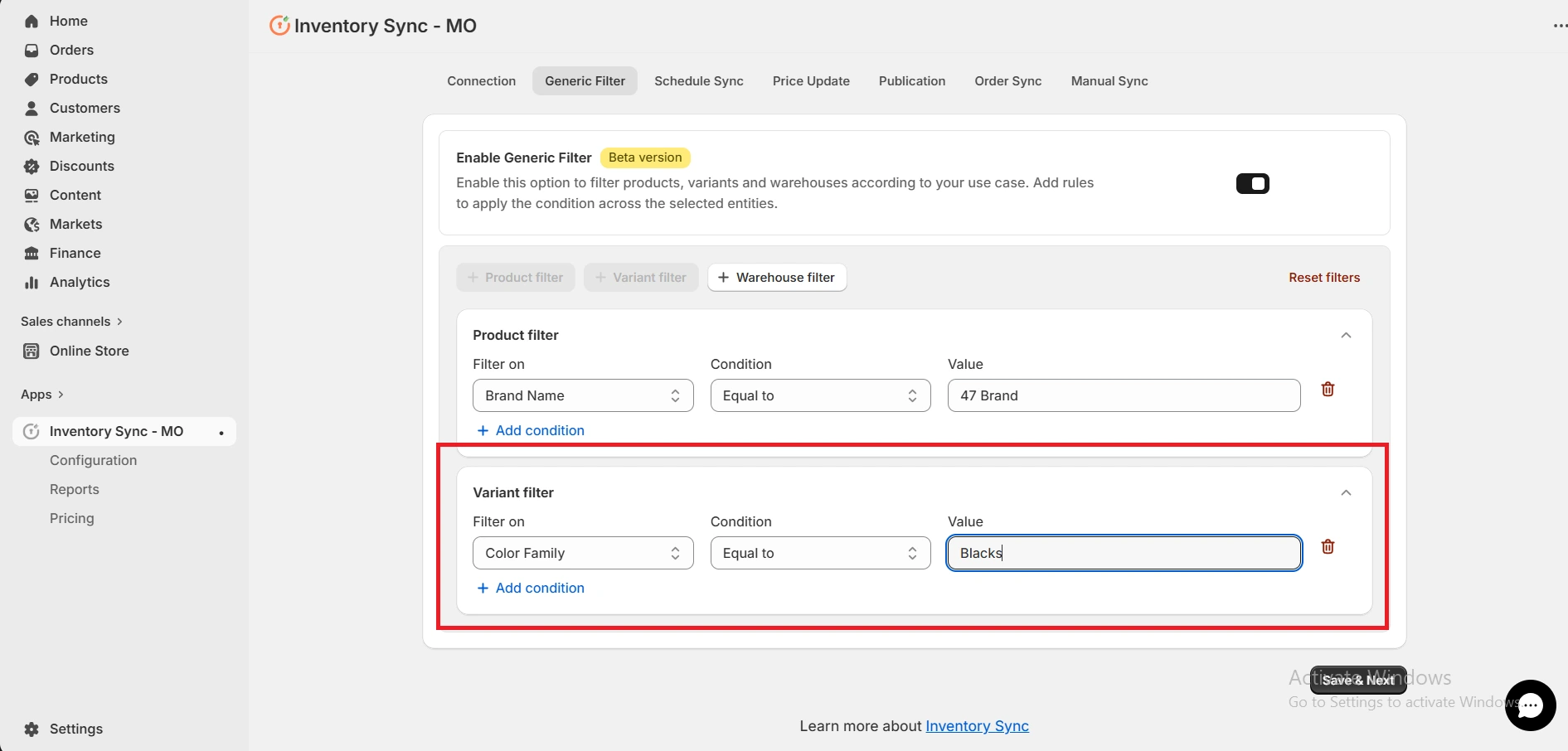
Variant Filter - Configure item-specific details such as Color Family, Size, or Unit Weight.
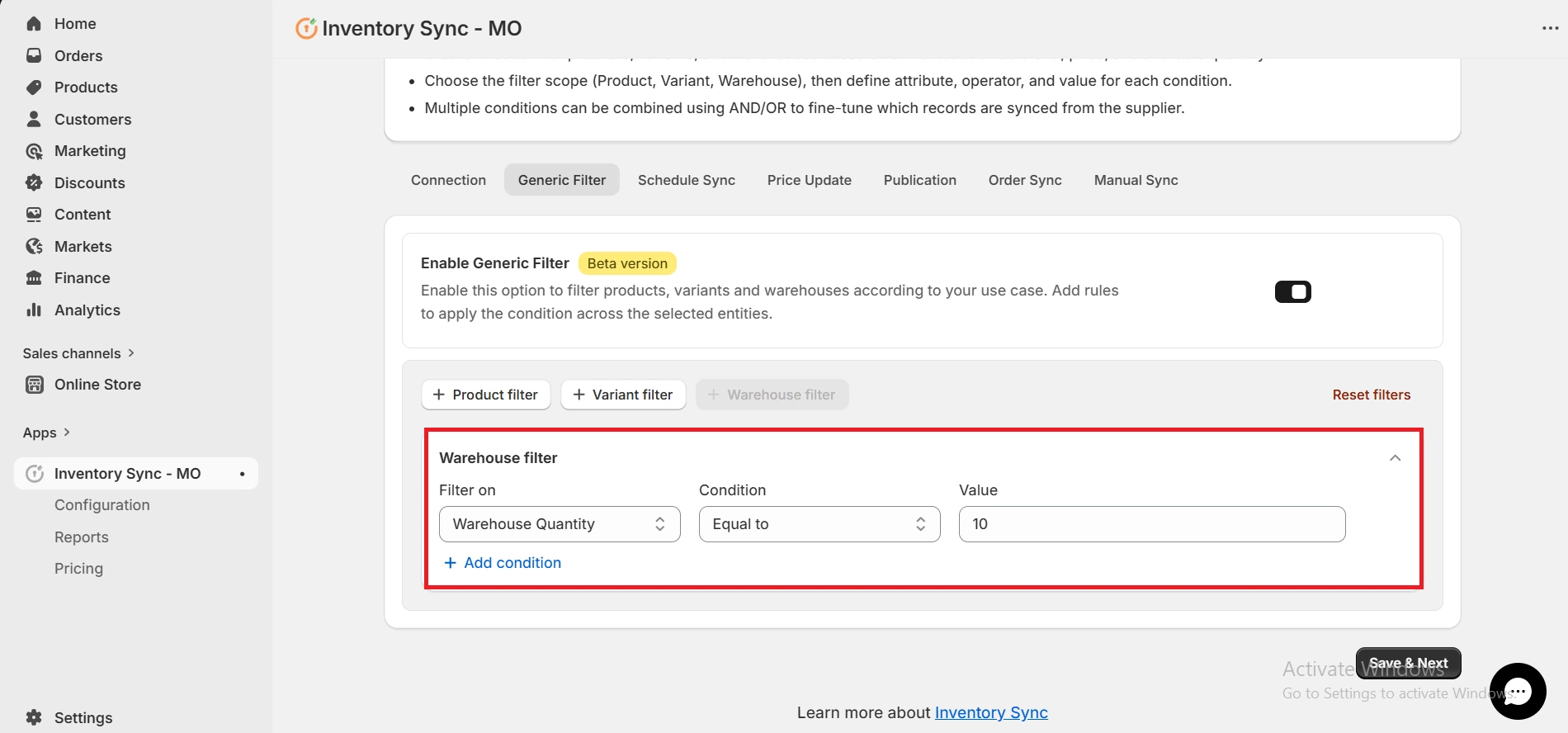
Warehouse Filter - Configure logistical options such as Full Case Only or Dropship Availability.
-
For each filter you add, configure:
- Filter on - Select the specific attribute (e.g., Brand Name).
- Condition - Choose the logic operator (see table below).
- Value - Use Autocomplete (select from dropdown) or Manual Entry (type the exact value; ensure correct spelling and capitalization).
Operator Logic Equal to An exact 1-to-1 match. The supplier's data must match your input perfectly (including spaces). Equal to any in list Matches any exact value from a comma-separated list you provide. Contains Matches if your specified text is found anywhere within the supplier's field. Contains any from list Matches if any of the keywords in your list are present within the supplier's field. Field does not exist Targets records where the specific attribute (e.g., Color or GTIN) is missing or empty. 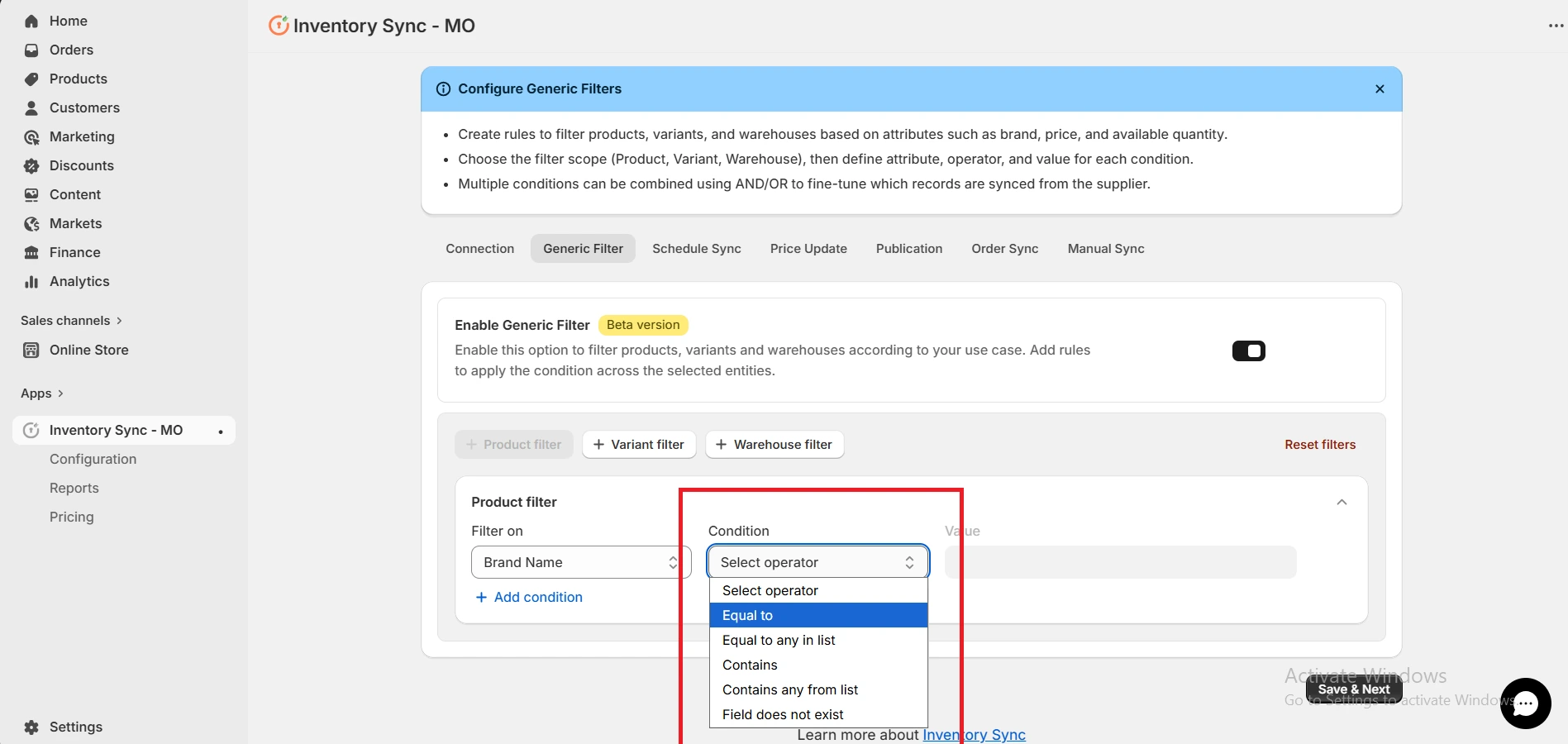
-
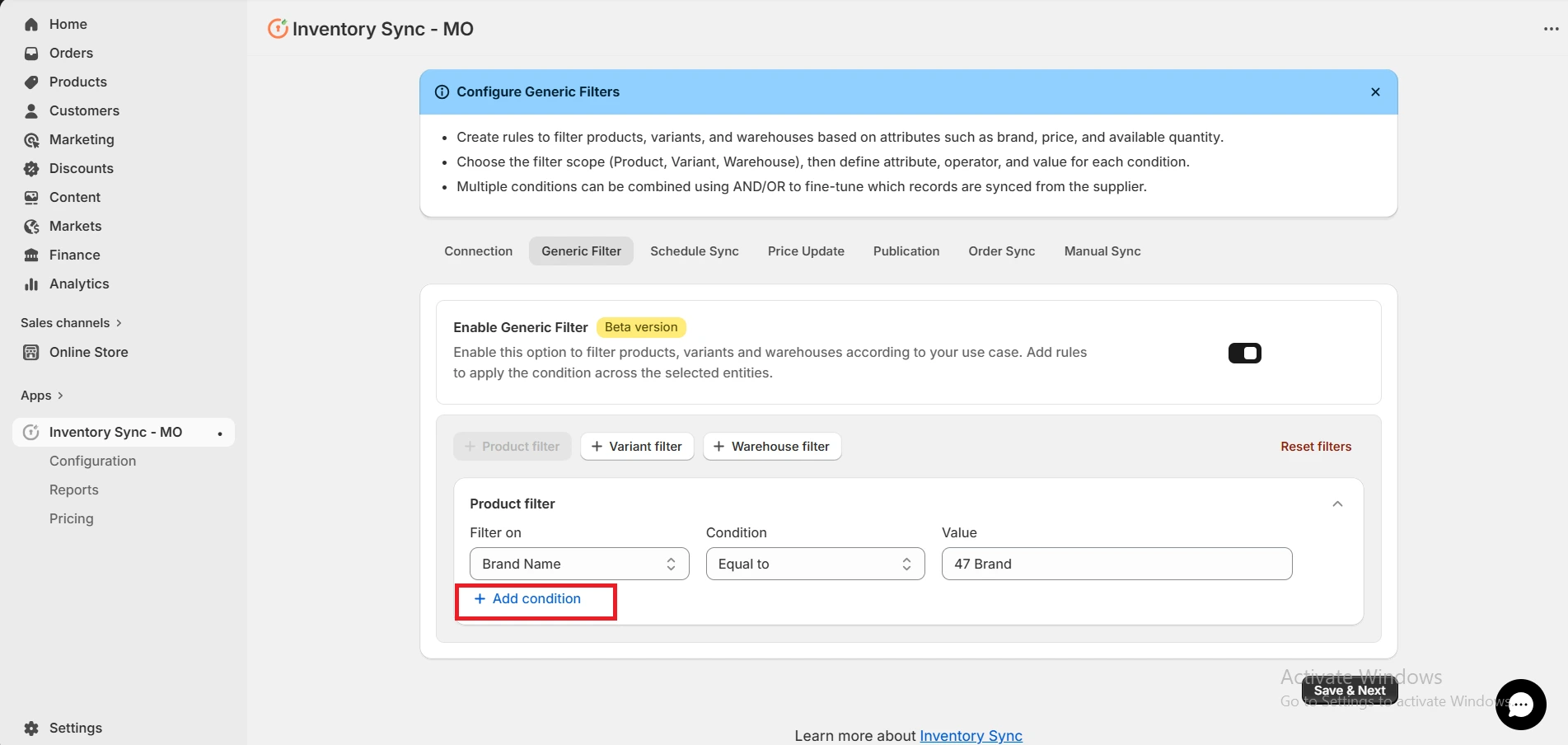
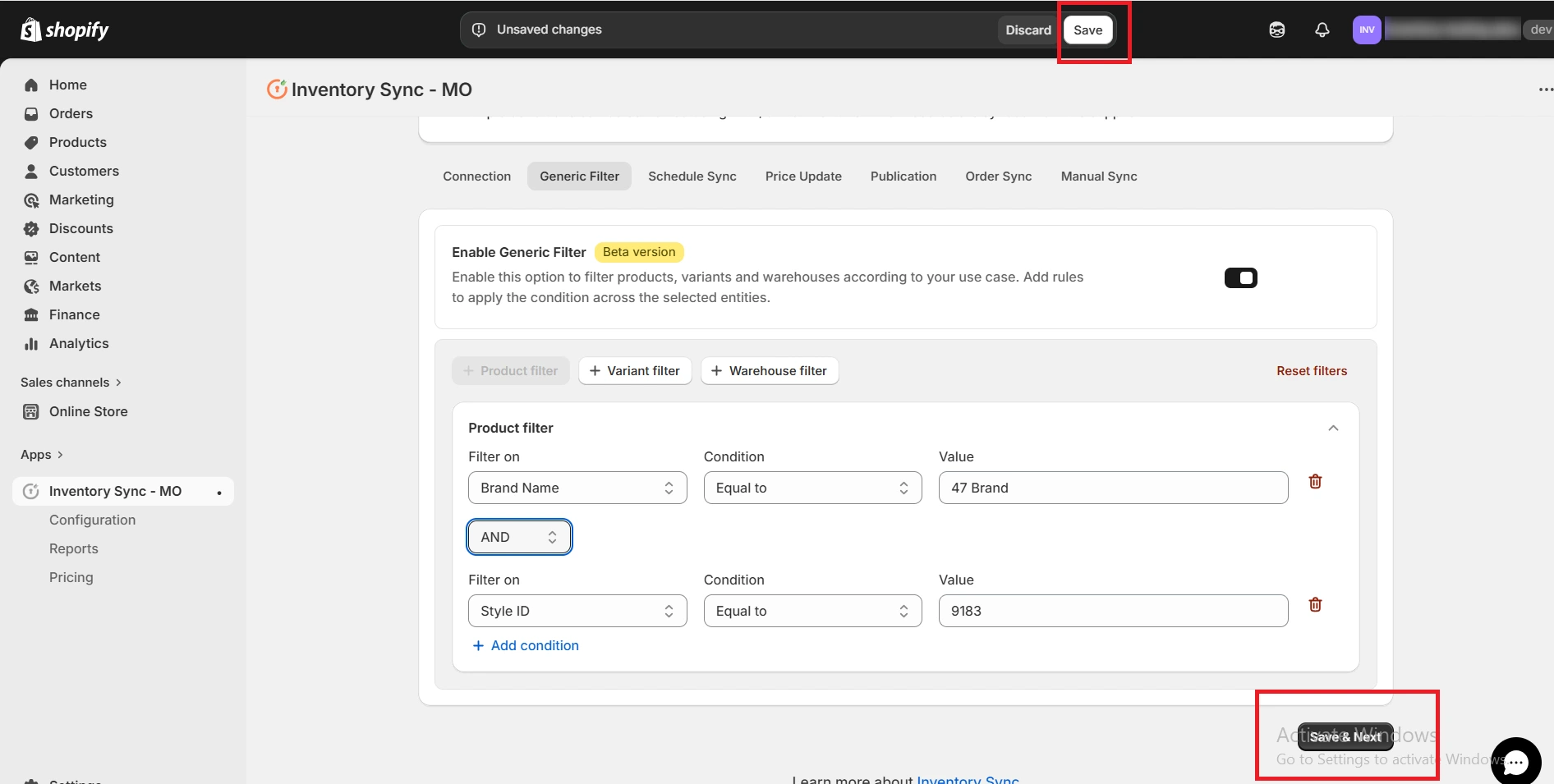
To add advanced logic, click + Add condition inside a filter card.
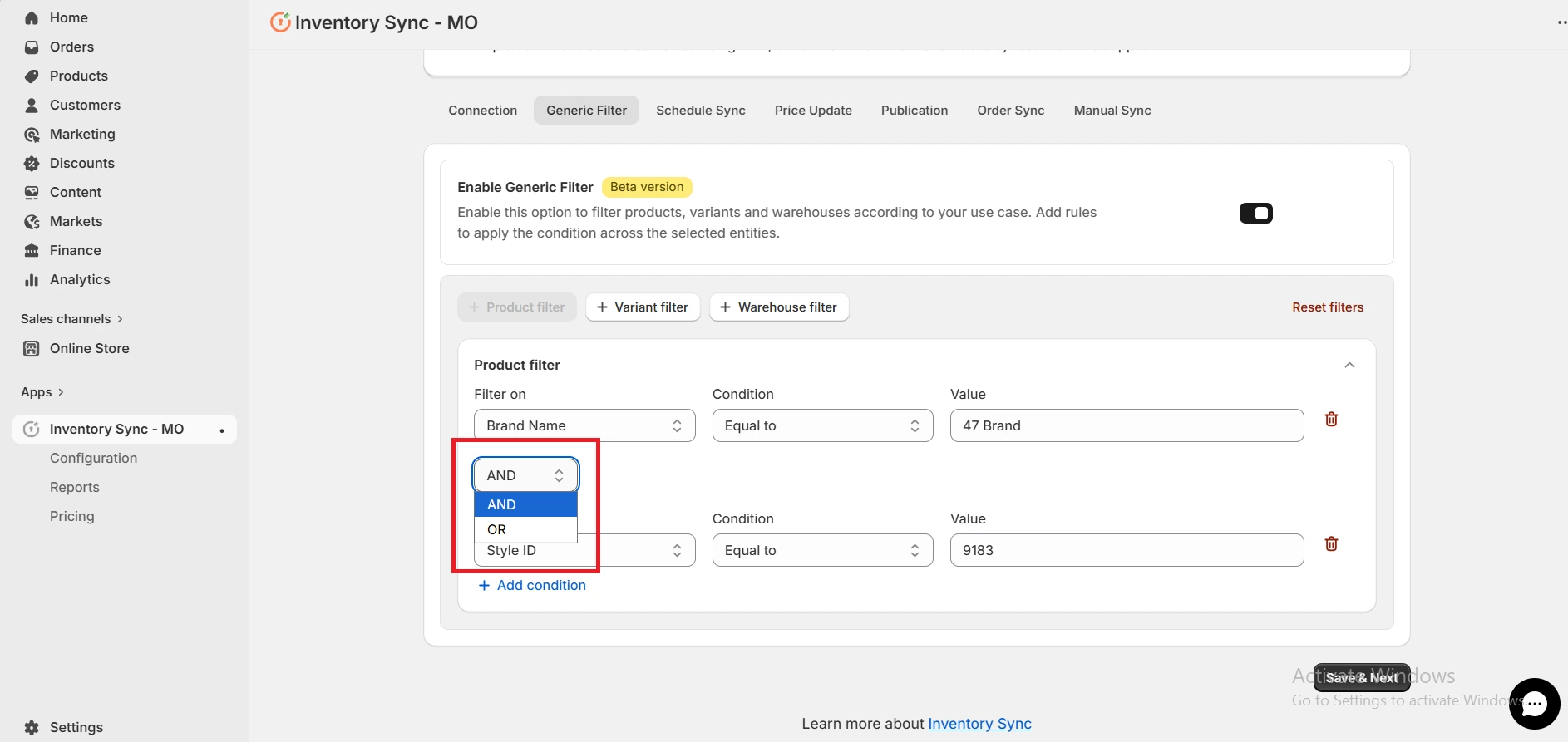
- AND - The item must meet both rules to sync.
- OR - The item can meet either rule to sync.
-
For warehouse rules like Full Case Only, select True or False from the dropdown.
-
After completing your filter settings, click Save in the top Shopify bar to store your settings. Click Save & Next at the bottom of the page to finalize the workflow.
-
Once configured, only products and variants that match your specific rules will be synced to your store. You can update or reset these filters at any time to reflect changes in your business strategy.