Order Sync
APPLIES TO: S&S Activewear only
Feature Description
Order Sync allows to automatically create new orders in the S&S Activewear platform when customers place orders in your Shopify store. You can enable automatic order creation, auto fulfillment for hands-free processing, test orders for validation, and configure payment profiles and shipping address behavior. Once configured, orders flow from Shopify to the S&S Activewear with no manual intervention for standard order processing.
Setup Instructions
-
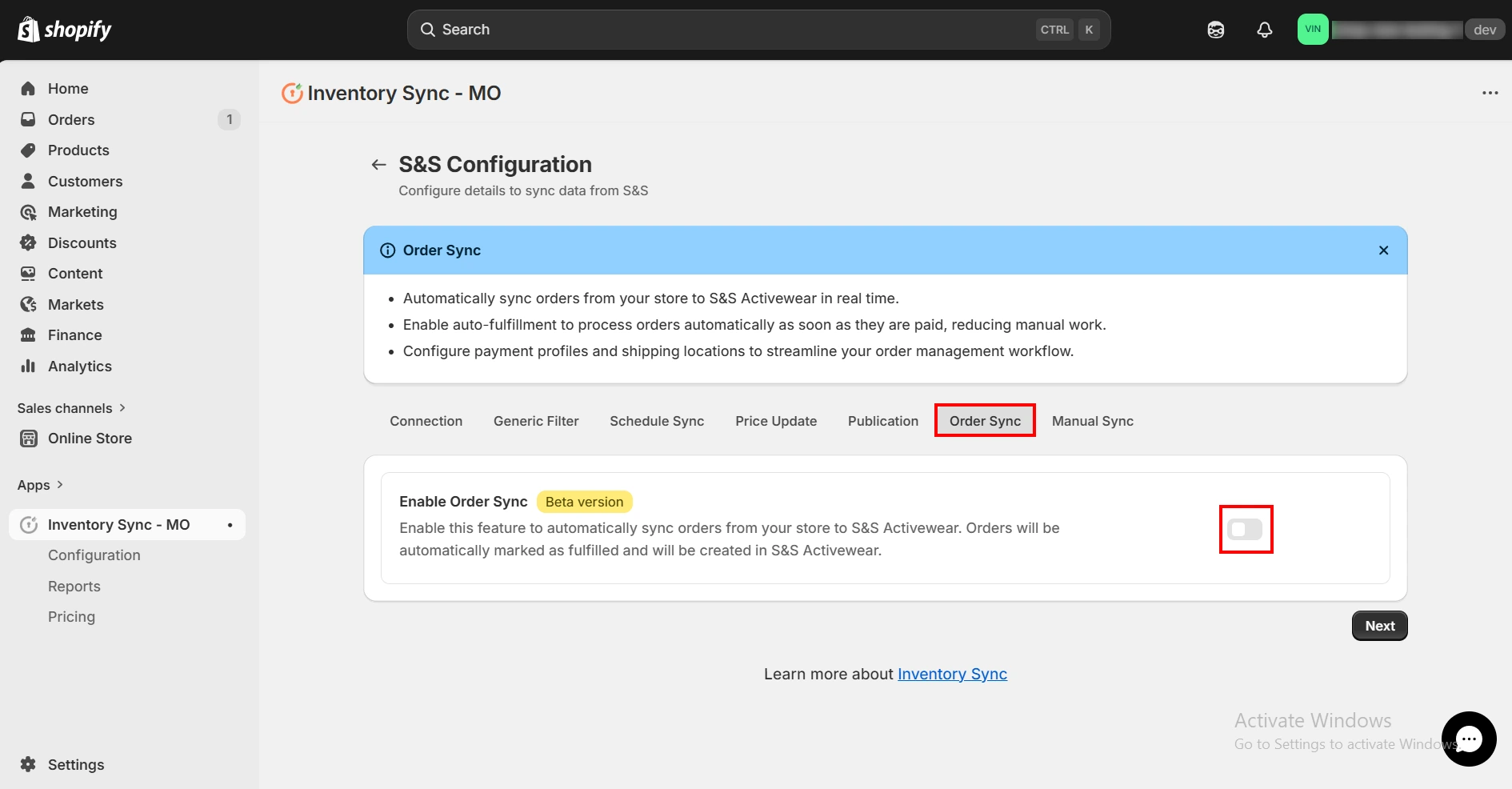
In the Inventory Sync connection workflow, select the Order Sync tab to access the order synchronization settings.
-
Enable the Order Sync option to allow the app to automatically create new orders in your supplier (e.g., S&S Activewear).
-
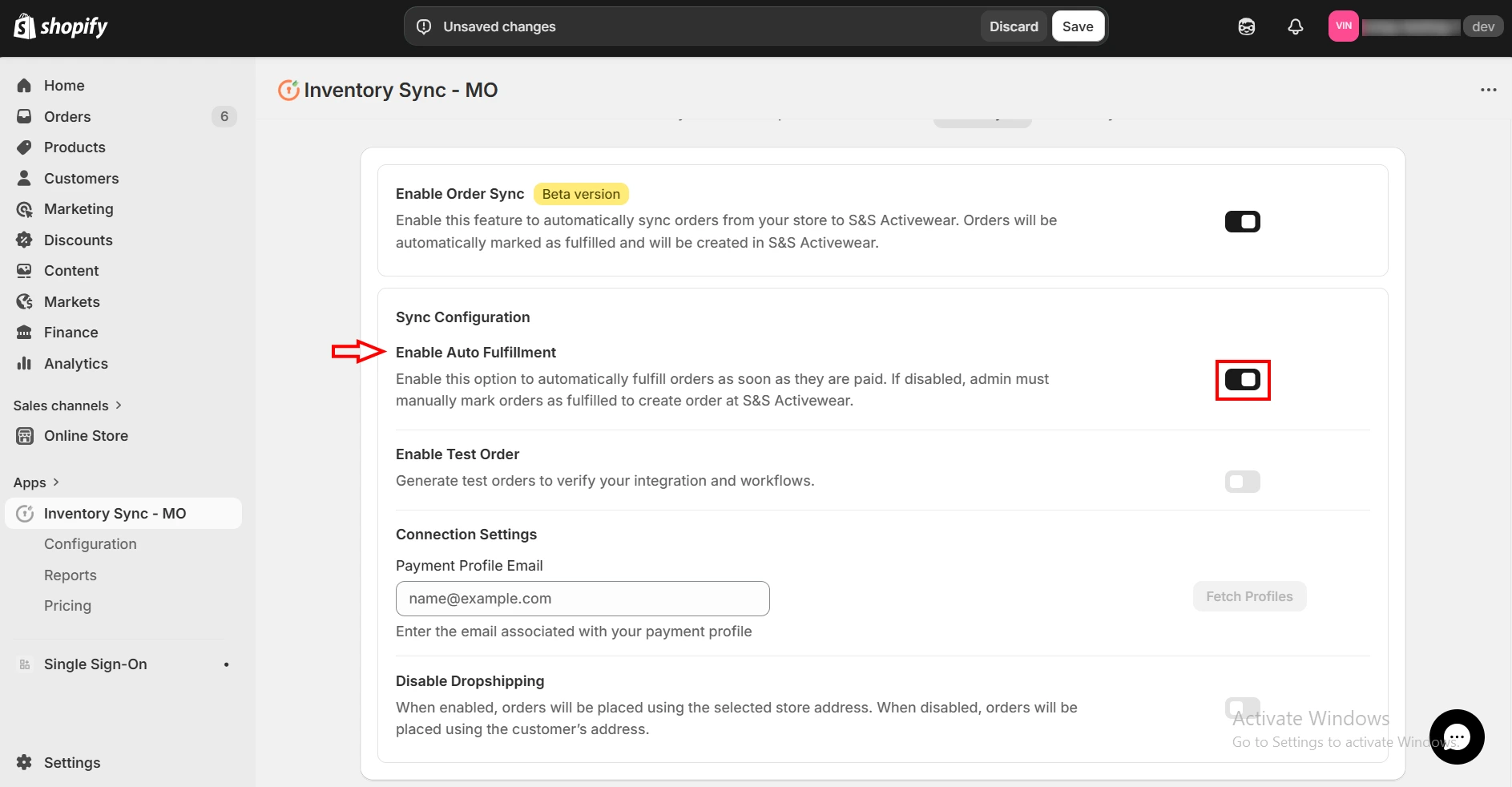
Enable Auto Fulfillment if you want orders to be automatically fulfilled once payment is completed. When enabled, orders are processed automatically without requiring any manual action to create them in the supplier. Otherwise, orders must be manually marked as fulfilled before they are created.
-
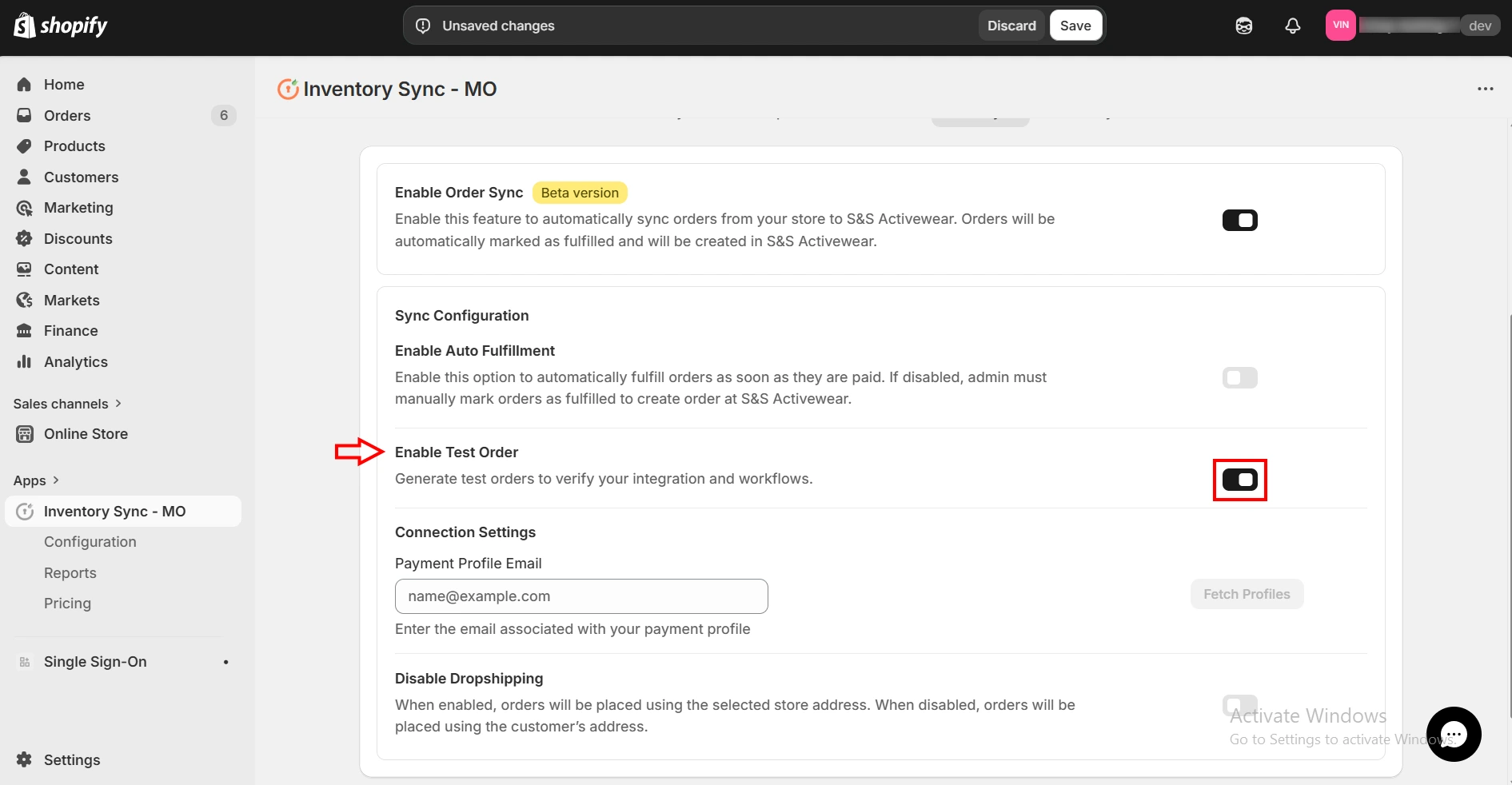
Enable the Test Order option to send test orders, validate the order processing workflow, and ensure that the integration with your supplier is working as expected.
-
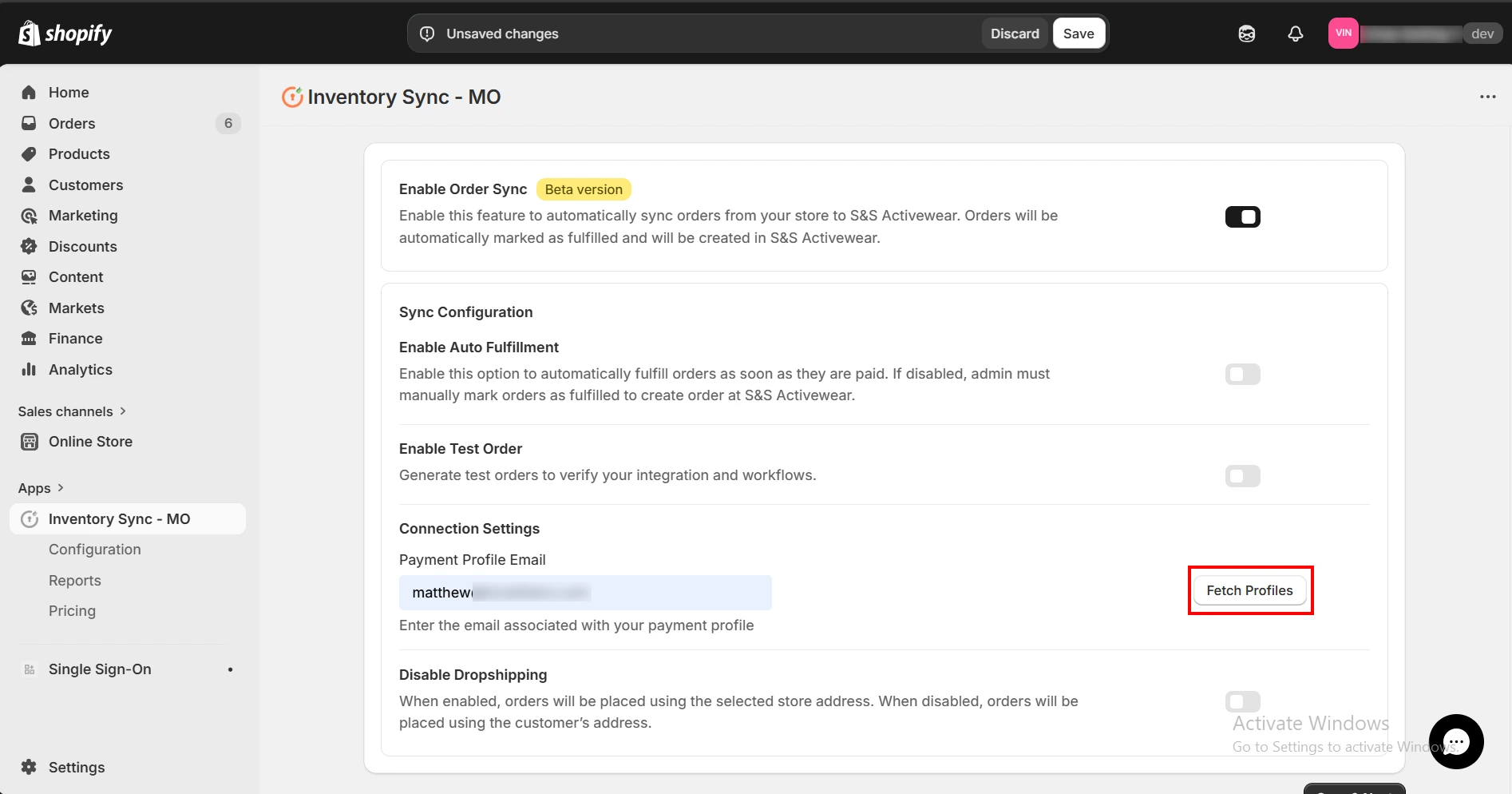
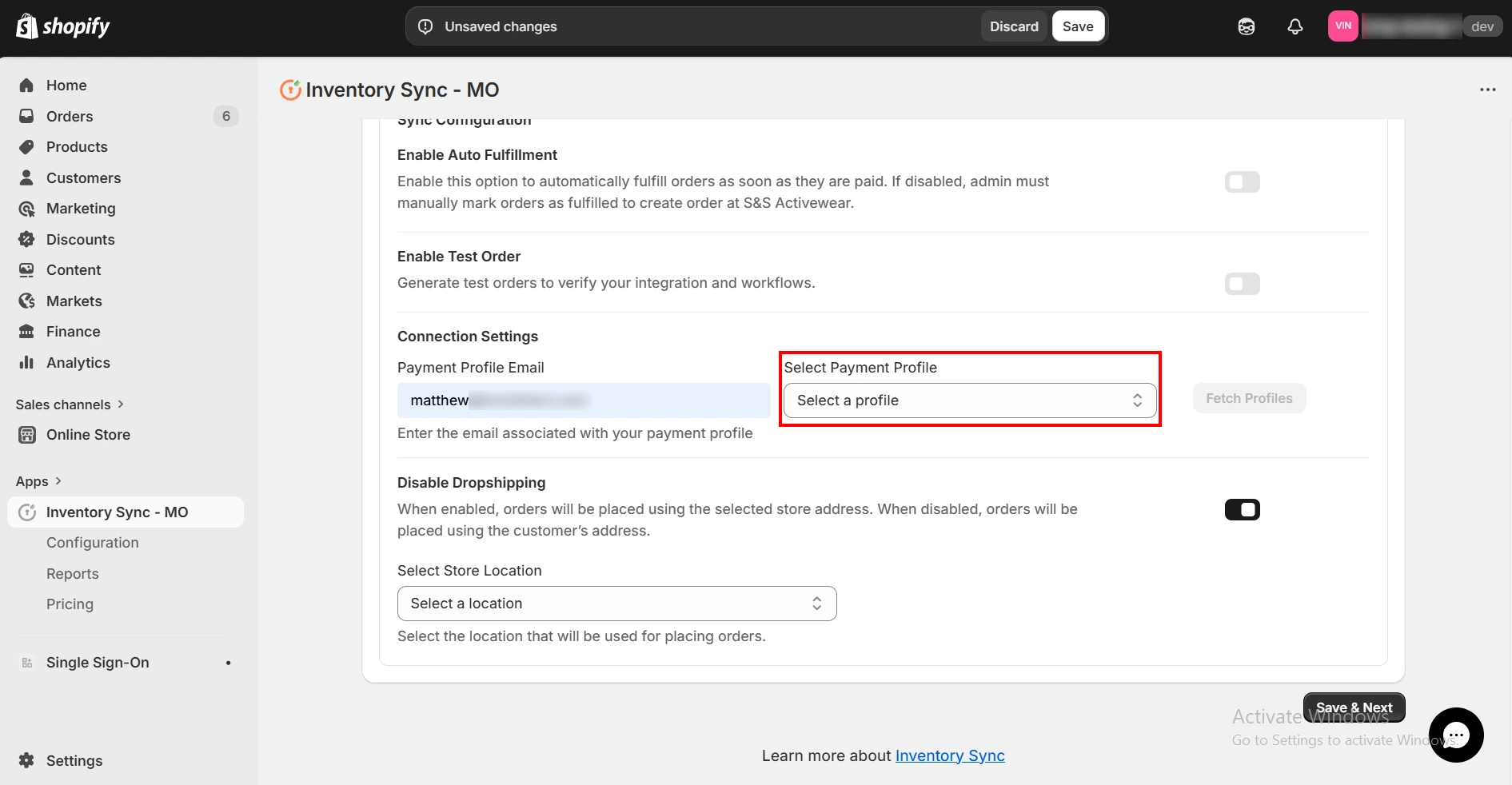
Under Connection Settings, configure the Payment Profile used to process orders. Enter the email address associated with your payment profile and click Fetch Profiles.
-
Select the appropriate Payment Profile from the dropdown list. The selected profile will be used to process orders in the supplier system.
-
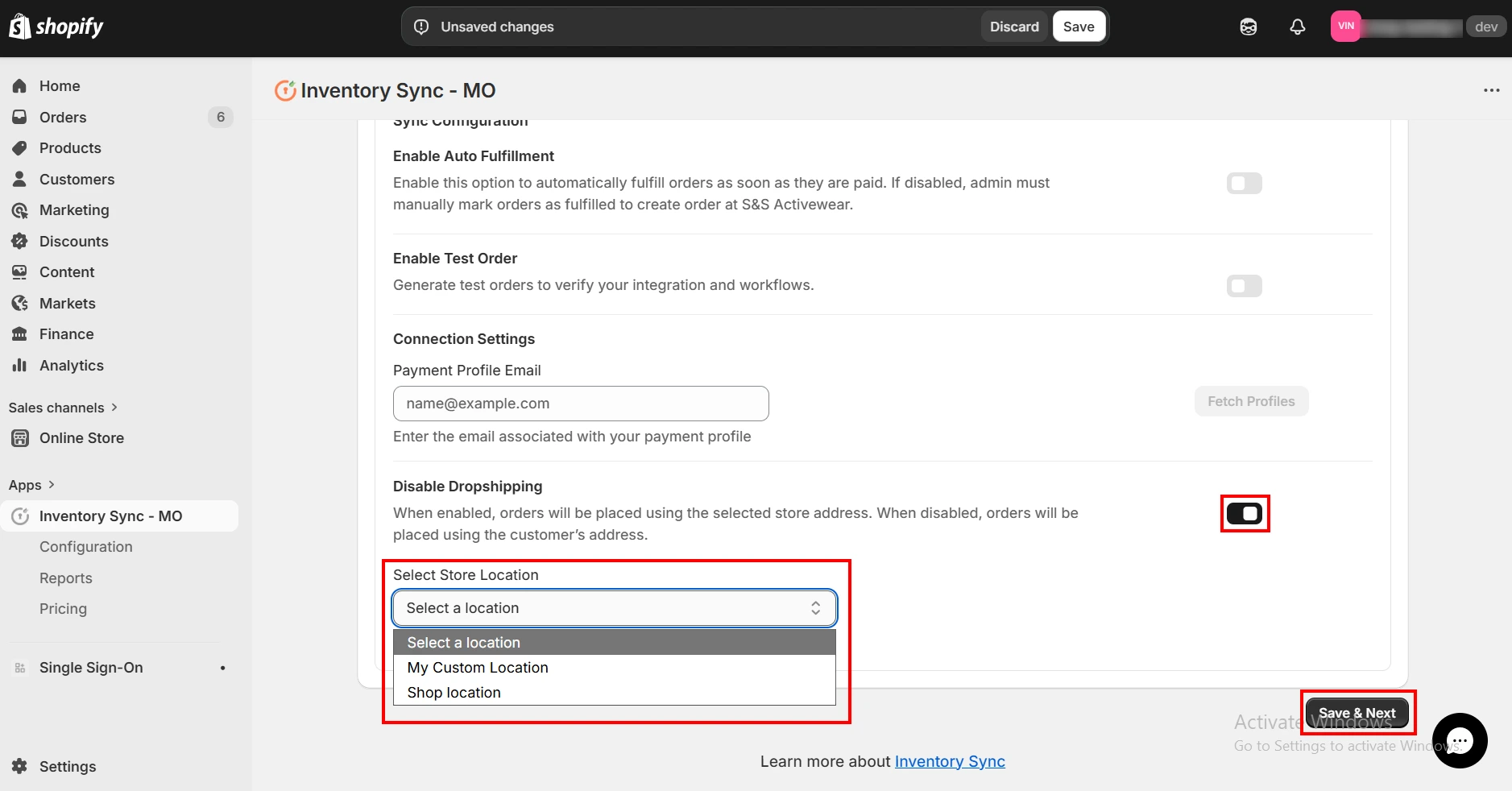
Locate and enable the Disable Dropshipping option as needed. When enabled, orders will be placed using the selected store address. When disabled, orders will be placed using the customer's shipping address.
-
Click Save & Next to apply the changes. Your Order Sync settings will now be active.
-
Once the configuration is complete, orders from your Shopify store will be automatically synced with your supplier. Order creation and fulfillment will follow the rules defined in the configuration settings. No manual intervention will be required for standard order processing.