Settings Tab
The Settings module allows administrators to configure security behavior, detection logic, notifications, and automation for migration and data security workflows. It ensures that the system aligns with organizational policies, compliance needs, and operational schedules.
Listed below are the configuration categories and their specific capabilities:
1. Admin Settings
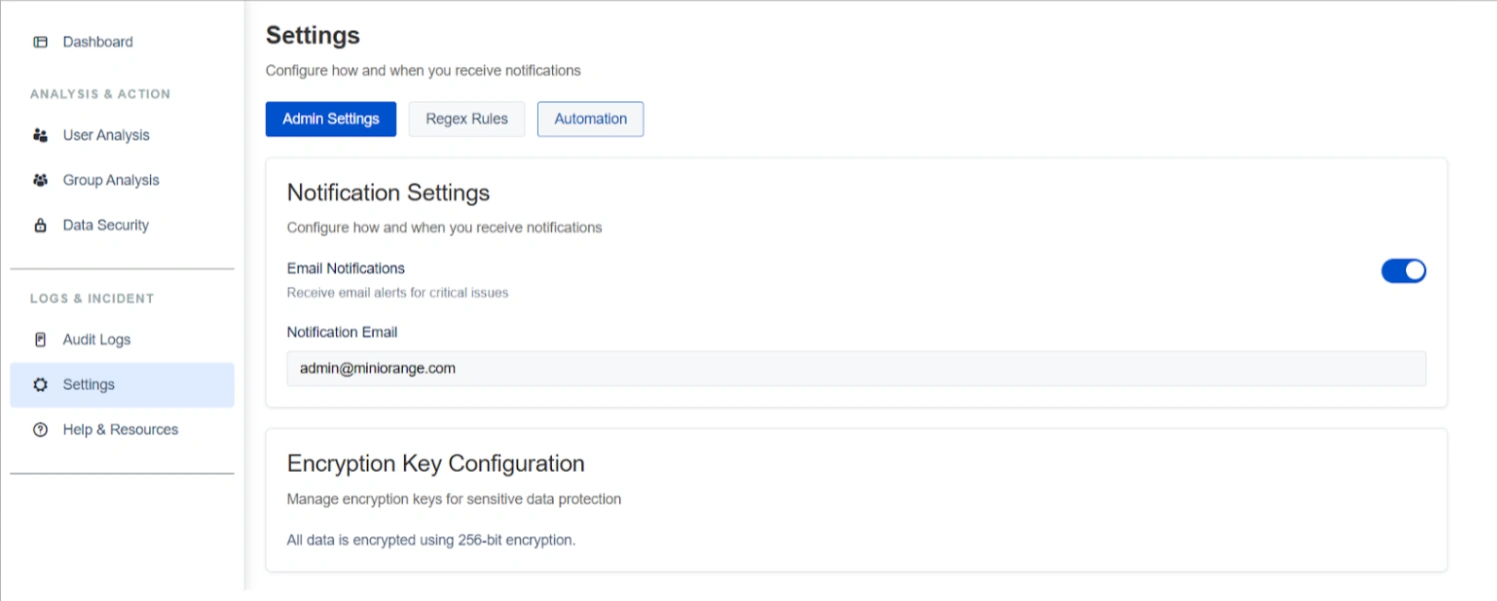
The Admin Settings sub-tab focuses on communication and data protection standards:
- Notification Settings: Administrators can enable or disable email alerts for critical security issues and important scan events. You can specify a recipient email address (e.g., admin@miniorange.com) to ensure high-risk findings are promptly addressed without manual monitoring.
- Encryption Key Configuration: This section manages the protection of sensitive data detected during scans. All data is secured using industry-standard 256-bit encryption. This ensures data remains protected during migration or third-party access and supports secure decryption post-migration via the Cloud add-on.
2. Regex Rules
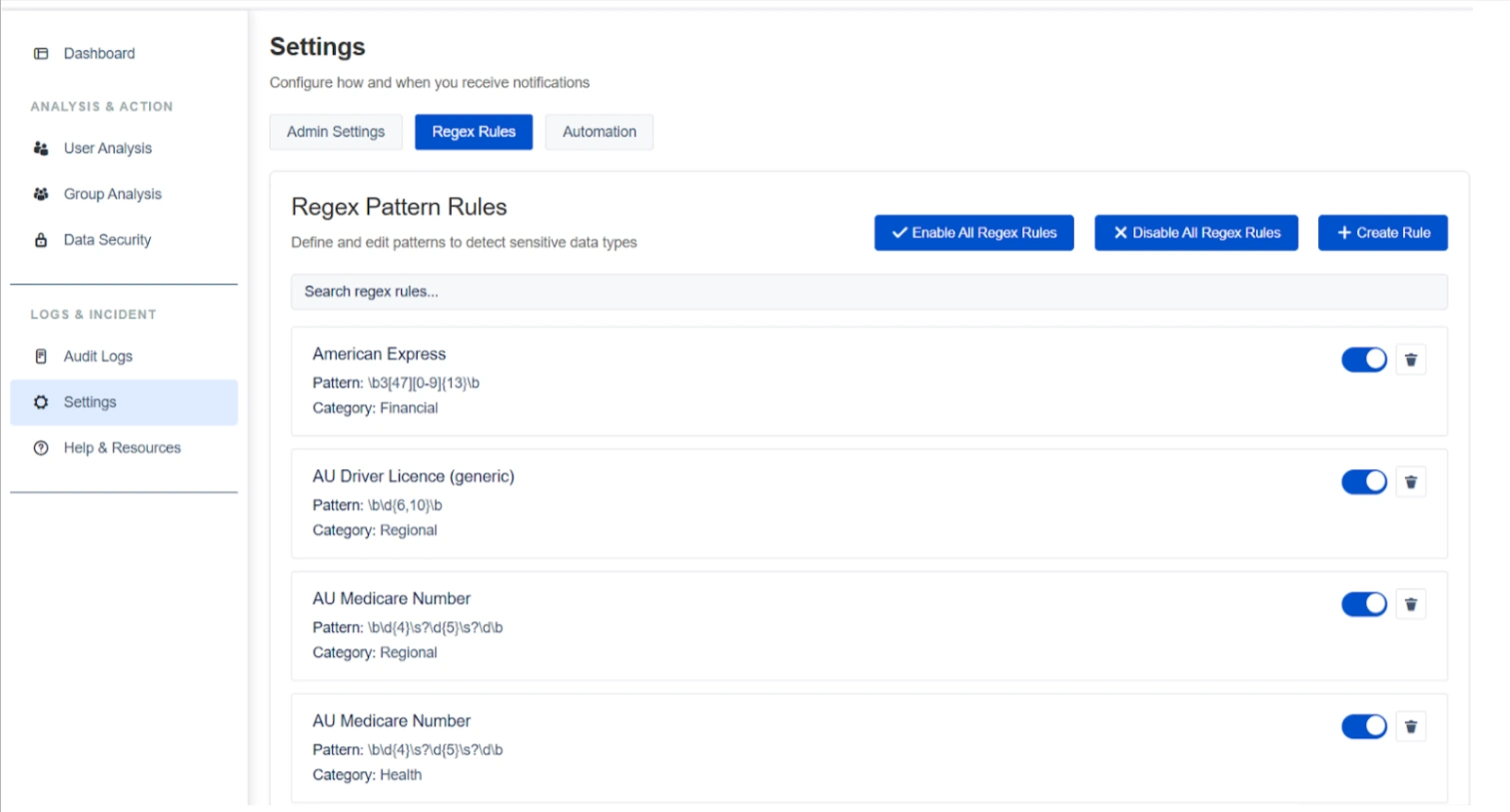
The Regex Rules sub-tab defines the detection logic used across Confluence spaces and pages:
Regex Pattern Rules
The system supports over 100+ built-in patterns covering categories such as financial (e.g., American Express), regional (e.g., AU Driver License), and health data.
Capabilities:
- Covers multiple categories such as financial, personal, regional, and compliance-related data
- Supports bulk enable/disable of all regex rules
Customization and Management
Administrators can create custom rules, search existing patterns, and utilize bulk actions to enable or disable all rules simultaneously.
Rule Toggles
Individual rules can be toggled on or off to fine-tune scanning accuracy and reduce false positives based on specific organizational requirements.
3. Automation
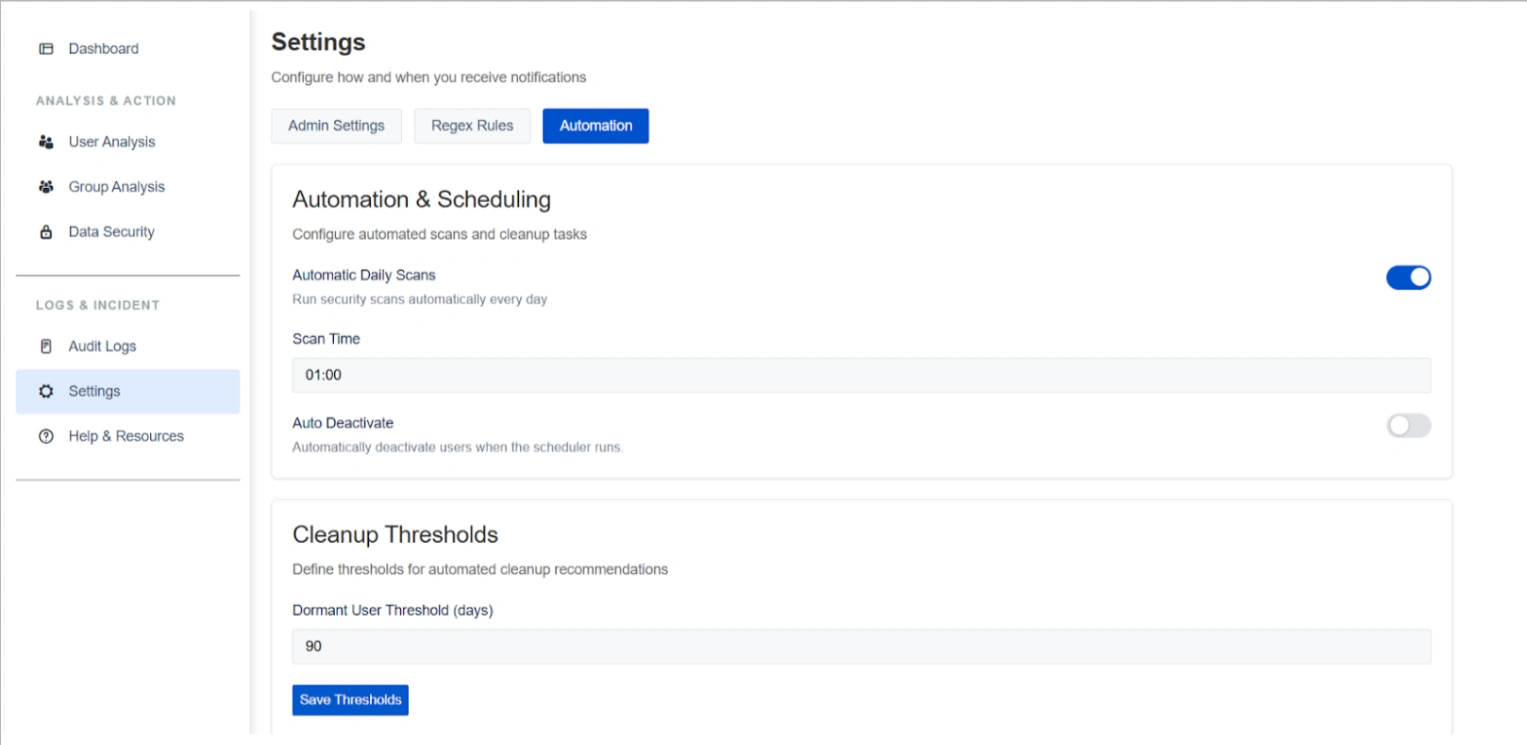
The Automation sub-tab streamlines continuous data hygiene and administrative maintenance:
Automation & Scheduling
You can enable Automatic Daily Scans and configure a specific scan execution time (e.g., 01:00) to ensure sensitive data is monitored as new content is added.
Capabilities:
- Enable automatic daily scans
- Configure scan execution time
- Run scans without manual intervention
Cleanup Thresholds
This setting defines the parameters for detection of dormant users. For example, a Dormant User Threshold can be set to 90 days to align cleanup behavior with corporate access policies.
Capabilities:
- Configure dormant user thresholds (e.g., 90 days)
- Apply consistent inactivity rules across the system
- Save and update thresholds as policies change
Use Case
Scenario: To maintain a clean environment during the three-month lead-up to migration, an admin sets an Automatic Daily Scan at 2:00 AM. This ensures that any new sensitive data is detected immediately.