User Analysis Tab
The User Analysis tab provides a comprehensive audit interface to ensure only essential, secure, and valid users are transitioned to Atlassian Cloud. By refining your user base before migration, you directly reduce Cloud licensing costs, minimize security risks, and prevent identity-related migration failures.
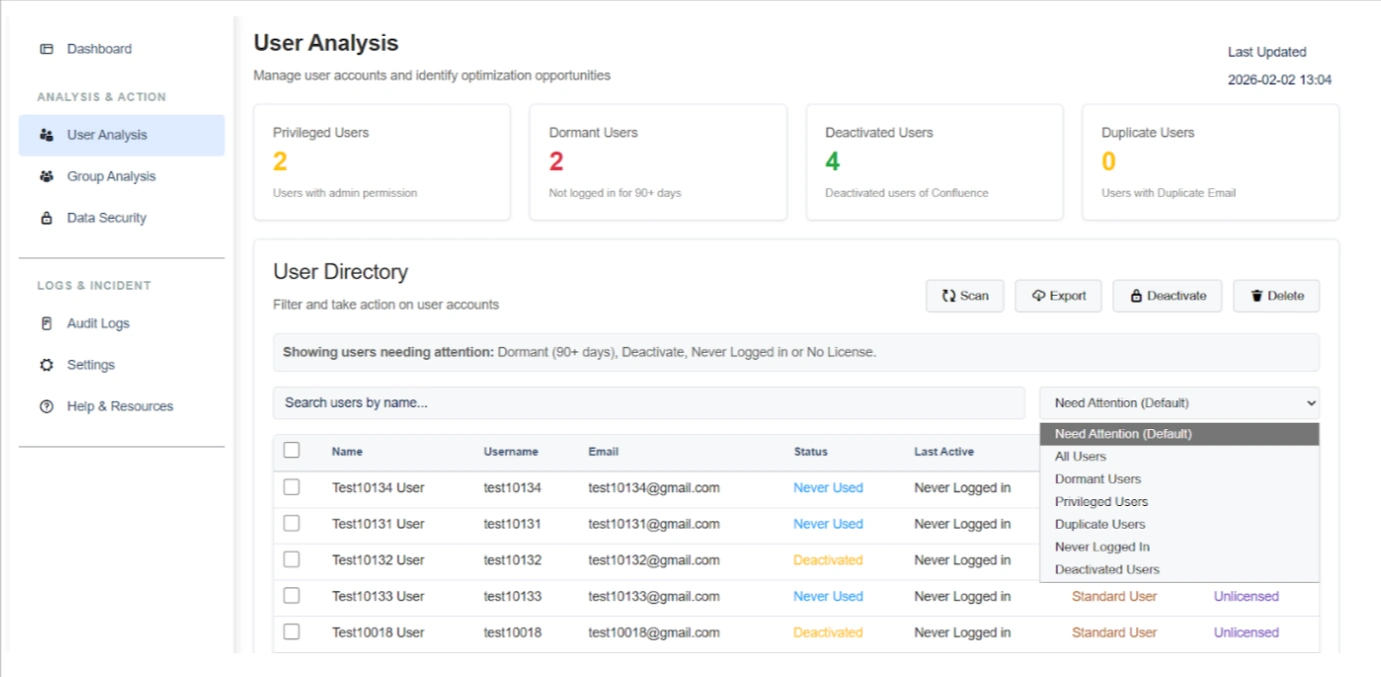
Listed below are the steps and settings required to optimize your user directory:
1. User Health & Categorization
The top dashboard widgets provide a real-time summary of accounts that require administrative intervention:
- Privileged Users: Identifies users with administrative or elevated permissions to ensure only required roles are mapped to the Cloud.
- Dormant Users: Highlights accounts that have not logged in for a configurable period (e.g., 90+ days) and are unlikely to require a Cloud license.
- Deactivated Users: Tracks accounts already deactivated in the system to exclude them from unnecessary data transfer.
- Duplicate Users: Flags multiple users sharing the same email address, which is critical since Atlassian Cloud enforces unique email-based identity.
2. Targeted Identification
The User Directory enables administrators to quickly locate specific users using the search bar and filtering controls. By entering any relevant parameter, such as name, username, or email, the system dynamically displays matching results.
In addition to keyword search, administrators can refine results using the dropdown filter. By default, the directory displays users categorized under “Needs Attention.” This view can be adjusted to focus on specific user segments, including:
- Dormant users
- Privileged users
- Deactivated users
- Never logged-in users
- Duplicate users
- All users
These flexible search and filtering capabilities provide streamlined visibility into user populations and support efficient account review and management.
3. Cleanup & Management Actions
Once users are identified, the interface provides several primary operations to clean the environment:
- Scan: Trigger a fresh analysis of the user directory to capture the latest login activity and identity changes.
- Deactivate: Disable access for dormant or unnecessary users in bulk to instantly lower migration risk.
- Delete: Permanently remove unwanted accounts to keep the final Cloud user base as lean as possible.
- Export: Download a comprehensive CSV report for stakeholder audits and precise license planning.
Benefits
By following these optimization steps, you achieve three primary outcomes:
- Cost Reduction: Lowering Cloud license costs by migrating only active, valid users.
- Conflict Prevention: Resolving duplicate email IDs before they cause migration failures.
- Security Posture: Ensuring that privileged access is verified and external domain access is strictly controlled before the cutover.
Use Case
Scenario: An admin discovers 500 Dormant Users who haven't logged in for over six months. To save on Atlassian Cloud licensing costs, they use the "Never Logged-in" filter to isolate these users and perform a Bulk Deactivation. They then Export the list to provide documentation to the finance department showing the projected cost savings for the Cloud migration.