Scheduler & Cleanup
The Scheduler & Cleanup tab automates the removal, suspension, or deactivation of inactive users across all connected Atlassian products.
It helps admins maintain license hygiene, reduce unused seats, and enforce access policies through scheduled cleanup rules.
Cleanup Rules Management
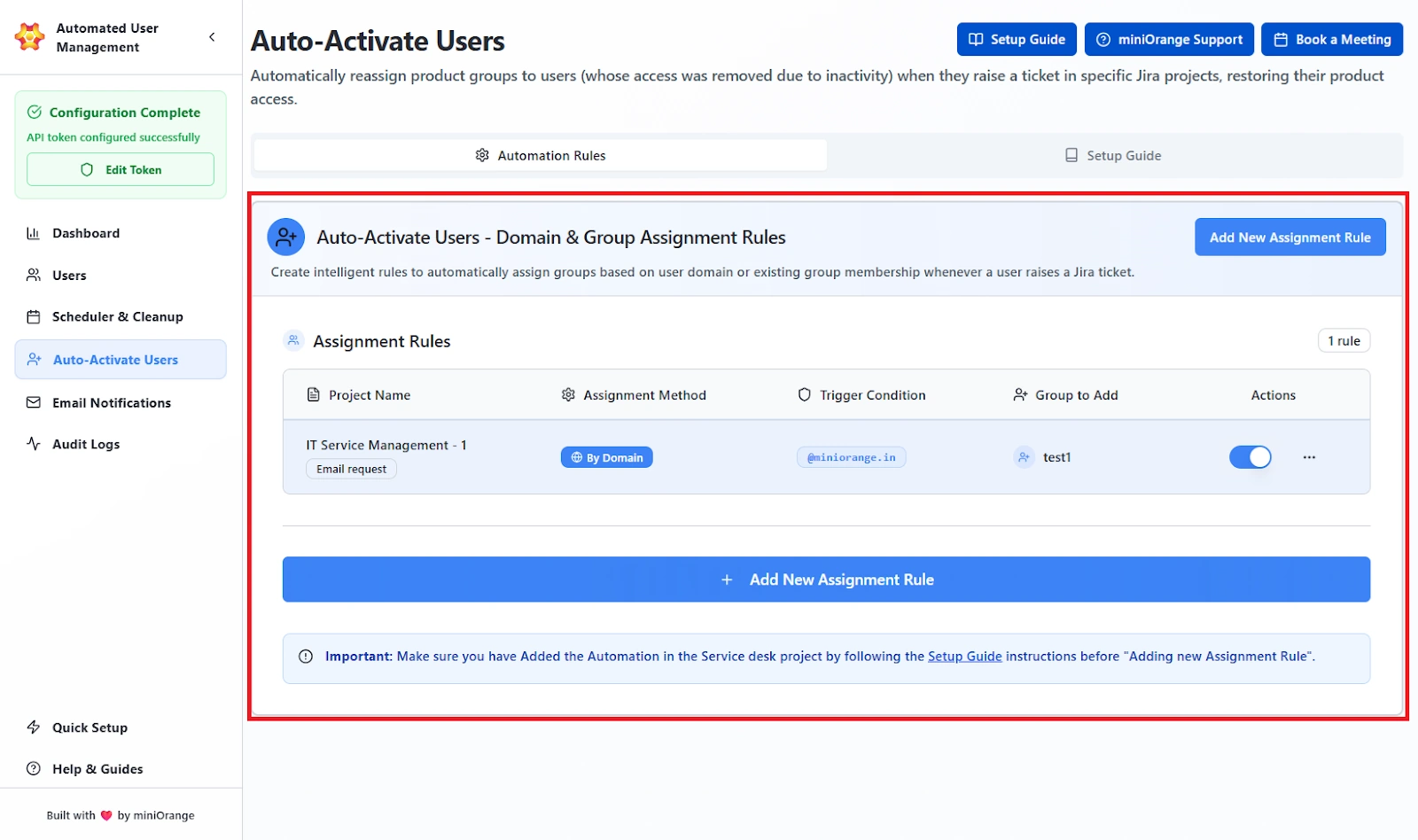
This area lists all existing cleanup rules and provides direct control over their status and execution. One can see the following details:
Runs Globally / Product-Specific
This indicates the scope of the rule.
- Runs Globally: The rule applies to all Atlassian products.
- Product-Specific: The rule applies only to the product selected when the rule was created.
Example: If the rule is set to Jira Service Management, users inactive in JSM will be affected by the rule, but inactivity in Jira Software is ignored.
Inactivity Period
Shows the exact number of days a user must go without logging in to the selected product(s) before the rule considers them "inactive."
This is a fixed threshold, not a range, and the rule will only target users who cross this number of days.
Run Frequency
Defines how often the rule executes automatically.
Common options include daily, weekly, or monthly.
Whatever frequency is shown here is exactly when the system checks for users who meet the rule’s criteria and takes action.
Protected Groups
Lists the user groups that are never affected by this rule, even if their members match the inactivity criteria.
If a user belongs to one of these groups, the rule will skip them entirely.
This prevents accidental cleanup of VIPs, administrators, or essential teams.
Last Run
Displays the most recent date and time the rule was executed.
If this shows a blank, it means the rule has either never been run.
The following rule actions are also provided:
Resume / Pause
This toggles whether the rule is active.
- Resume: The rule will start running on its scheduled frequency again.
- Pause: The rule stops running entirely until resumed.
Pausing a rule means no cleanup actions will occur, even if users meet the inactivity condition.
Run Now
Immediately executes the rule, regardless of its scheduled time.
Useful when you need to perform cleanup on demand instead of waiting for the next automated run.
Edit
Opens the rule setup screen so you can change any part of the configuration, including scope, inactivity period, protected groups, frequency, or actions.
Changes take effect the next time the rule runs (or immediately if you use Run Now).
Delete Rule
Permanently removes the rule from the system.
Once deleted, the rule cannot be recovered, and all its settings are lost.
Creating a New Cleanup Rule
Administrators can create a new rule by clicking Create Rule.
The process is divided into several configuration sections that define the rule’s logic, target, and schedule.
1. Schedule Configuration
This section defines how the rule will behave and be identified.
Fields:
Scheduling Display Name:
Enter a descriptive title for the rule (e.g., Deactivate Inactive Jira Users - 60 Days).
Execution Mode:
Choose between two operational modes:
-
Safe Mode (Recommended):
Runs in audit-only mode. Generates reports but does not make any changes. This helps in previewing affected users before live enforcement. -
Live Mode:
Executes real cleanup actions immediately upon running. Admins can apply configured deactivation, suspension, or access removal automatically.
Actions to Perform:
Select one of the available automation actions:
-
Deactivate (Managed Users Only): Disables managed accounts at the organization level. Users lose access to all Atlassian products until reactivated. Only works for IdP-managed users.
-
Suspend Users (All Users): Temporarily blocks access for any inactive user (managed or unmanaged). The account stays intact and can be restored later.
-
Remove Product Access: Removes users from product-specific access groups without disabling their account. Admins choose which products the rule targets:
- Jira Software
- Confluence
- Jira Service Management
- Bitbucket
2. Selection Criteria
Define the conditions used to identify users targeted by this cleanup rule. The following options are provided to define the criteria:
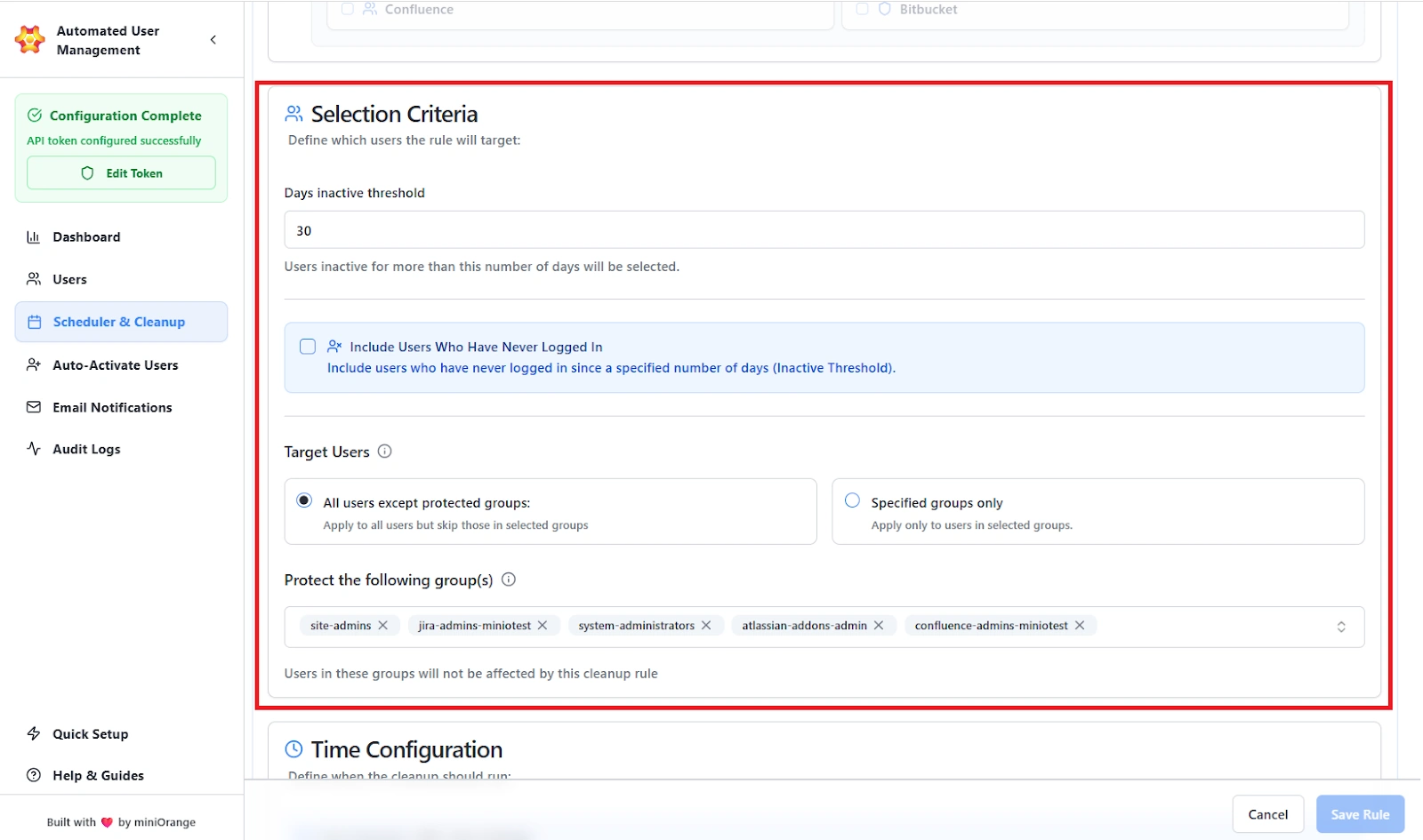
Days Inactive Threshold:
Enter the number of inactive days after which users should be flagged (e.g., 30 days).
This will check the global last login date and deactivate/suspend users accordingly.
Similarly, it will check product-specific last login data to remove product access.
Include Users Who Have Never Logged In:
Optionally target users who have never accessed any Atlassian application.
The admins can mention the threshold number of days after which the configured rule will be executed.
The threshold will be checked against the date the invite was sent.
Target Users
Define which users the rule will evaluate or exclude. The following options are provided:
-
All Users Except Protected Groups:
The rule applies to every user except those in the groups you mark as protected. Anyone in a protected group is completely excluded from cleanup actions. -
Specified Groups Only:
The rule targets only the users who belong to the groups you select. No one outside those groups is affected.
3. Time Configuration
Define when and how often the cleanup rule should execute. The fields provided to configure are:
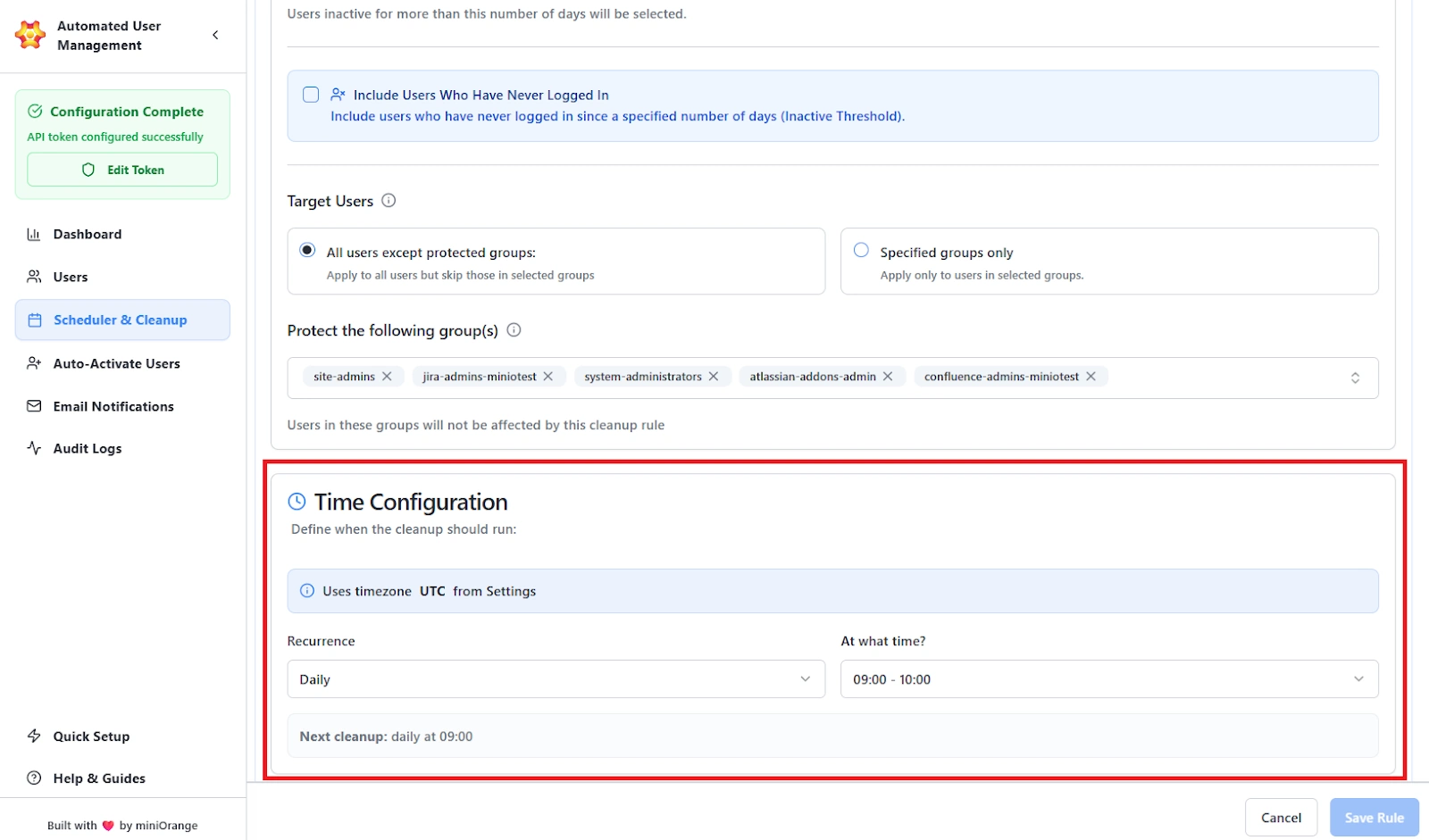
Uses Timezone:
The rule follows the timezone set in the app settings.
If nothing is changed, it uses UTC.
Recurrence:
Choose how often the cleanup runs:
- Daily
- Weekly
- Monthly
Execution Time:
Select the exact time for rule execution (e.g., 09:00–10:00).
Next Cleanup:
Shows the date and time of the upcoming scheduled run.
4. Save and Manage Rule
Once configuration is complete:
- Click Save Rule to finalize.
- The rule appears in the Cleanup Rules Management list.
Use Case Scenario
Your security policy requires automatically suspending every user who hasn’t logged into Jira for 60 or more days, while making sure administrator accounts are never touched.
How it works
- Create a new Cleanup Rule with:
- Action: Suspend
- Product: Jira
- Inactivity Threshold: 60 days
- Protected Groups: jira-admins
- Mode: Safe Mode
- Let the rule run in Safe Mode to see exactly which accounts would be suspended.
- Once the results look correct, switch the rule to Live Mode so the cleanup runs automatically on schedule.
Benefit
This setup enforces your compliance requirements without relying on anyone to remember periodic checks. It keeps unused licenses from piling up, protects high-privilege admin accounts, and ensures the system stays clean with zero manual effort.