Help & Guides
The Help & Guides tab provides administrators with quick access to setup resources, documentation, and support channels to help configure and maintain the Automated User Management app efficiently.
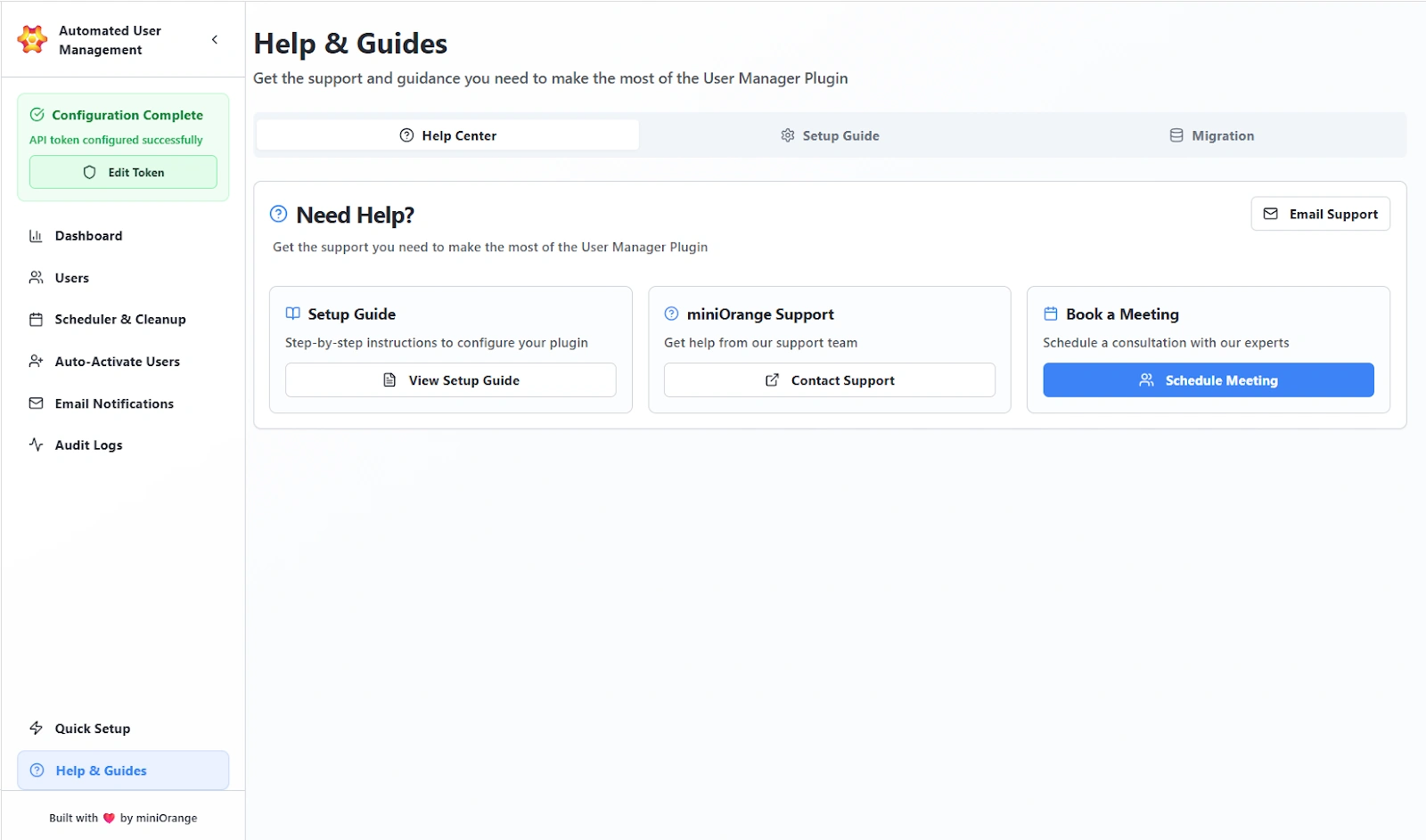
It serves as the central reference point for guidance, troubleshooting, and plugin maintenance tasks.
Help Center
The Help Center section acts as a quick-access dashboard for all support and assistance options. It allows admins to reach setup instructions, contact the miniOrange support team, or schedule live assistance. The following options are provided under Help Center:
-
Setup Guide: Opens the detailed configuration manual for the app. This provides step-by-step guidance to complete installation, API configuration, and initial rule setup.
-
miniOrange Support: Admins can directly contact the miniOrange support team. They can use this option for technical help, troubleshooting errors, or configuration guidance.
-
Book a Meeting: The option lets administrators schedule a free personalized session with a miniOrange expert for assistance with deployment or troubleshooting.
-
Email Support: Opens a direct mail channel for asynchronous communication with the support team.
Setup Guide
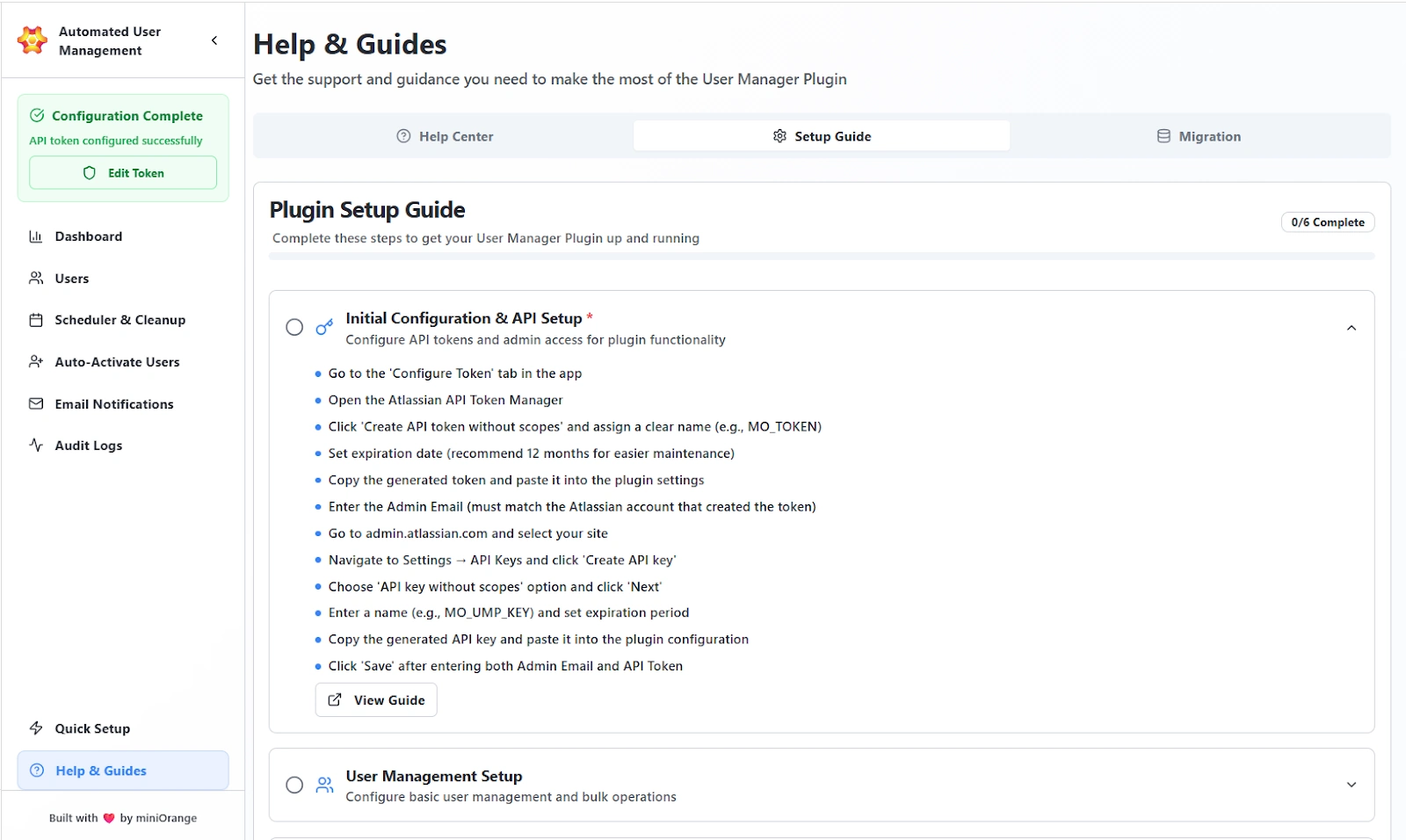
The Setup Guide tab walks administrators through the full process of configuring the Automated User Management app from scratch.
It’s divided into structured modules covering everything from token setup to user management configuration.
Migration Management
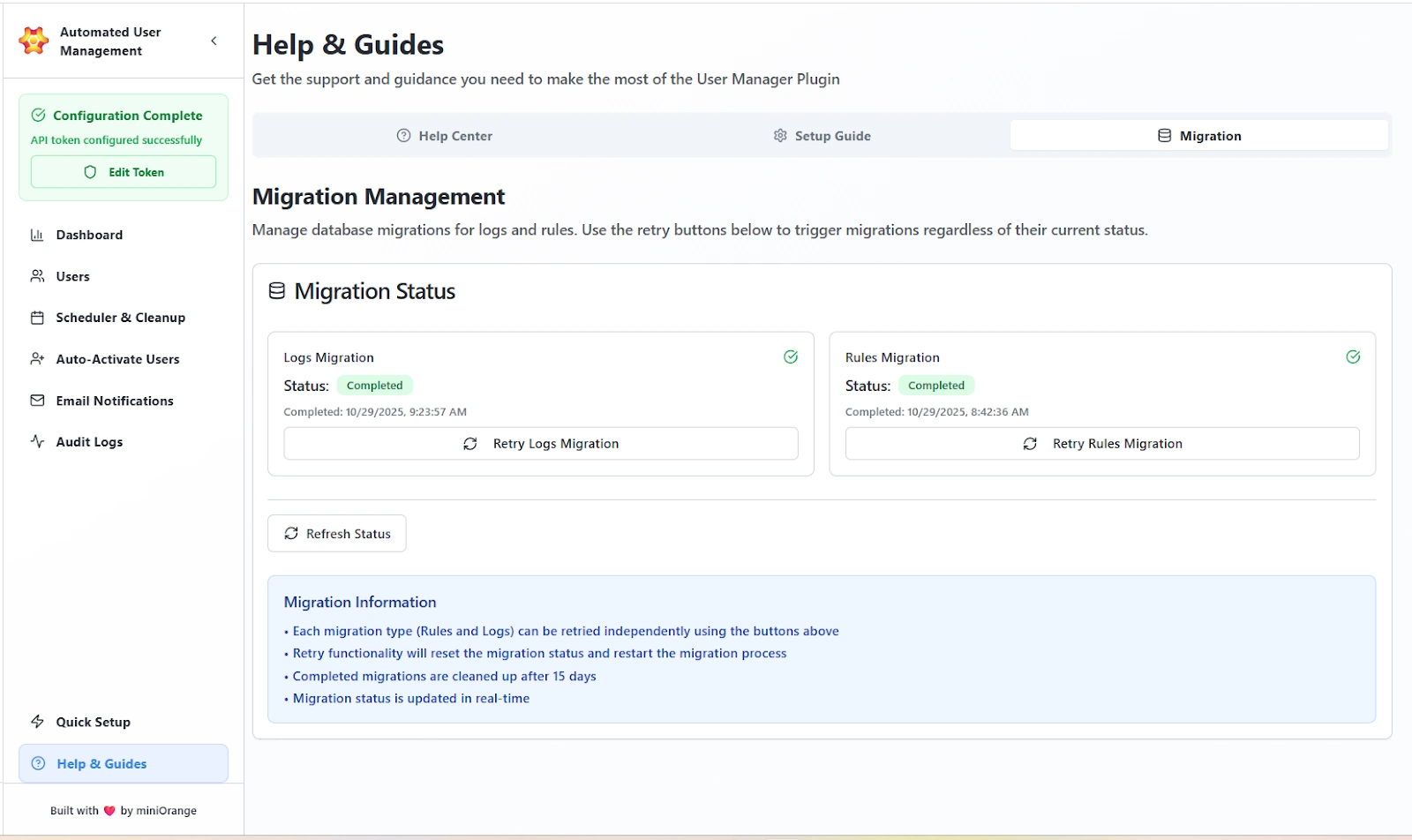
The Migration tab allows administrators to monitor and manage internal database migrations related to rules, logs, and operations history.
Features Provided
Migration Status
Displays the latest migration results for:
- Logs Migration: Tracks and updates log data migration.
- Rules Migration: Manages migration of configured rules and automation settings.
Each migration entry includes:
- Status: Completed / In Progress / Failed
- Completion Timestamp: Date and time (in UTC) when the migration was last executed.
- Retry Option: Re-run individual migration processes if needed.
- Refresh Status: Updates the migration progress display.
Migration Information Panel
Provides important notes regarding migration functionality:
- Each migration type (Rules and Logs) can be retried independently.
- Retrying a migration resets its status and restarts the process.
- Completed migrations are automatically cleaned up after 15 days.
- Migration progress is updated in real time.