Pagination
When integrating with a supplier's API that returns paginated responses, it's essential to ensure that all data is synchronized properly into your WooCommerce store. Since the data is delivered in multiple pages, you need to manage the pagination effectively to retrieve and sync every piece of information.
Below are the steps to help you seamlessly fetch and integrate all pages of data into your WooCommerce store, ensuring that your product catalog remains up-to-date and complete.
1. Go to Sync Settings → Optimization → Page Settings.
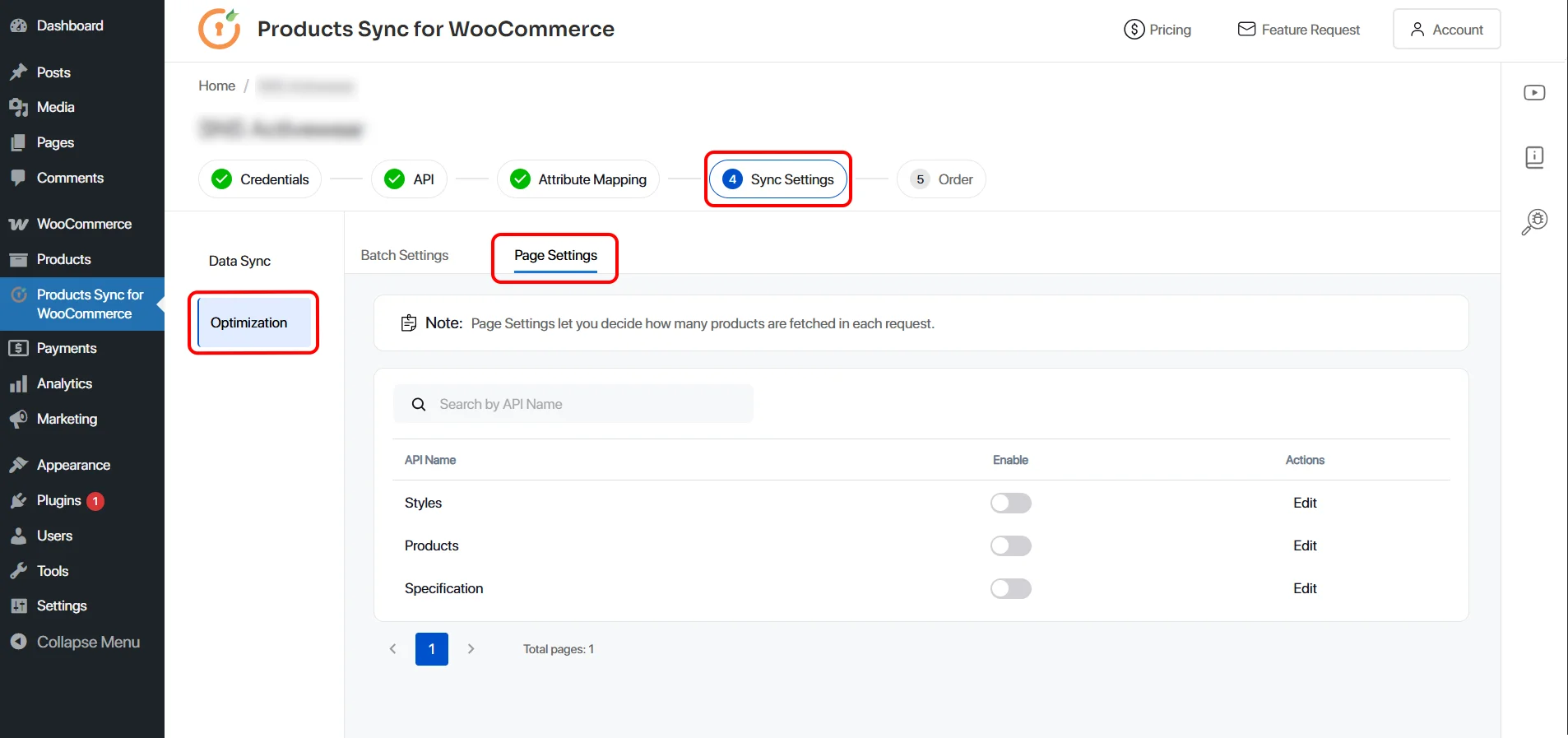
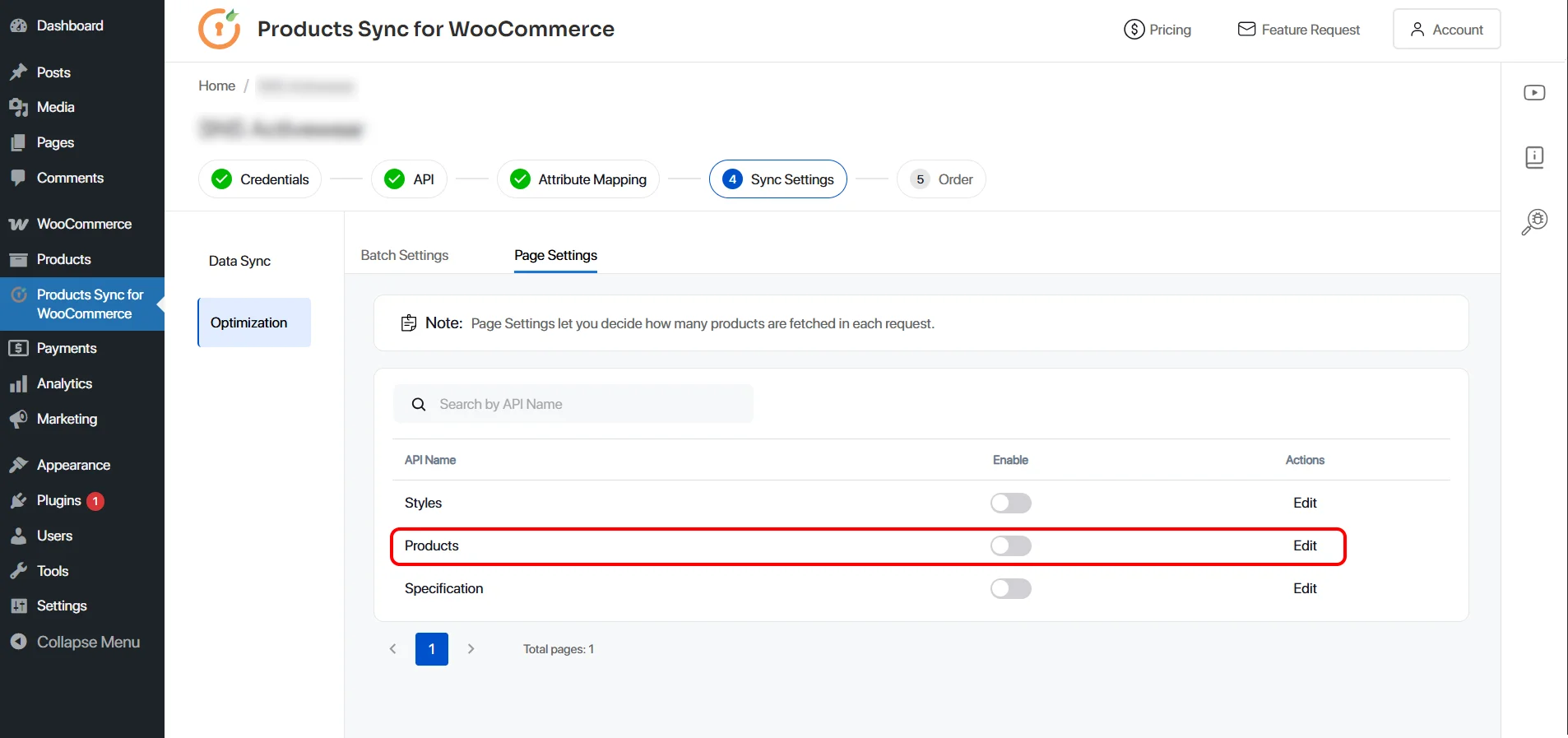
2. Choose the connection for which you want to enable the Pagination and click Edit.
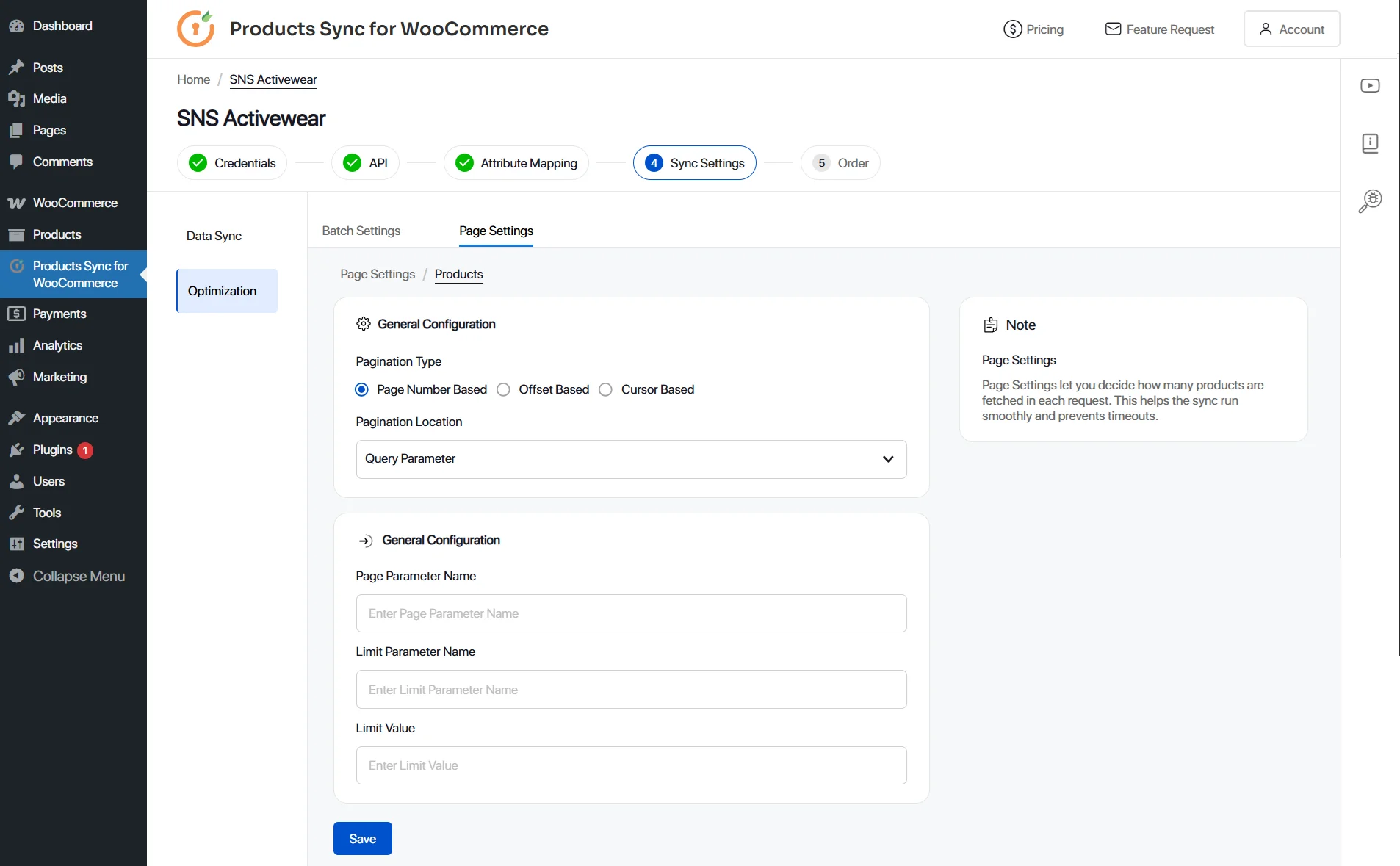
3. Enter the required details and Save the settings.
Note:
- You can send the page number in URL, Body or Headers.
Example: GET https://api.example.com/resource?page=2- You can also limit the number of products in a single API call by utilizing the Limit Parameter Name and Value field.
- There is also Offset based pagination to indicate where the next page should begin.
GET https://example.com/api/products?offset=10&limit=10- You can also use Cursor Based pagination if your supplier sends reference to the next page.
{
"data": [...],
"next_cursor": "abc123"
}