Scheduling
If you’d like the products to update automatically, you can enable scheduling for the specific connection. This ensures the sync runs at the specified time without manual intervention. To set it up, follow these steps:
1. Go to Sync Settings → Data Sync → Sync Schedule.
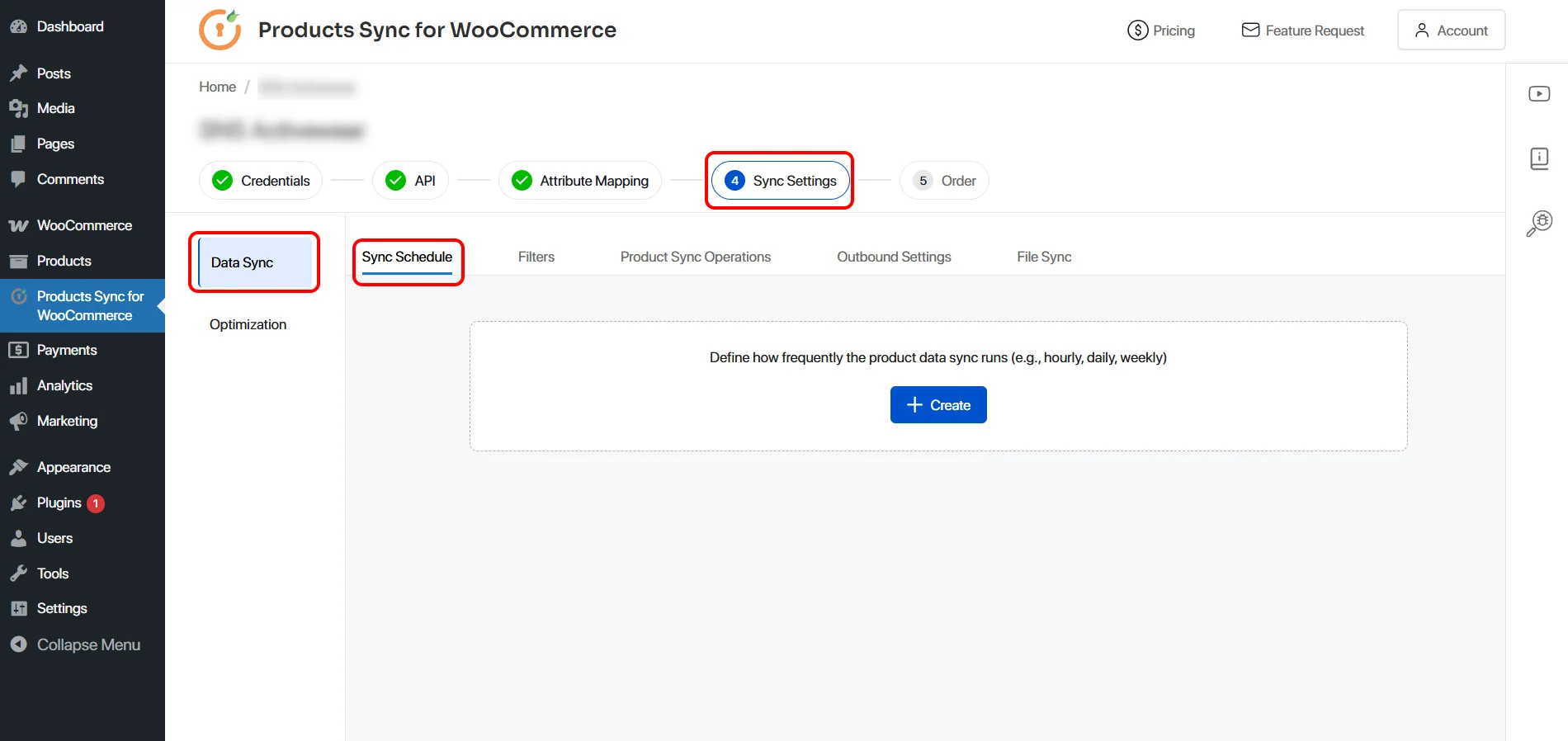
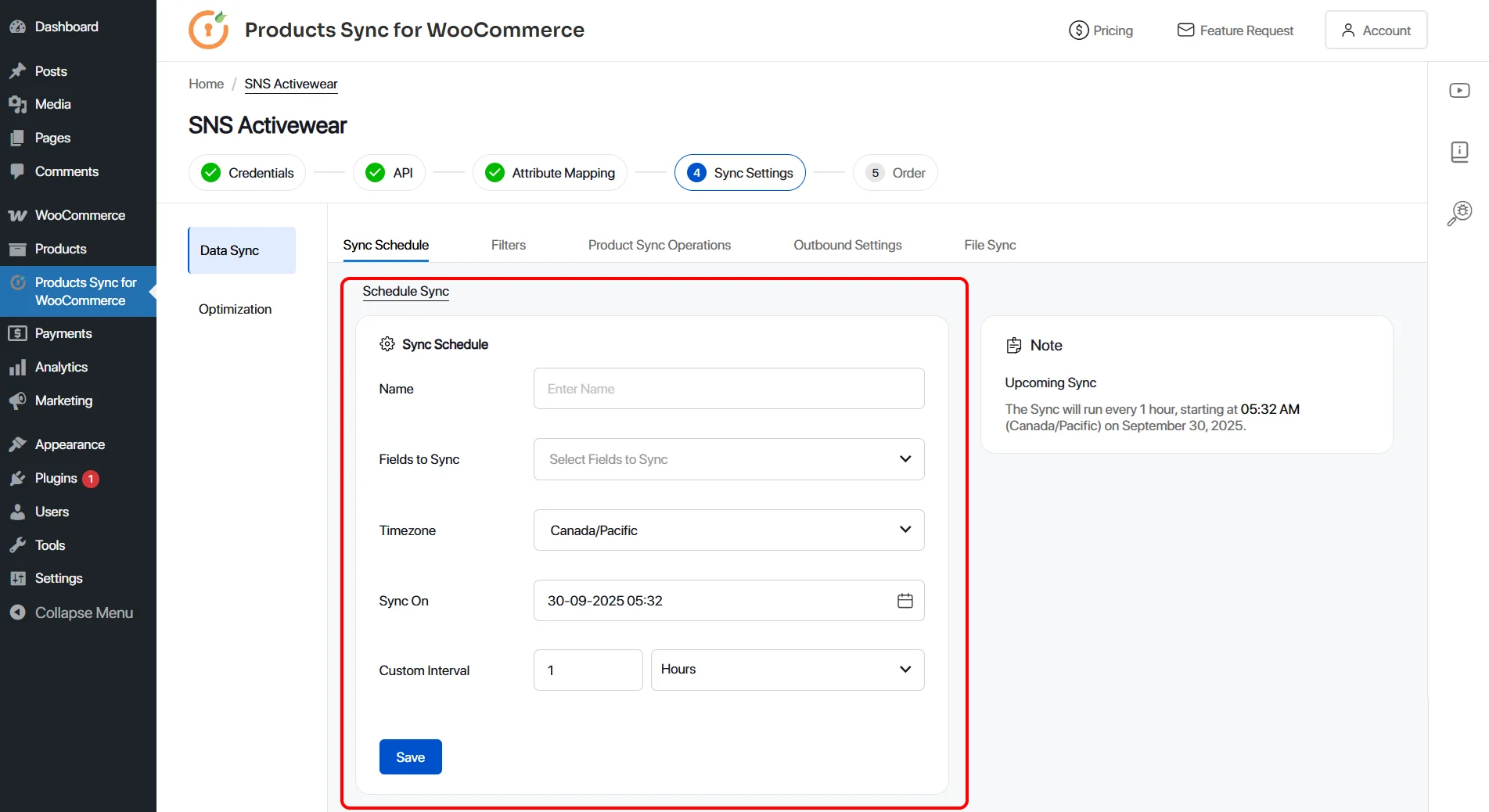
2. Create a new schedule and fill the required fields.
Note:
- You can name the Schedule and select which attributes you want to import during the automatic schedule.
- Sync On lets you choose the time to run the first sync.
- You can define the sync interval for auto import in the Custom Interval fields.
- You can also limit the number of products in a single API call by utilizing the Limit Parameter Name and Value field.
There is also Offset based pagination to indicate where the next page should begin.
GET https://example.com/api/products?offset=10&limit=10
You can also use Cursor Based pagination if your supplier sends reference to the next page.
{
"data": [...],
"next_cursor": "abc123"
}