Schedule Sync: Salesforce to WordPress
When to Use the Schedule Sync Feature?
Use Schedule Sync for:
-
Automatic Recurring Syncs: Keeping Salesforce and WordPress synchronized at fixed intervals without manual action.
-
Regular Data Updates: Ensuring WordPress stays updated as Salesforce data changes frequently.
-
Bulk Scheduled Processing: Running bulk syncs automatically for all enabled mappings instead of relying on real-time updates.
-
Reliable Cron Execution: Maintaining scheduled syncs on sites that receive enough traffic for WP-Cron to trigger on time.
What happens during initial activation?
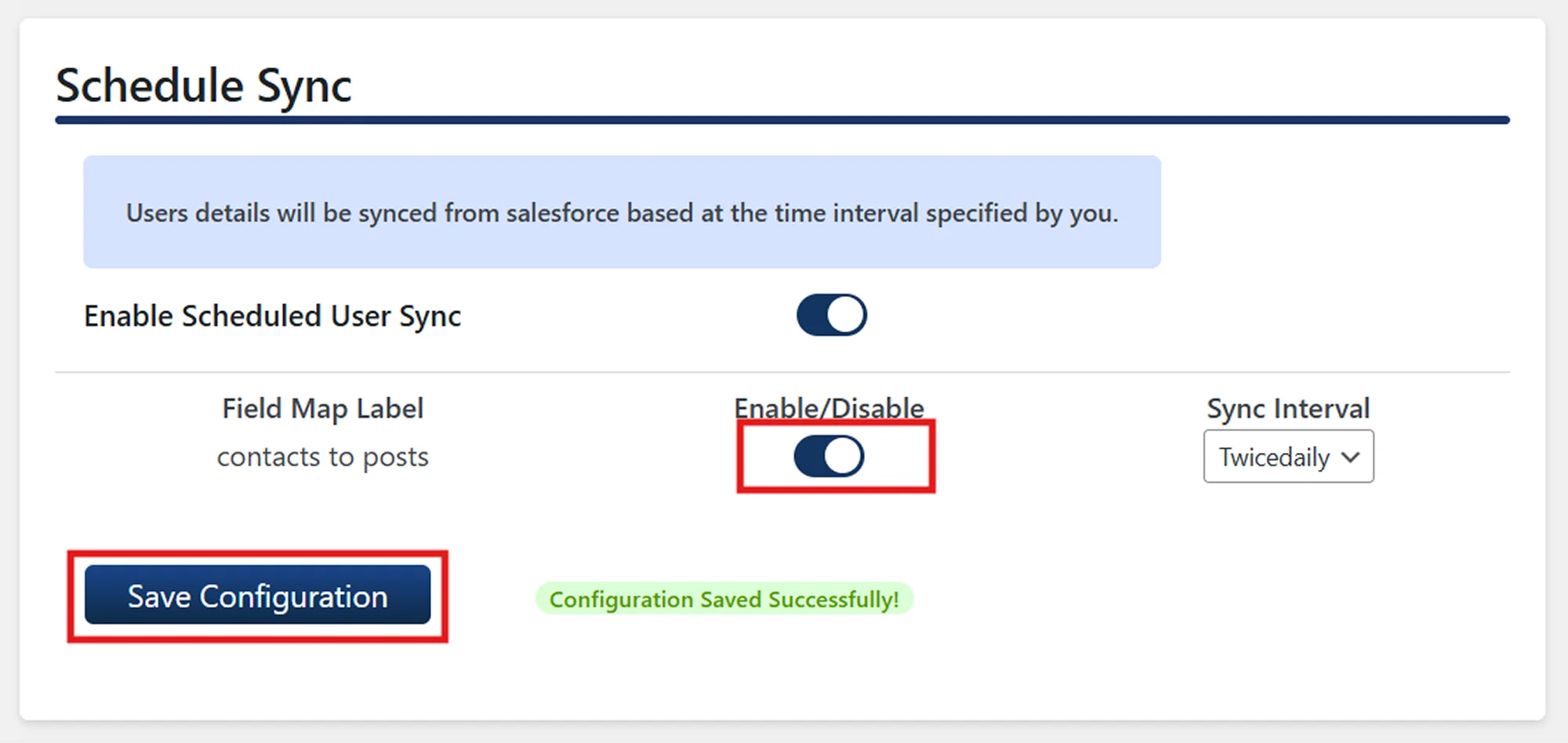
When you enable the Schedule Sync toggle and click the Save Configuration button.
The system will immediately initiate and schedule a cron job to perform the first bulk synchronization from Salesforce to WordPress for all mappings that have the Schedule Sync toggle enabled.
How Recurring Syncs Are Scheduled?
After the initial sync completes, the plugin automatically executes the future syncs based on the Sync Interval you choose.
Available intervals include:
- Daily (every 24 hours)
- Twice Daily (every 12 hours)
- Every 10 Minutes
The next sync execution time is calculated based on the timestamp of the last successful sync execution (Current Timestamp - Last successful sync execution time).
So once the next execution time is reached, the plugin schedules a new WordPress cron job to start the bulk synchronization.
Because WordPress cron relies on site visits to trigger scheduled crons, your site must receive traffic when the cron is due in order for it to run.
Example:
If the first sync completes at 1:00 PM and the sync interval is set to Daily (every 24 hours), the next sync is scheduled for 1:00 PM the following day, but it will only run when your site receives traffic.
To ensure the sync runs at the intended time, your site must receive traffic around that time. If no traffic occurs at 1:00 PM, the sync will run as soon as the site receives its next visit after that time.
How does WordPress Cron work?
The Schedule Sync feature relies on WordPress Crons (WP-Cron) for cron job execution. WP-Cron does not run automatically in the background. Instead, it is triggered only when your site receives traffic (such as a page visit or refresh) and its execution time has arrived or passed.
Because of this:
- A sync will run on time only if traffic occurs at the scheduled moment.
- If there is no traffic, the sync will run the next time someone visits your website after the scheduled time has passed.
Example:
If your last sync finished at 1:00 PM and you’ve set the sync interval to Daily (every 24 hours), the next sync is scheduled for 1:00 PM the following day.
As WordPress relies on site visits to run scheduled cron jobs, if no one visits your site at that time or there is no activity or traffic on your site, the sync won’t start immediately.
If the first visit after 1:00 PM occurs at 2:00 PM, the sync will run at that time, and the last successful sync timestamp will update to 2:00 PM.
How does site traffic impact sync timing?
Since WP-Cron requires user activity or traffic for its execution:
- High-traffic sites generally run syncs at the exact scheduled time.
- Low-traffic sites may experience delays if no one visits the site near the scheduled time.
- After a delayed sync runs, the next interval is calculated from the actual completion time of that sync.
Summary
- The Schedule Sync feature performs an immediate first sync and then continues syncing automatically at your chosen interval.
- Its timing depends on WP-Cron, meaning it only executes when site traffic triggers the cron process. As a result, sites with low traffic may see slightly delayed syncs, while active sites will typically sync on schedule.
For more information visit our Object Data Sync for Salesforce page or mail us at salesforcesupport@xecurify.com.