Embed SSO Buttons with Shortcode or Widget
This feature allows admins to add a SAML login button or link to any WordPress page, post, or widget area using a shortcode or widget. It enables SP-initiated SSO from custom login pages, portals, dashboards, and other site locations.
How It Works
When the widget or shortcode is used:
- A SAML AuthnRequest is initiated.
- The request is sent to the configured Service Provider (SP).
- Authentication proceeds via the SAML flow.
Quick Steps
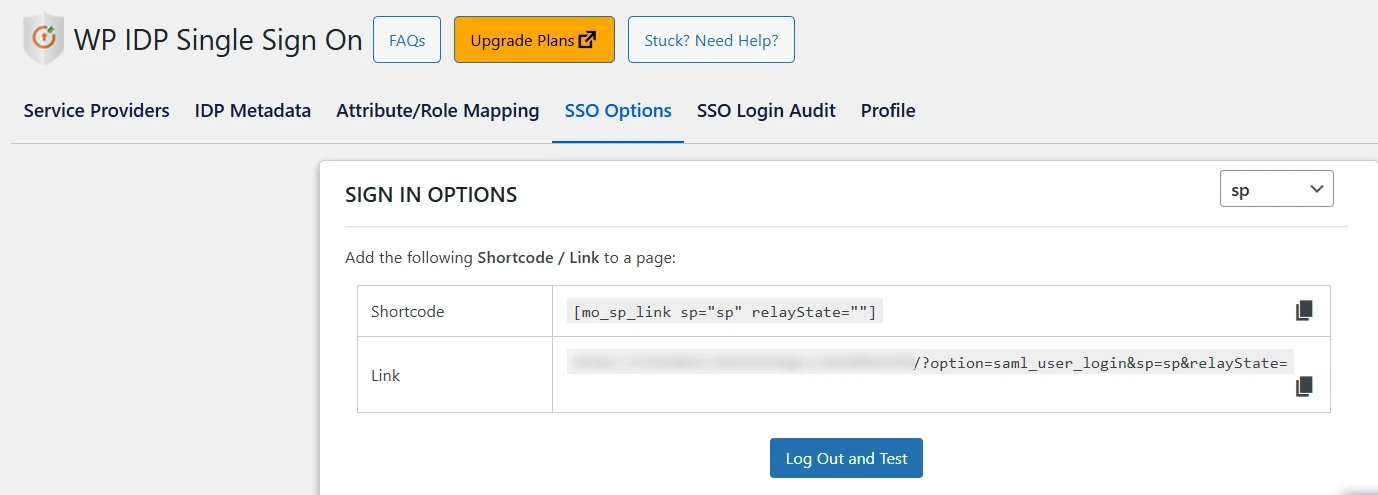
- Navigate to SSO Options → Sign-in Options in the WordPress admin dashboard.
- Copy the generated shortcode or SSO link for the required Service Provider (SP).
- Paste it into the desired page, post, widget, or button where you want users to sign in.
Shortcode Example
[mo_sp_link sp="sp_name" relayState=""]
Parameters
-
sp– Name of the configured Service Provider -
relayState(optional) – Destination URL or state after authentication
The shortcode can be used directly or embedded within a custom button or block.
Common Use Cases
-
Custom Login Portals
-
Membership Pages
-
Partner Dashboards
-
Intranet Applications
Benefits
-
No code required
-
Seamless user experience
-
Flexible placement across the site
For more information, visit the SAML IDP for WordPress page.