Attribute Mapping
This feature allows you to map user attributes received from the LDAP server to Drupal user fields. For example, attributes like Email can be mapped so that during automatic user registration, the corresponding details are seamlessly populated in the Drupal user profile.
Configure Attribute Mapping
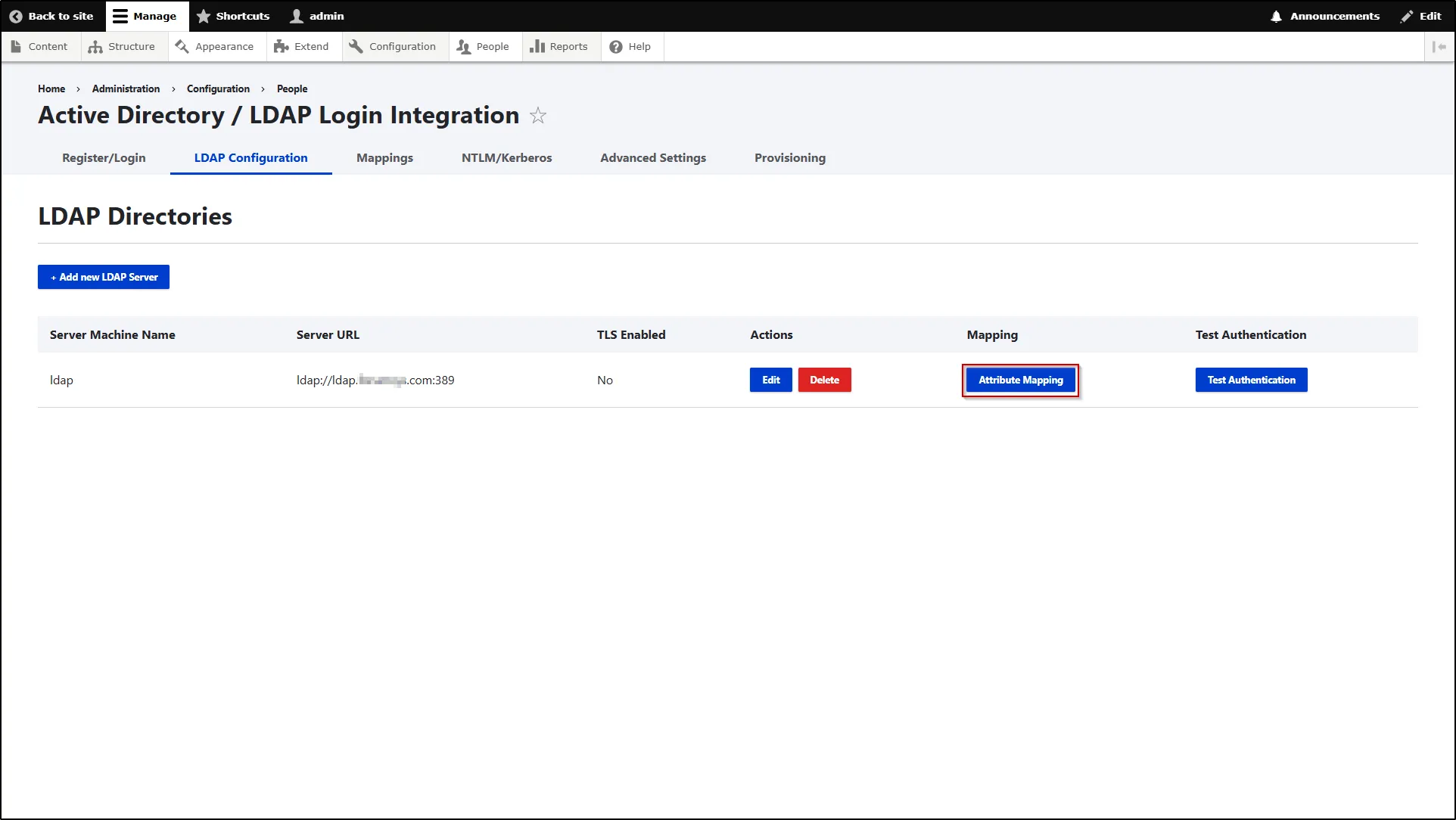
- To configure this feature, after successful authentication, click on the Attribute Mapping button under the Mapping column.
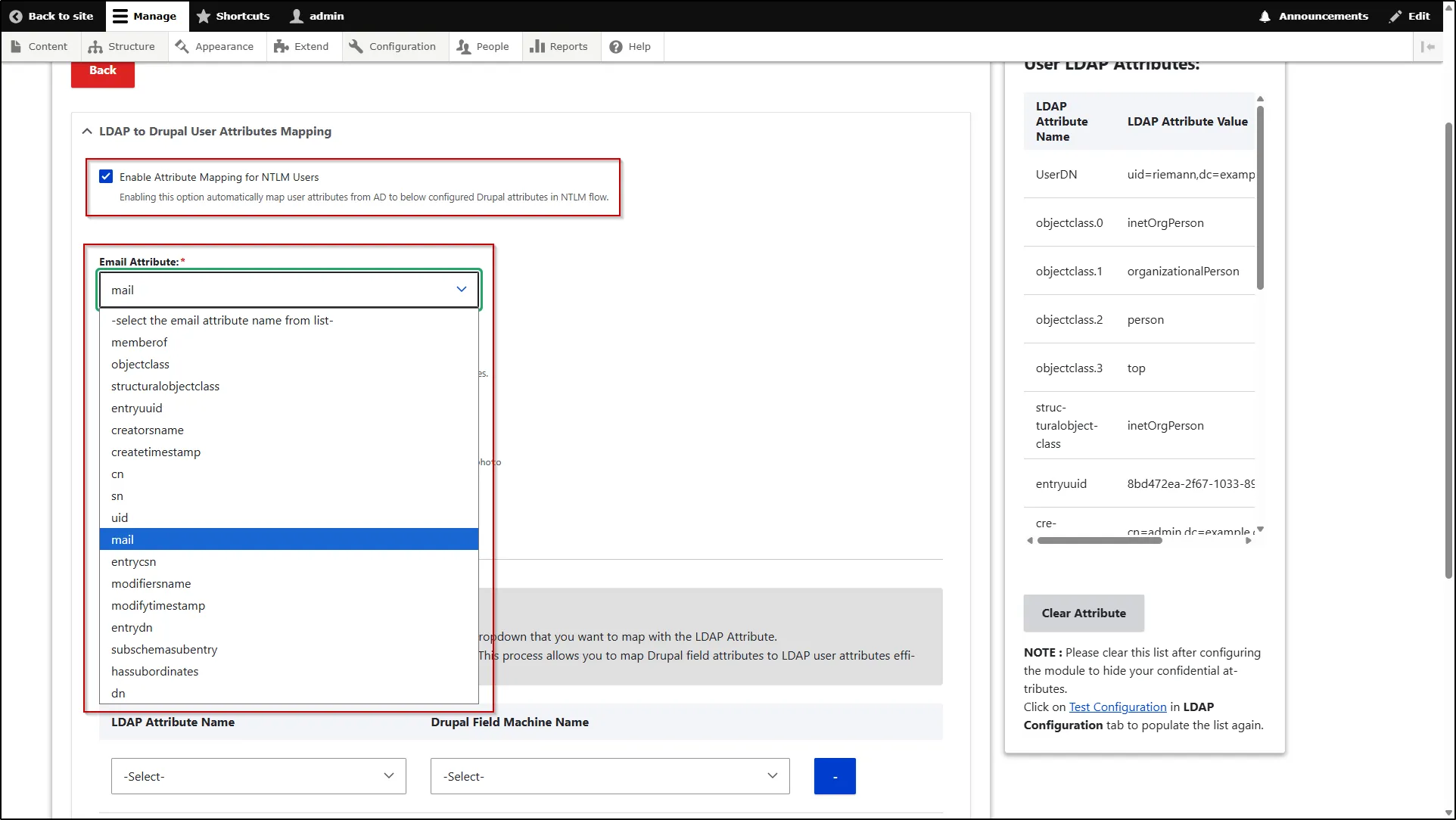
- Now, in the LDAP to Drupal User Attributes Mapping section, check the check box for Enable Attribute Mapping for NTLM Users.
- Select the LDAP attribute from the Email Attribute dropdown that contains the user’s email address. This is a mandatory step.
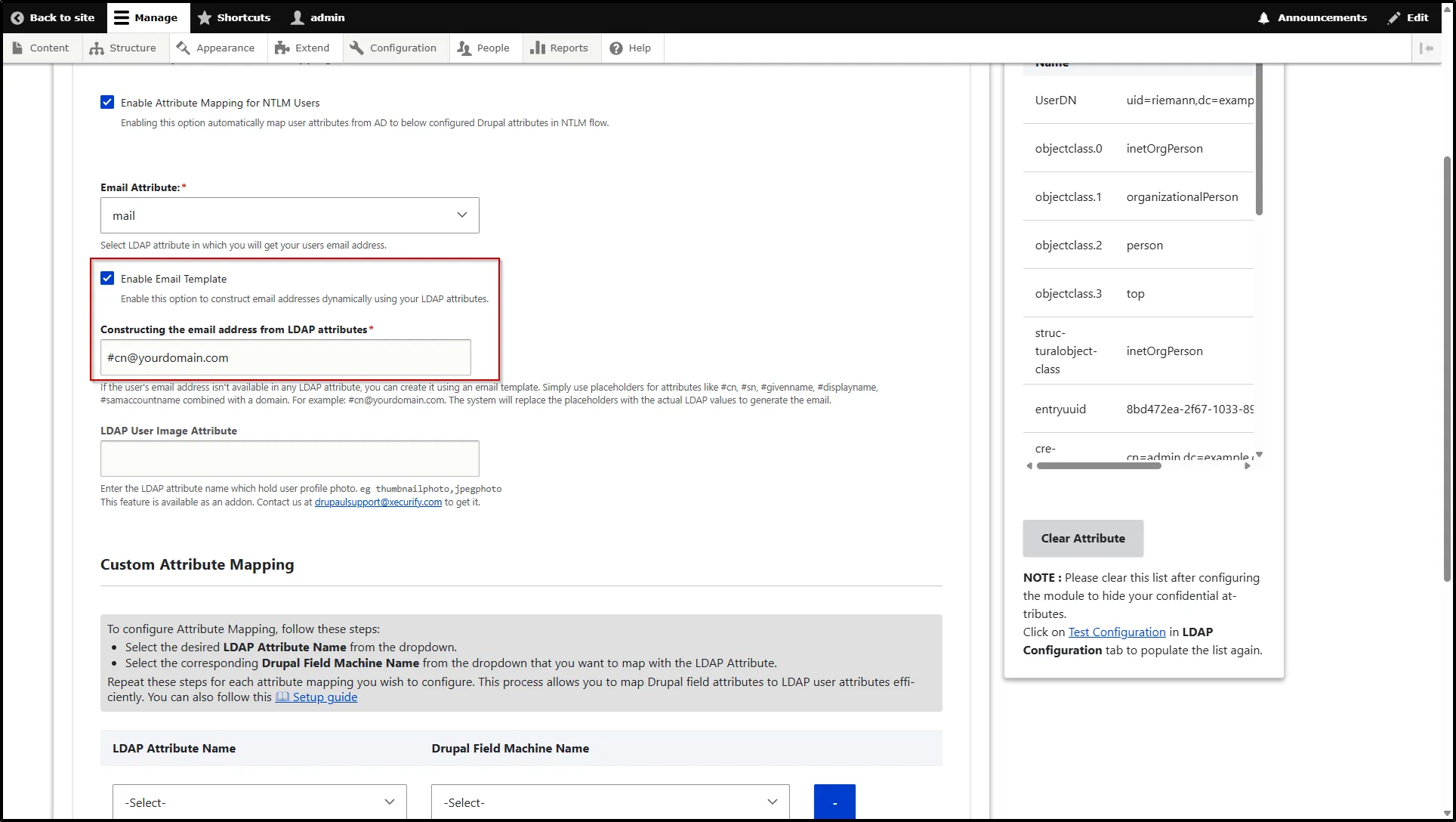
- Now, check the Enable Email Template check box to construct an email address dynamically using an LDAP attribute.
- In the Constructing the email address from LDAP attributes field, enter the attribute placeholder along with your domain (e.g., #cn@yourdomain.com). If the user's email address is not available in any LDAP attribute, you can generate it using this template by using placeholders such as #cn, #sn, #givenname, #displayname, or #samaccountname. The system will automatically replace these placeholders with the corresponding LDAP values to create the user’s email address.
Custom Attribute Mapping
Custom attribute mapping helps you map all user fields (existing or custom fields) in Drupal with the user information from your LDAP server. In order to configure the Custom Attribute Mapping, we need to create a few user fields first.
Add a User field in the Drupal site
- For example, we will create one field - First name.
- Navigate to the People → Account Settings.
- After that, go to the Manage Fields tab and click on the Create New Field button.
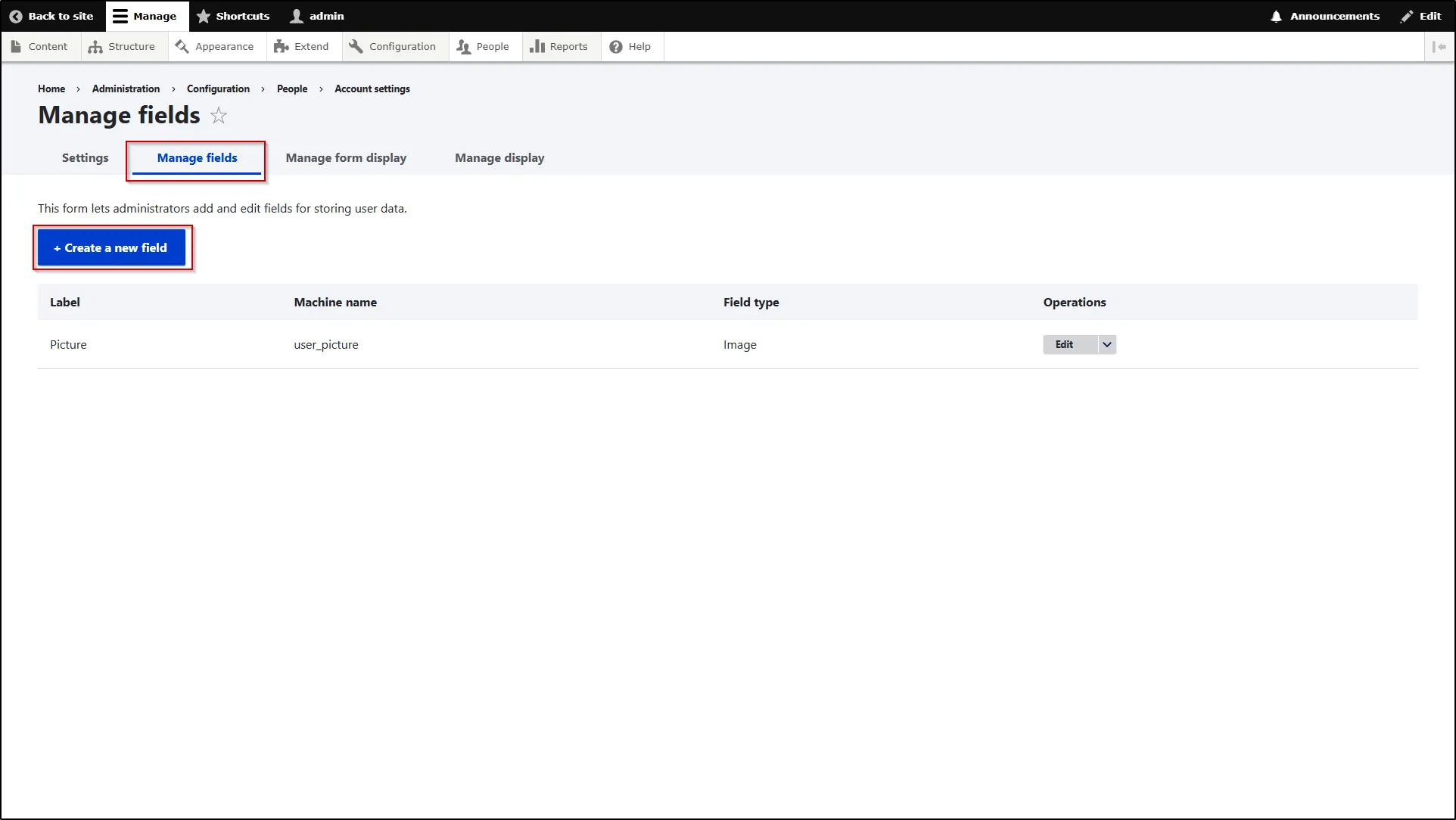
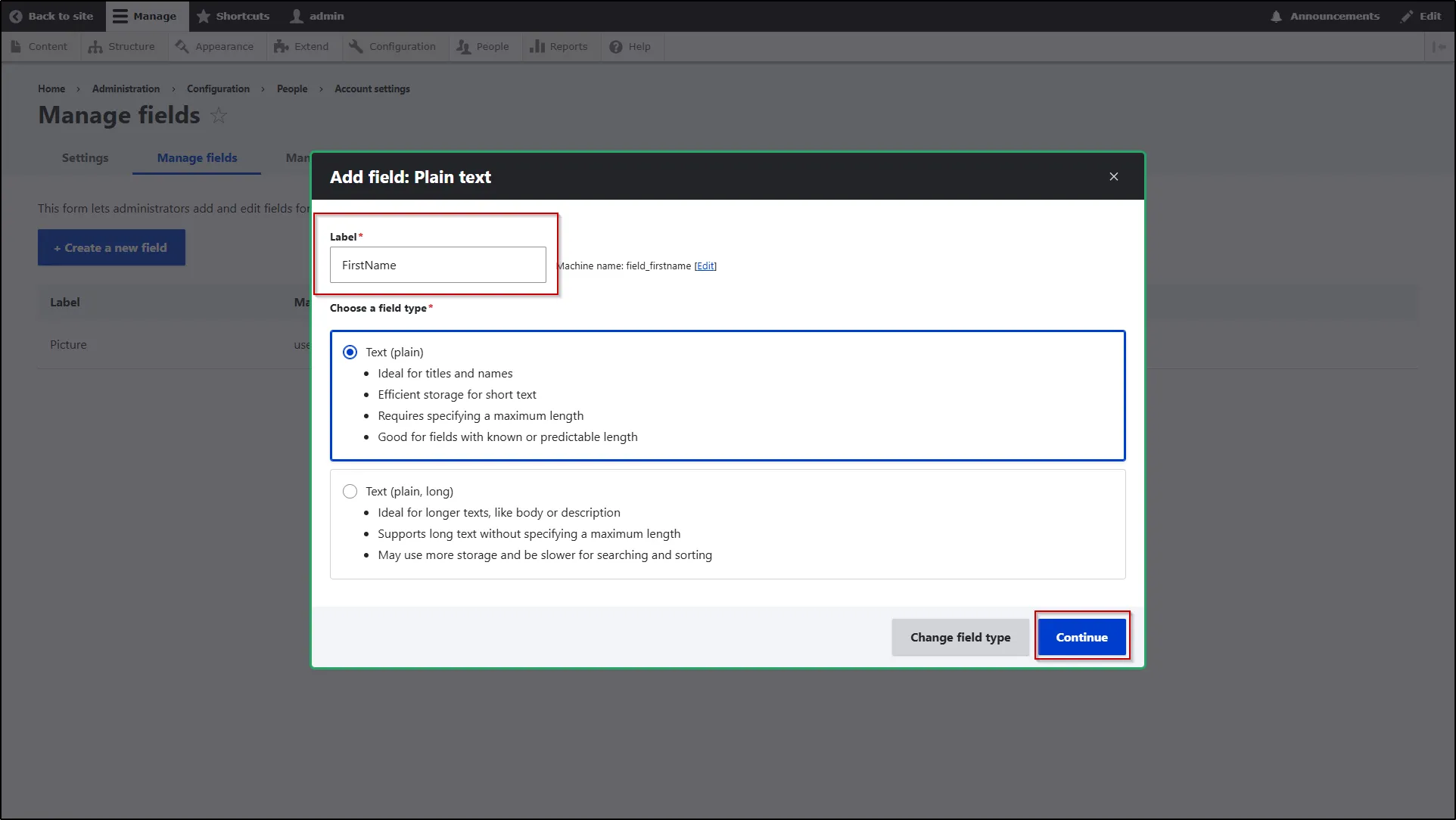
- Select the Plain text field type in the Choose a type of field pop-up.
- In the Label text field, enter FirstName. Drupal will automatically generate the machine name using the text that you have put in the text field.
- Click the Continue button.
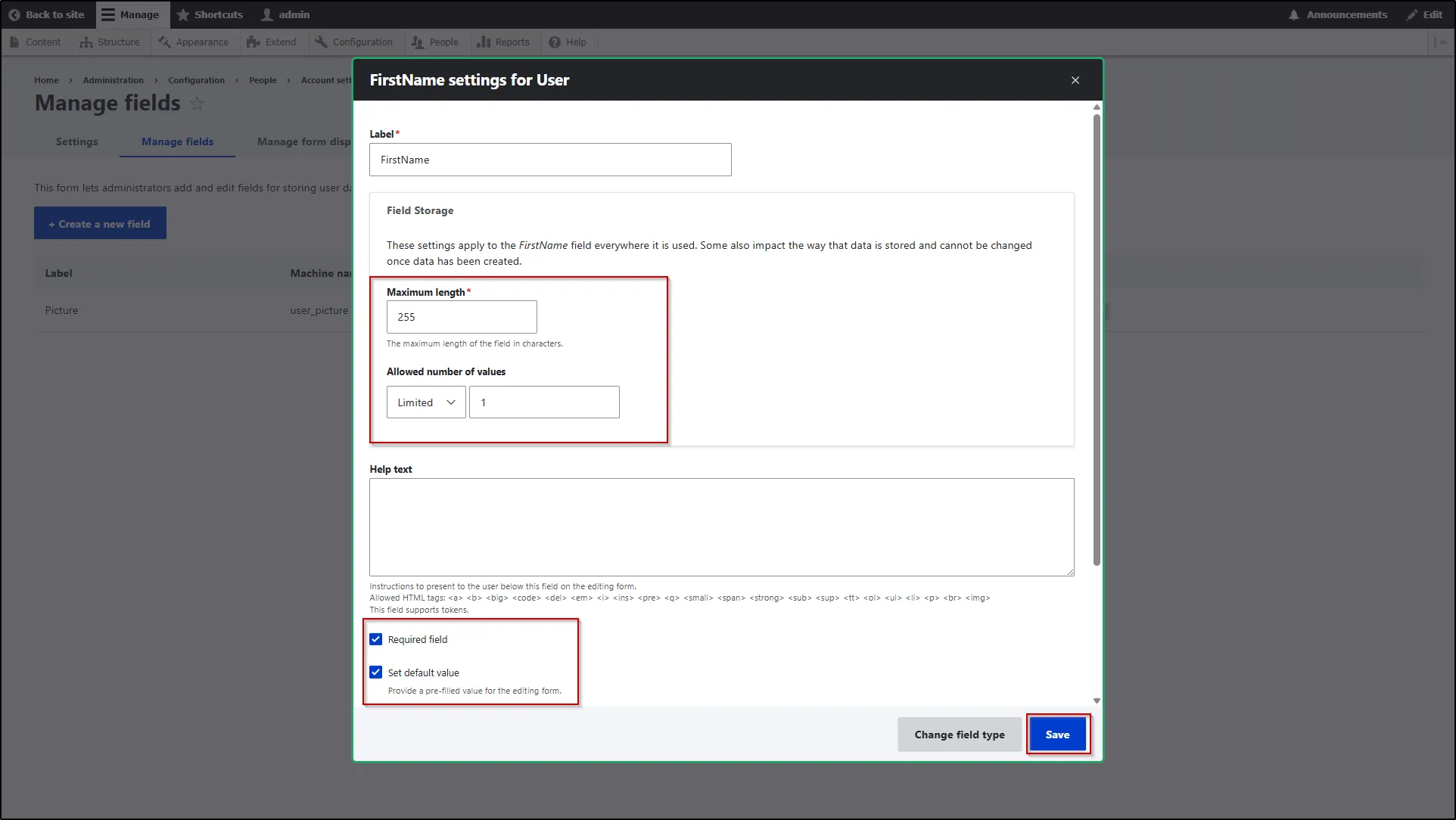
- Enter the Maximum length and Allowed number of values.
- If you want to make mandatory field, then check the check box of the Required field.
- Similarly, check the check box of Set default value to set default value for this field and enter the value in the text field.
- Click on the Save button.
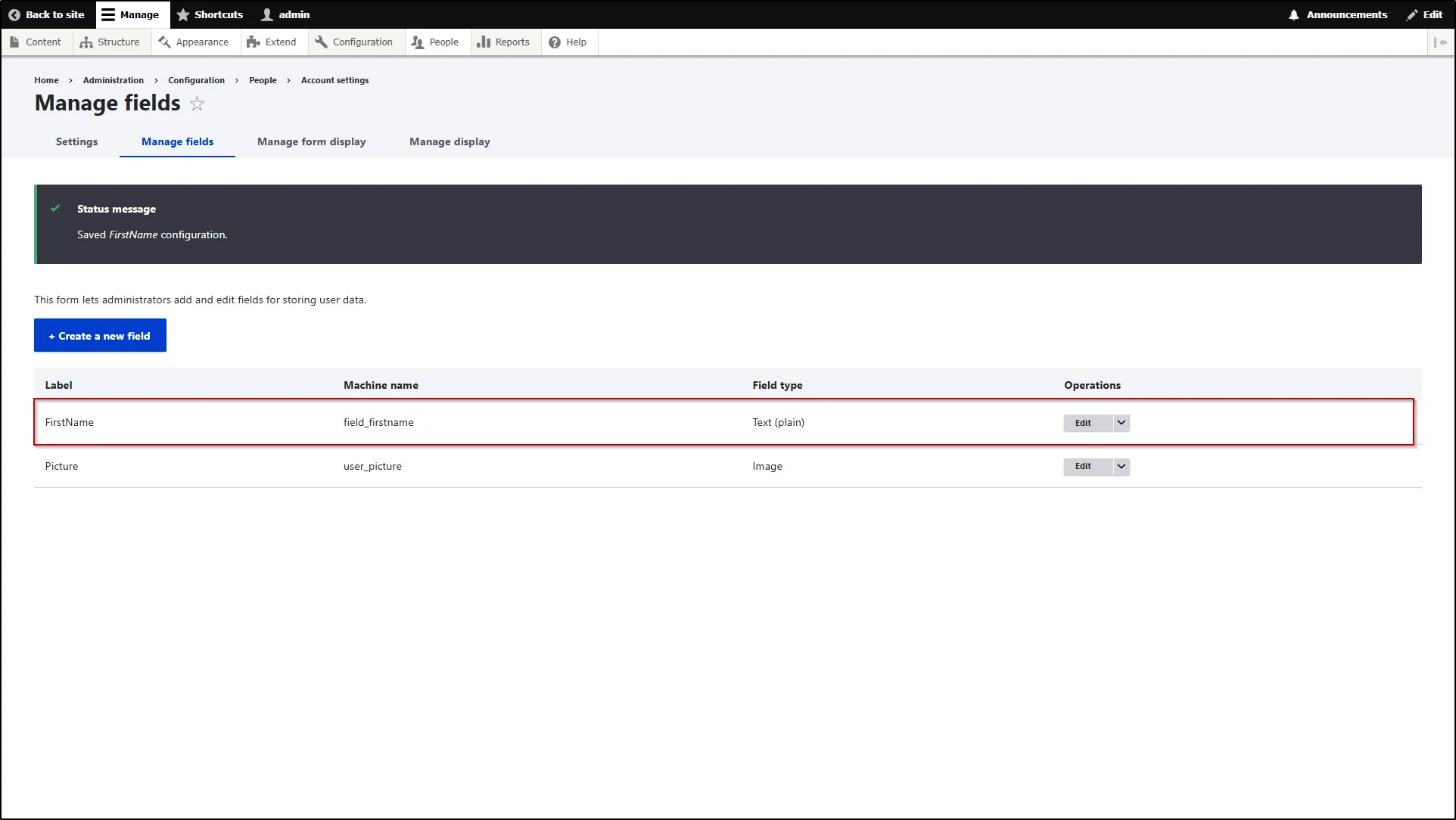
- After that, you can see the FirstName field in the Manage fields section.
Configure Custom Attribute Mapping
- After creating the required fields, navigate to the Mappings tab of the module.
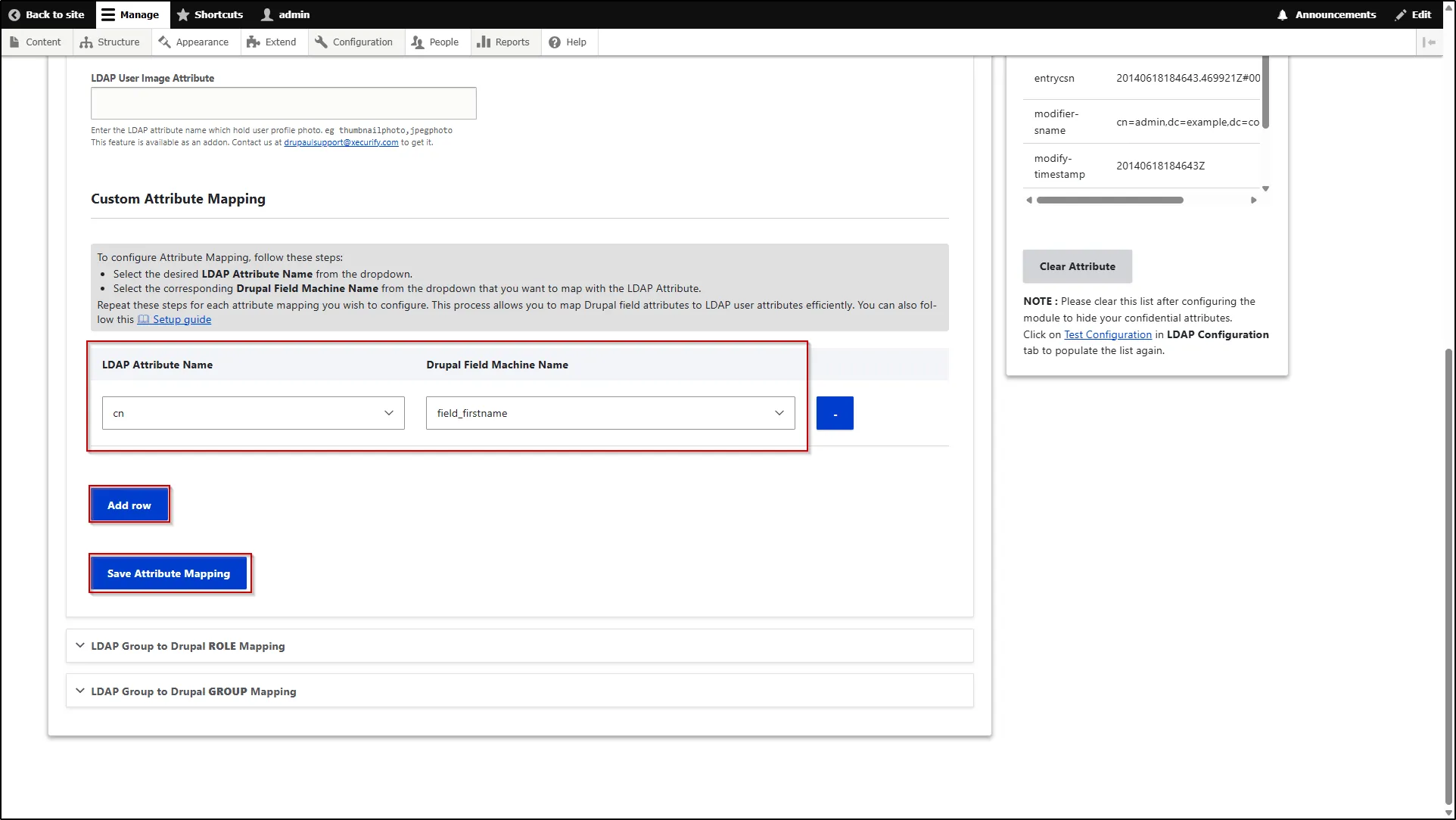
- In the Mappings tab, scroll down to the Custom Attribute Mapping section.
- Under the LDAP Attribute Name drop-down, select the attribute in which you have received the First Name of the user. In our example, we are receiving the First name of the user under the cn attribute. So we will select the cn attribute from the drop-down.
- Now, from the Drupal Field Machine Name drop-down, select the machine name of the First name field that we created earlier.
- Now, if you want to map multiple user attributes, then click the Add row button to add rows.
- Once you have mapped all the required fields as per your use case, scroll down and click on the Save Attribute Mapping button.
How Attribute Mapping works
- Open a private window or a new browser and visit the Drupal site's login page (/user/login).
- Log in using your LDAP credentials.
- After a successful login:
- Your frist name in Drupal will be mapped with your LDAP common name (cn).
Check Mapped Attribute
- Navigate to the People tab.
- Under the List section, click on the Edit button.
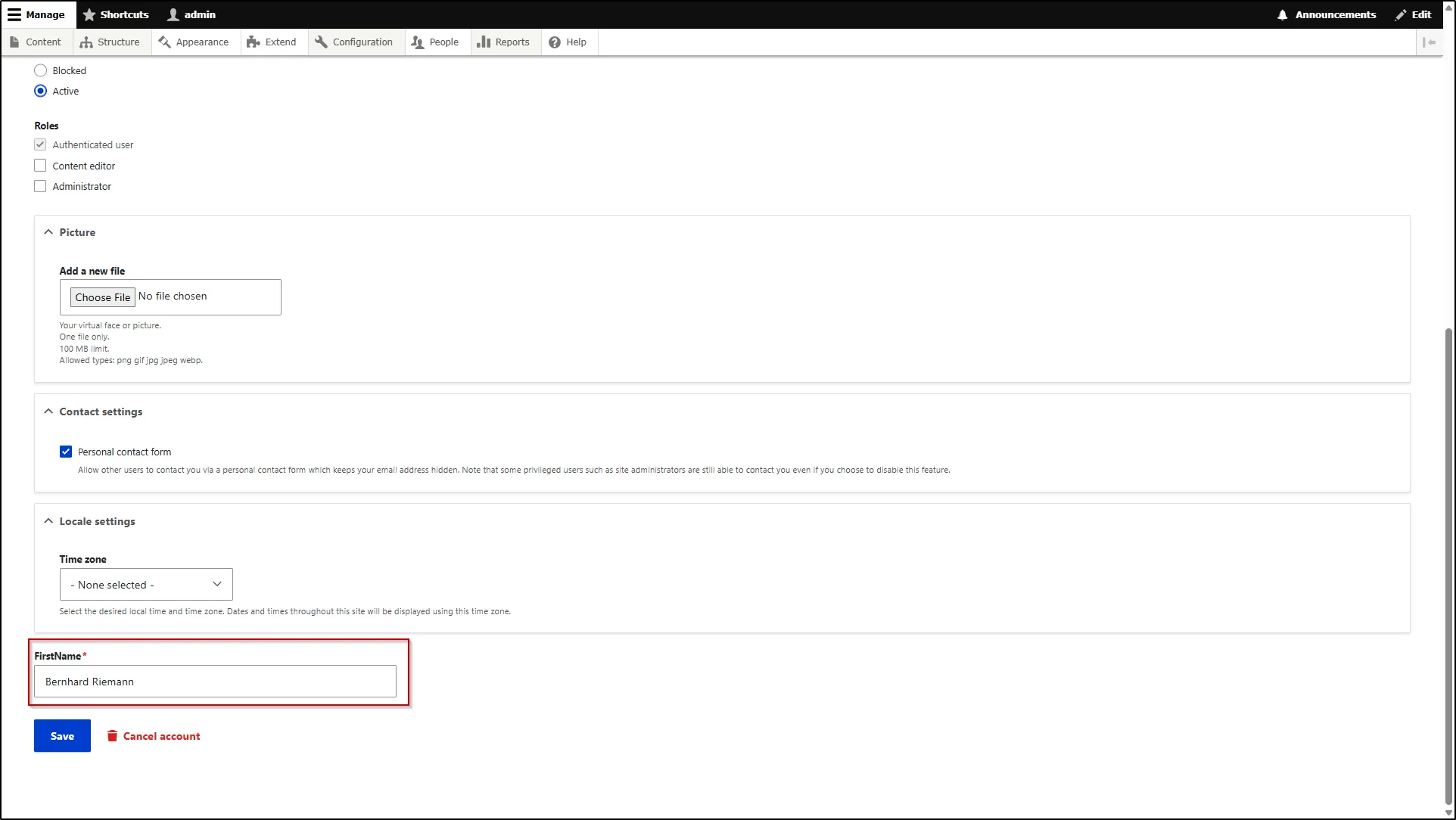
- Scroll down to see the Drupal custom fields with the mapped LDAP attribute value.