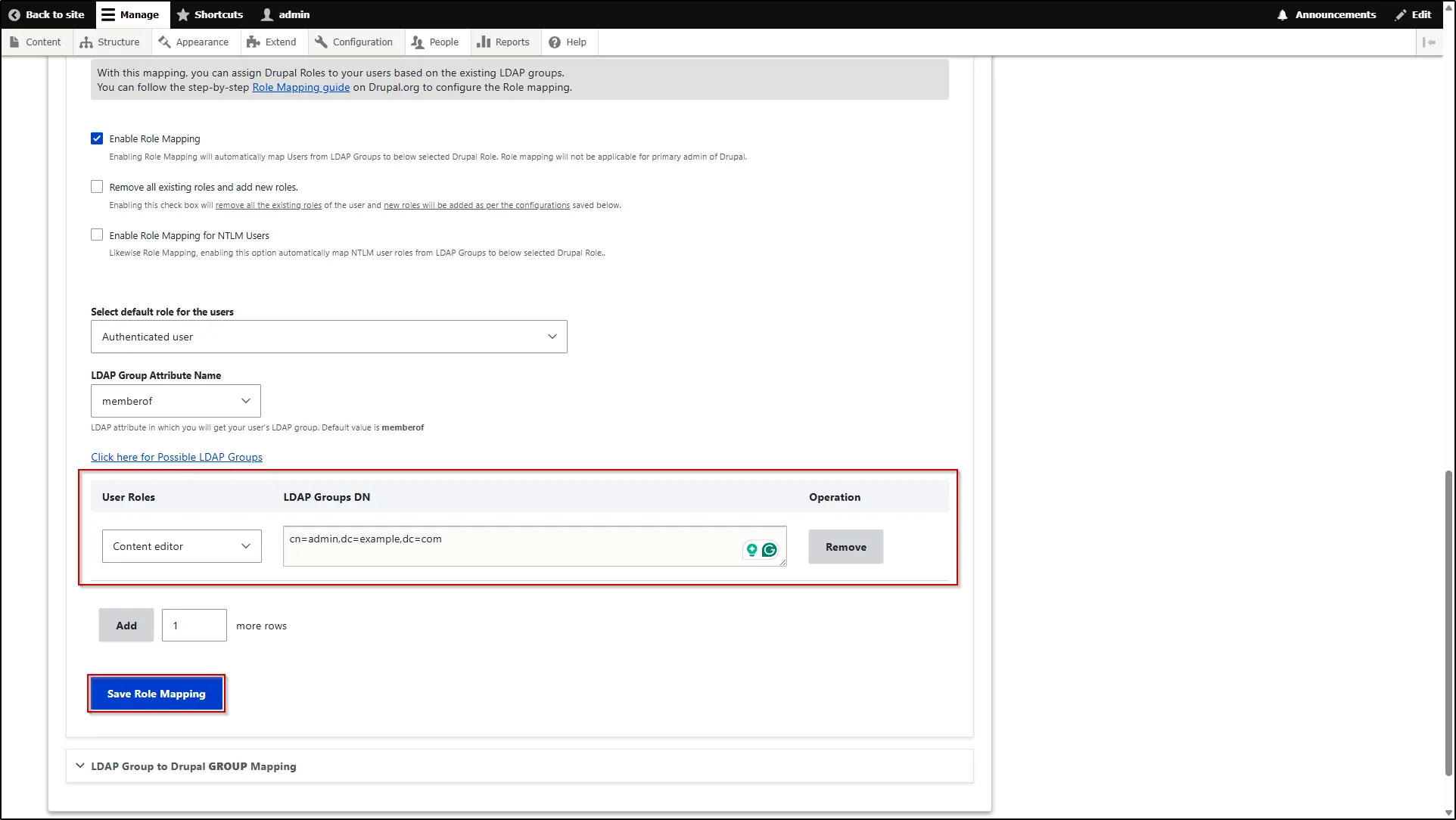
Role Mapping
This feature enables you to assign Drupal roles to users based on their roles or groups from the LDAP/AD server. It also helps control Single Sign-On (SSO) access by allowing or restricting users based on their assigned roles or groups.
Configure Role Mapping
- To configure this feature, after successful authentication, click on the Attribute Mapping button under the Mapping column.
- Scroll down to the LDAP Group to Drupal Role Mapping section and expand it.
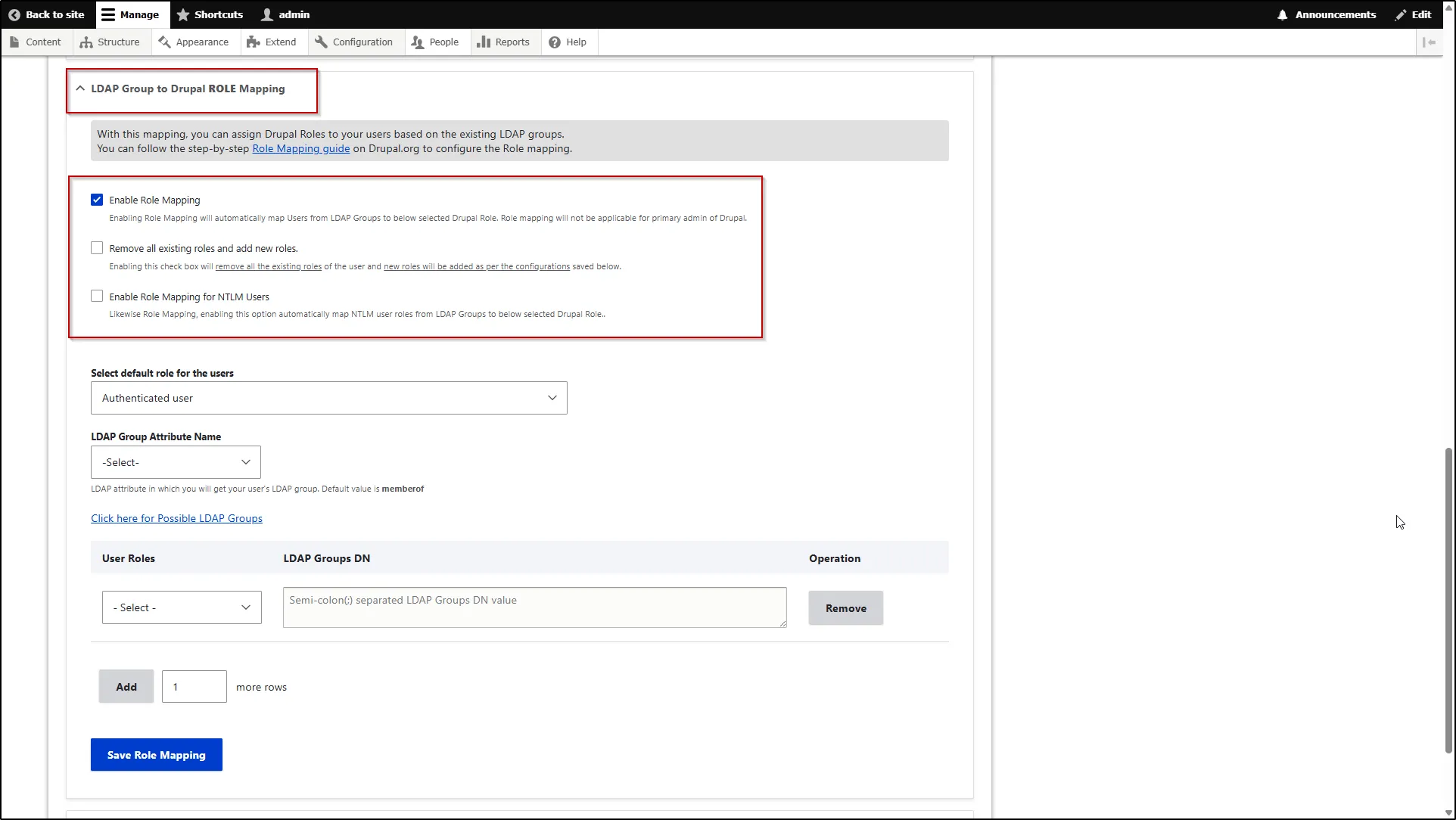
- In the expanded section, you will first find the following options:
- Enable Role Mapping: This option allows you to map your user’s LDAP Groups to their corresponding roles in Drupal. It is mandatory to enable this button to perform role mapping.
- Remove all existing roles and add new roles (OPTIONAL): Enabling this option allows you to override your user’s existing Drupal roles with the Drupal roles based on the configured mapping. If this button is not enabled, then the new roles with be added in addition to the user’s pre-existing role(s).
- Enable Role Mapping for NTML Users (OPTIONAL): This option allows you to perform role mapping whenever a user logs in to your Drupal site using Windows SSO i.e. login using NTLM or Kerberos authentication.
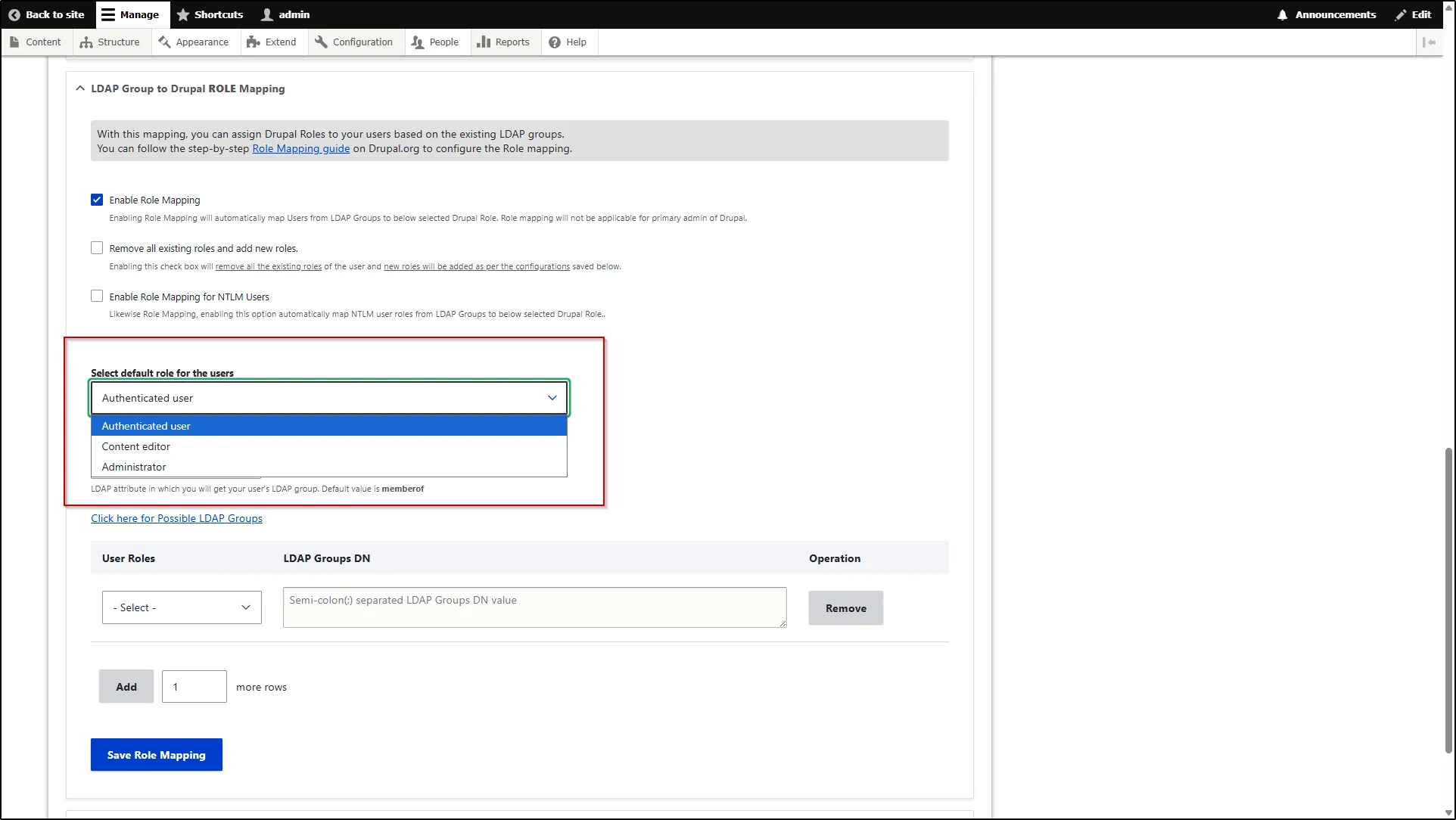
- Select default role for the users: You can select a default role from this dropdown that will be assigned to your users whenever they login to your Drupal site using their LDAP Server credentials. Here, as you can see, we have selected the Authenticated user; thus, whenever the user logs in using their LDAP credentials, the Authenticated user role will be assigned to them.
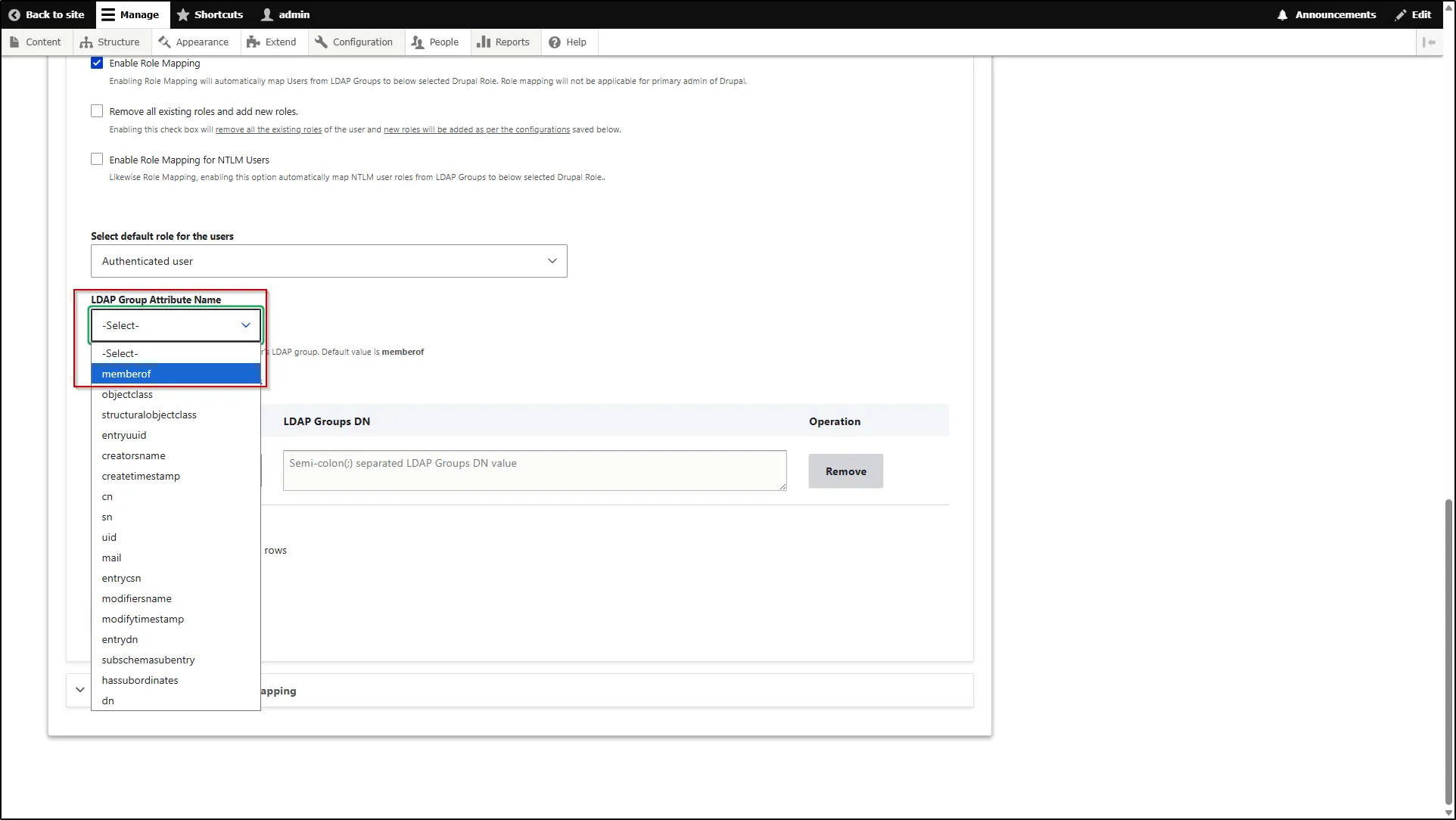
- From the LDAP Group Attribute Name dropdown, select the LDAP attribute name under which you will get the user's LDAP groups. Generally, we get the users ldap groups under the memberof attribute. If you want, you can check the LDAP Attribute name for your users LDAP groups from the attribute list present on the top right section of the tab.
- If you want to assign the Content Editor role in Drupal to users from a particular group in LDAP, then enter the Distinguish Name(DN) of that LDAP group under the Content Editor text field. You can confirm the Group DN Value from the right section of the tab. In our case, we wished to assign the Content Editor role to the users present in the Editor Group in our LDAP server. So, the configuration would be as the image below.
- Then, click the Save Role Mapping button.