Provisioning
Provisioning refers to the automatic creation and management of user accounts in Drupal based on data received from the LDAP server. When a user authenticates via LDAP, their account can be created or updated in Drupal using the mapped LDAP attributes (such as username, email, roles, etc.). This ensures that user information stays synchronized between LDAP and Drupal, reduces manual account management, and helps maintain consistent access control across the system.
User and Password Sync
This feature allows you to manage LDAP users directly from your Drupal site, including creating, viewing, updating, and deleting user records. It also enables password synchronization, ensuring that any password changes made in Drupal are reflected in the LDAP directory.
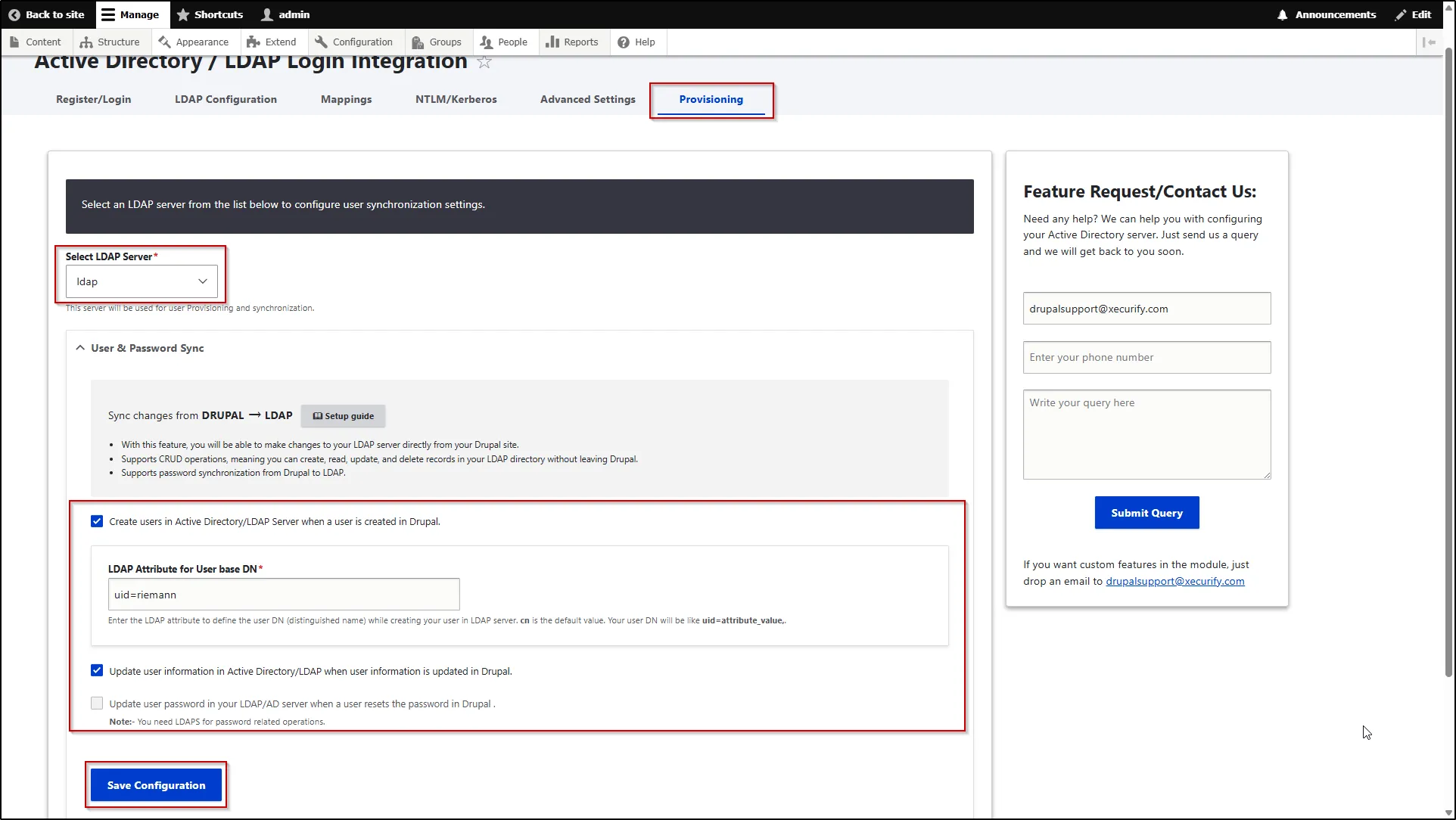
- To configure this feature, navigate to the Provisioning tab.
- Select the LDAP server from the Select LDAP Server dropdown menu.
- Now, expand the User & Password Sync section.
- Create users in Active Directory/LDAP Server when a user is created in Drupal: Enable this option to automatically create users in the LDAP or Active Directory server whenever a new user is created in Drupal.
- Then enter the ldap attribute in the LDAP Attribute for User base DN text field.
- Update user information in Active Directory/LDAP when user information is updated in Drupal: Enable this feature to ensure that any updates made to user information in Drupal are automatically reflected in the LDAP or Active Directory server.
- Update user password in your LDAP/AD server when a user resets the password in Drupal: Enable this feature to ensure that when a user resets their password in Drupal, the updated password is also synchronized with the LDAP or Active Directory server. For this, you need LDAPS connection with your LDAP server.
- Then, click the Save Configuration button.
Import Users from your LDAP Server
This feature allows you to import users from your LDAP server into Drupal with a single click. You can map LDAP attributes and assign Drupal roles based on LDAP groups during the import process. It also lets you set the import frequency, so you can control how often users are synchronized between LDAP and Drupal.
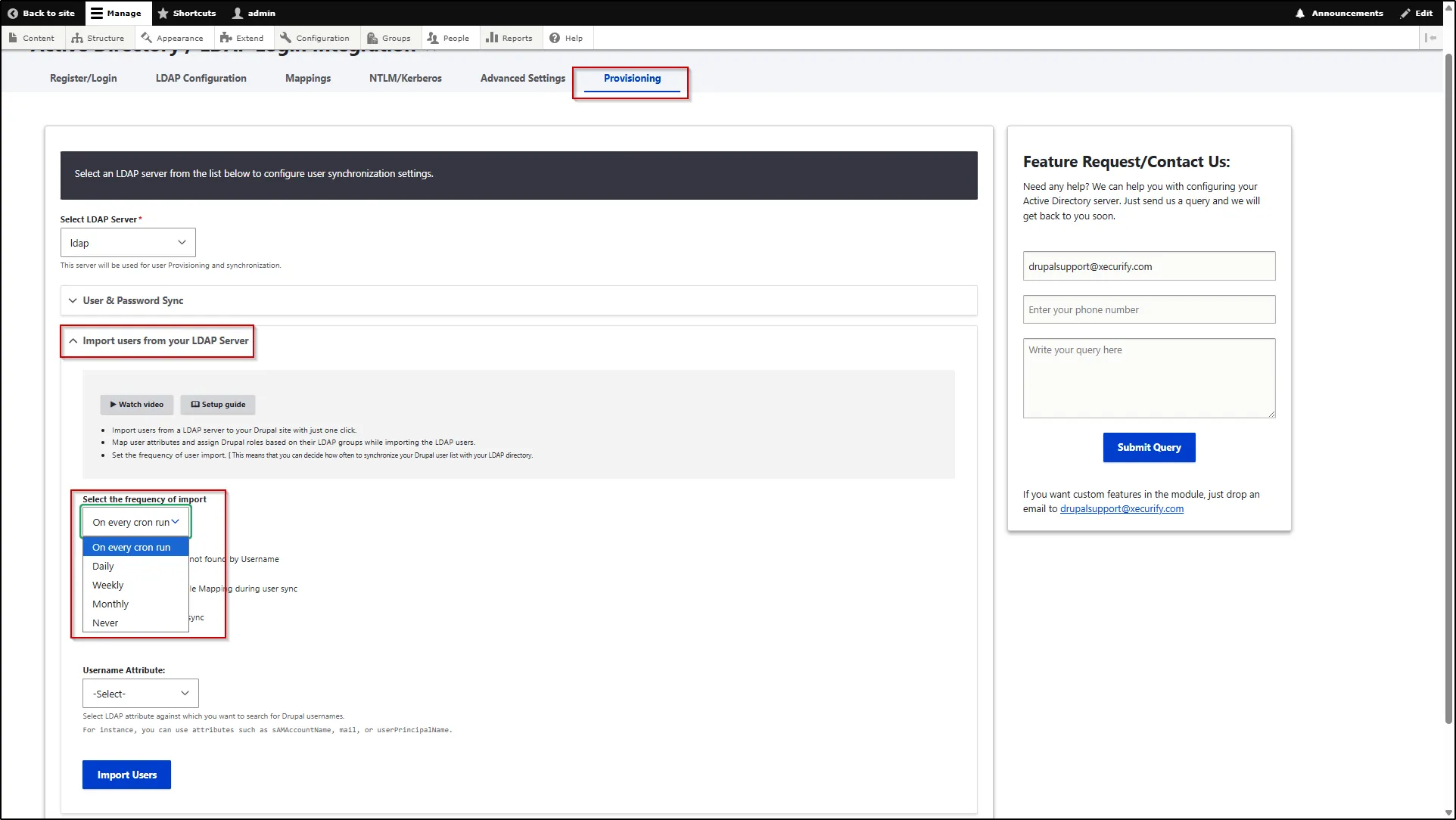
- To configure this feature navigate to the Provisioning tab.
- Select ldap server from the Select LDAP Server dropdown menu.
- Scroll down and expand the Import Users from your LDAP Server section.
- Next, select the desired import frequency from the Select the frequency of import dropdown to define how often users should be imported from the LDAP server into Drupal.
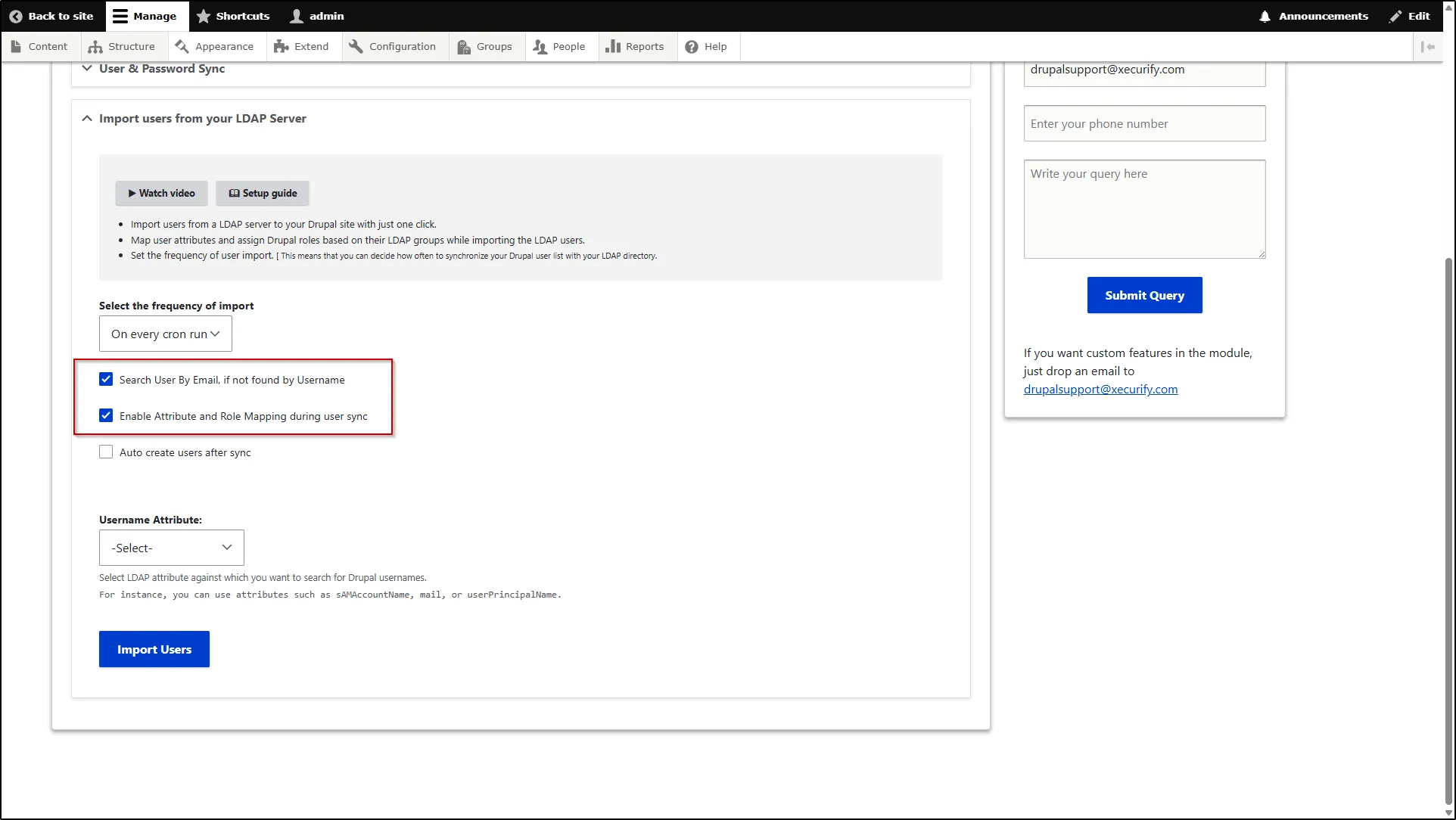
- Select the Search User by Email, if not found by Username checkbox to enable searching users by email when they are not found using their username.
- Select the Enable Attribute and Role Mapping during User Sync checkbox to apply attribute and role mappings while synchronizing users.
- Select the Auto Create Users After Sync checkbox to enable automatic user handling during synchronization.
- Then, choose one of the following options based on your requirement:
- Block new users not present in Drupal but present in AD to prevent their access.
- Block users not present in AD but present in Drupal to restrict outdated users.
- Create users as per AD status to match the active/blocked state from AD.
- Do not block any user to allow all users without restrictions.
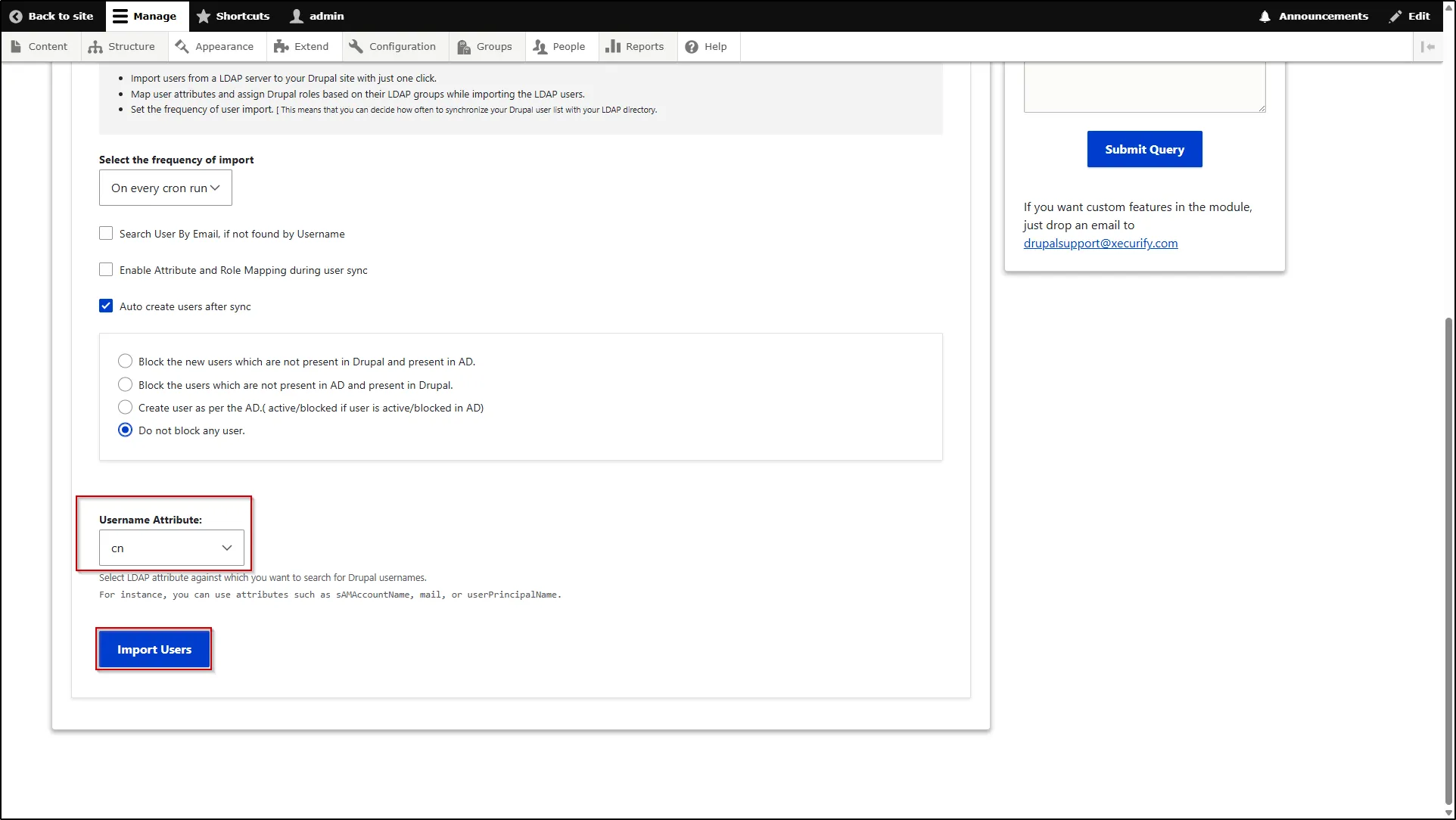
- Next, select the LDAP attribute from the Username Attribute dropdown that will be used to search and match Drupal usernames.
- Click Import Users button.