Customize the Company Registration Form
Feature Description
Merchants can choose which details customers enter when they request a new company from the storefront. From Company Management → Form Design in the Customer Accounts Login app, add predefined fields such as company name, main contact name, email, phone, email domain, billing address, and shipping address, or create your own custom fields, such as a Tax ID. The fields you add appear on the Create Company form, so store admins get the information they need to review each company request.
Note: Turn on Allow End Users to Register Their Company and add the Company Create Request page to the customer account first.
Setup Instructions
-
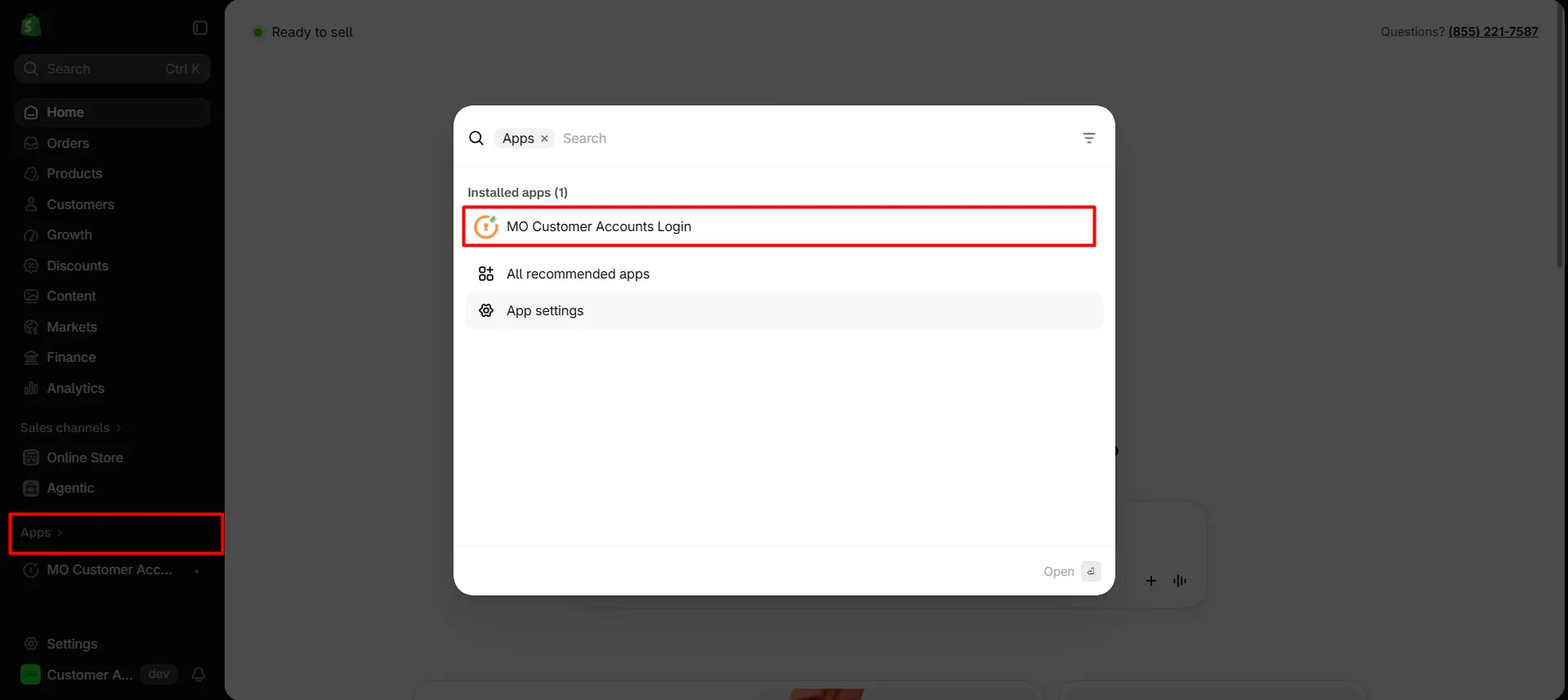
Navigate to the Shopify Dashboard, and open the Customer Accounts Login application.
-
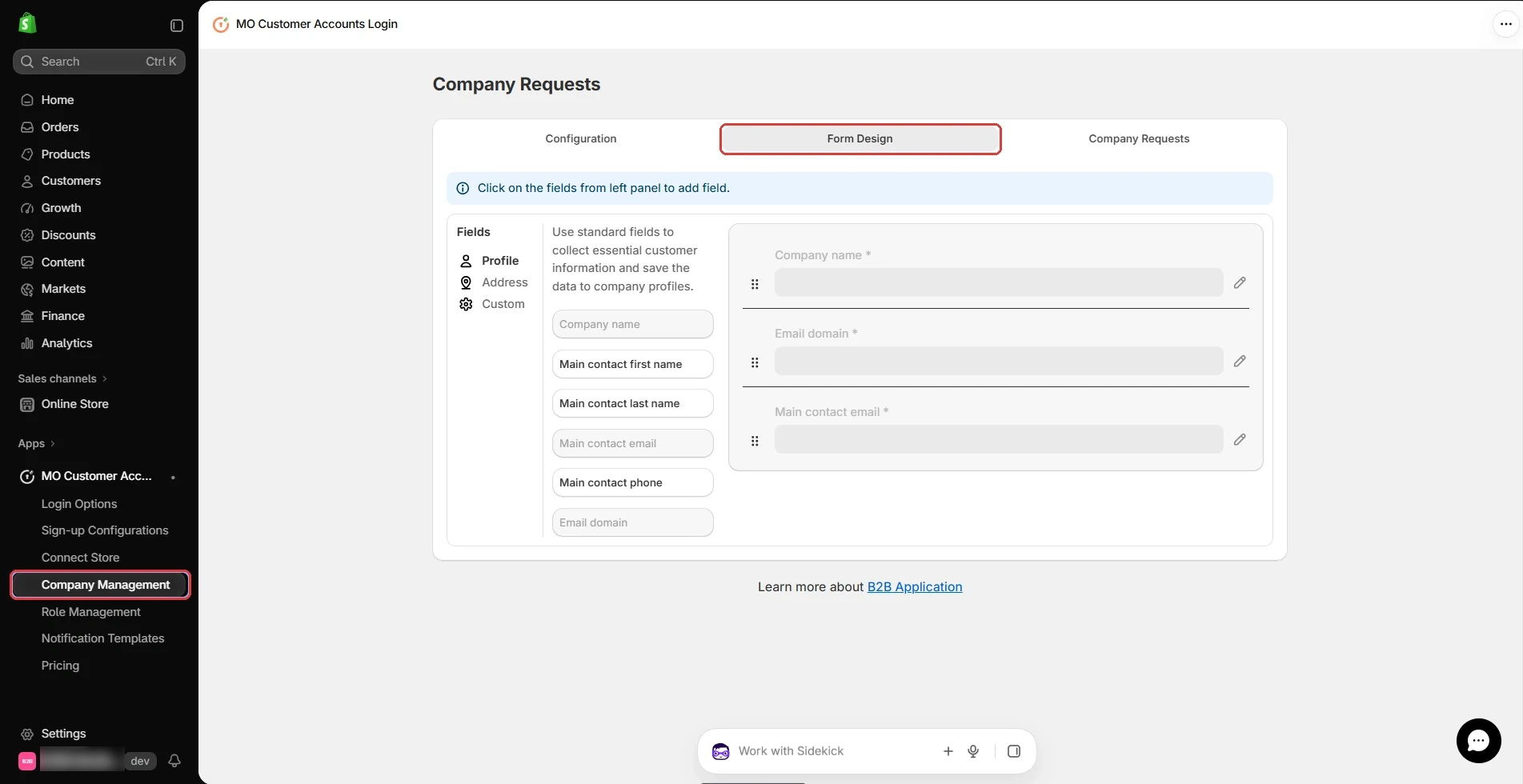
In the left navigation, click Company Management, then open the Form Design tab. This screen is where you add more fields to the company registration form.
-
The form already includes Company name, Email domain, and Main contact email as required fields.
-
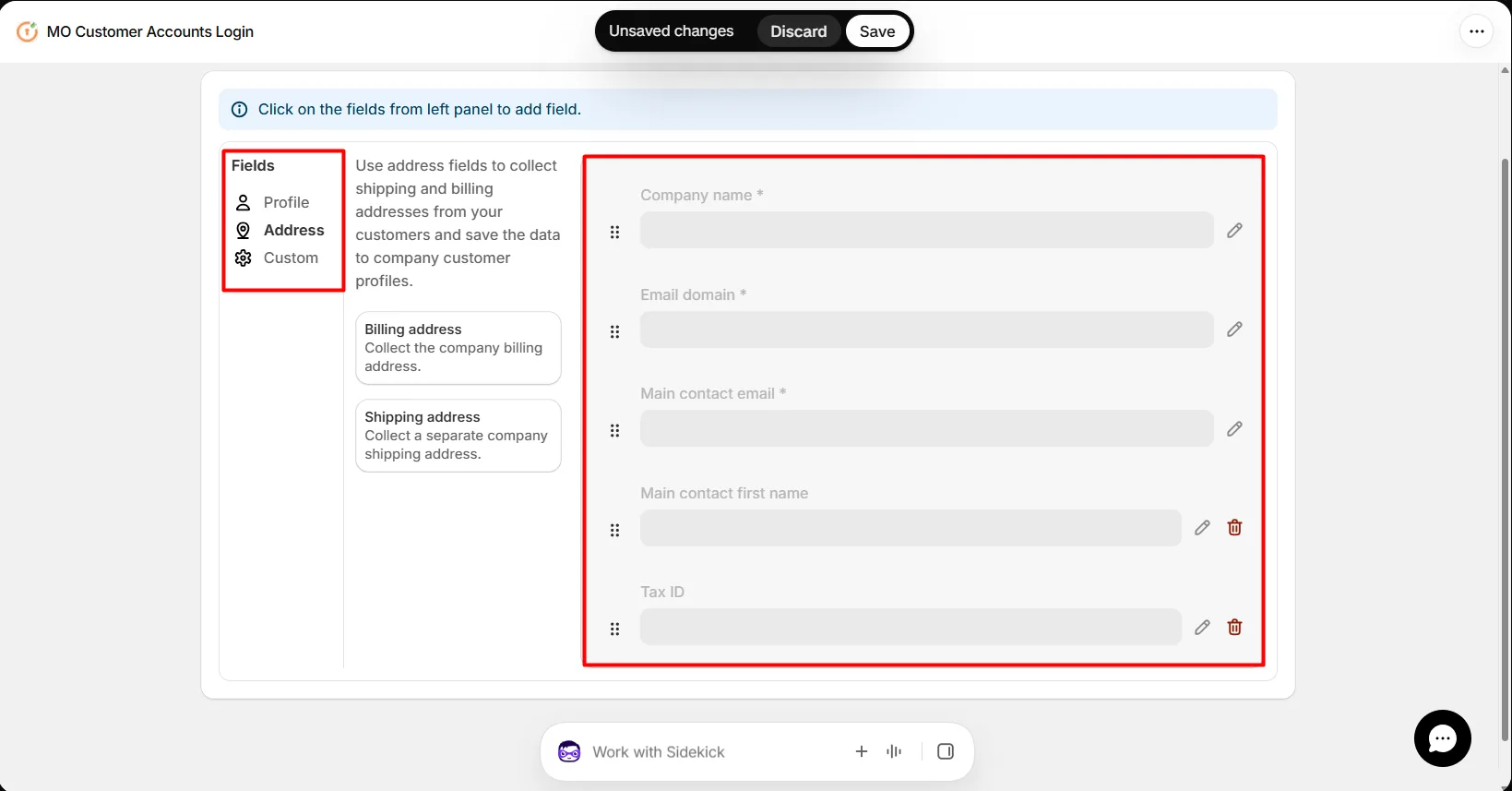
Click a field in the left panel to add it to the form. Fields are grouped under Profile, Address, and Custom.
-
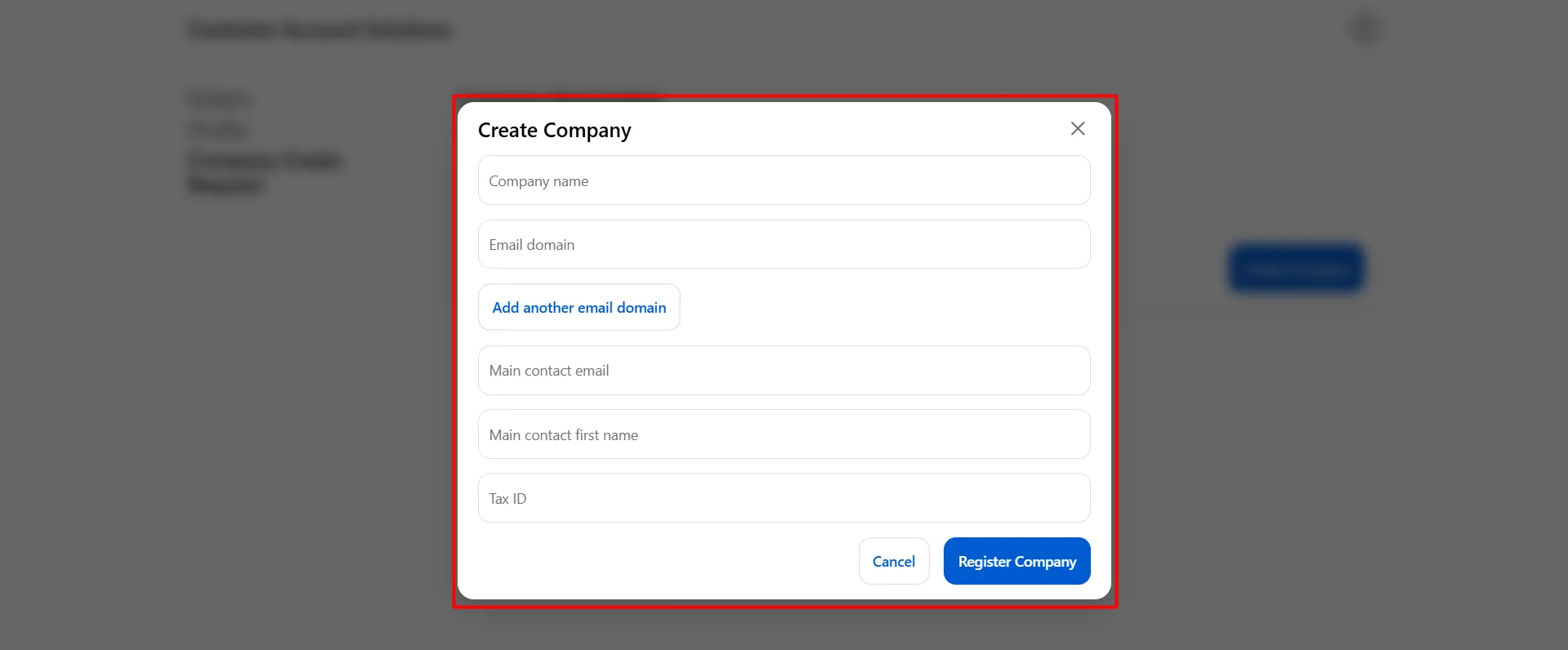
Under Profile, add fields such as Main contact first name, Main contact last name, and Main contact phone. Under Address, add the billing or shipping address. Under Custom, add your own fields, such as Tax ID.
-
To change a field, click the pencil icon next to it. To change the order of the fields, drag a field by its handle.
-
Click Save.
-
To check the form, log in to your online store and click the user icon.

-
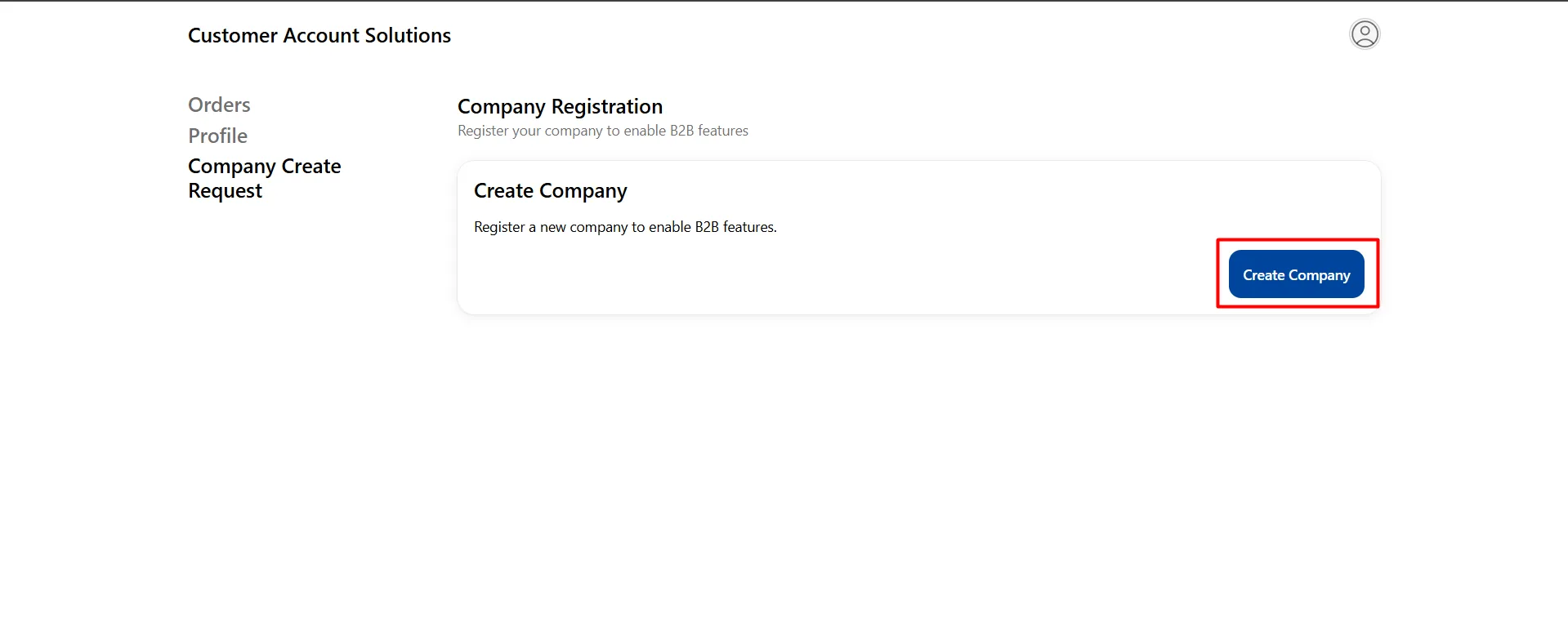
Open Company Create Request and click Create Company.
-
The form now shows the fields you added. Fill in the company name, email domain, and the other fields, then click Register Company.
-
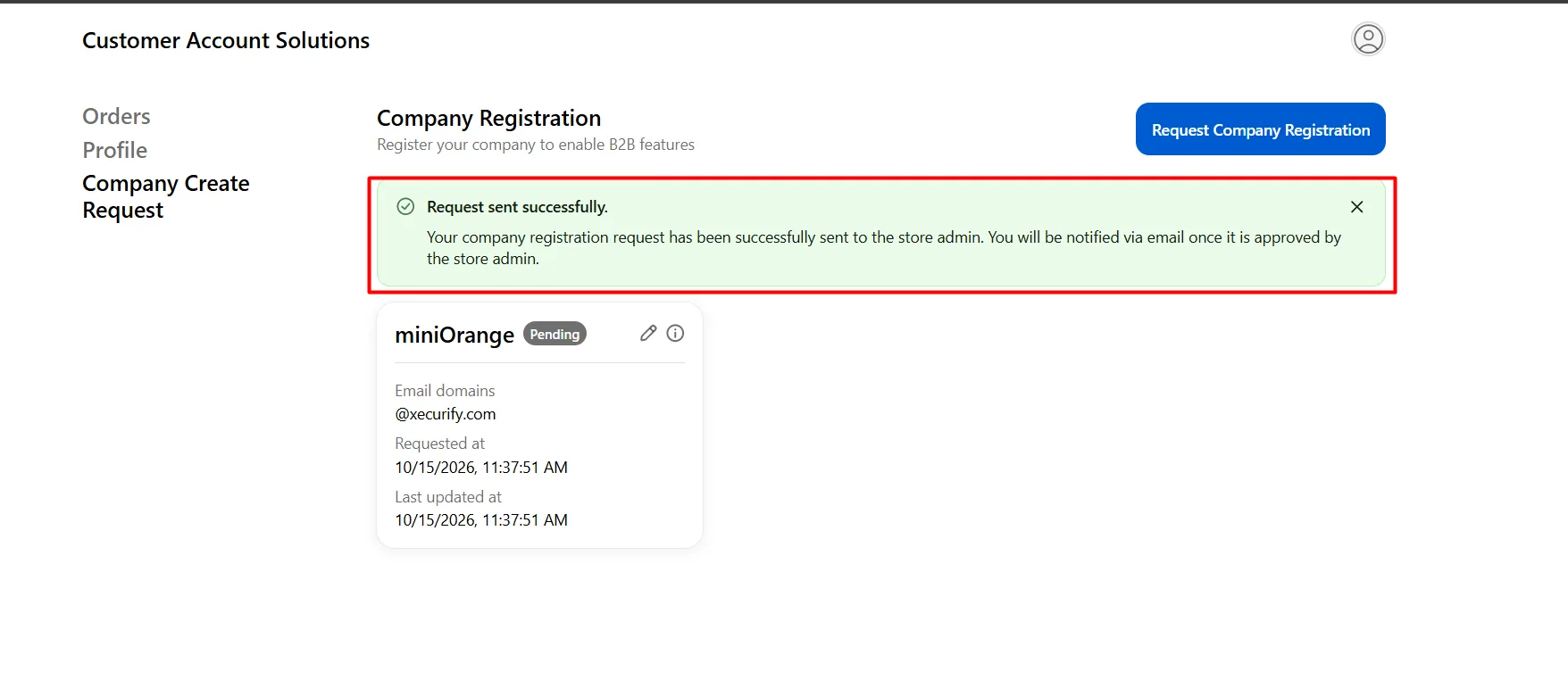
A Request sent successfully message appears, and the request is sent to the store admin for review.