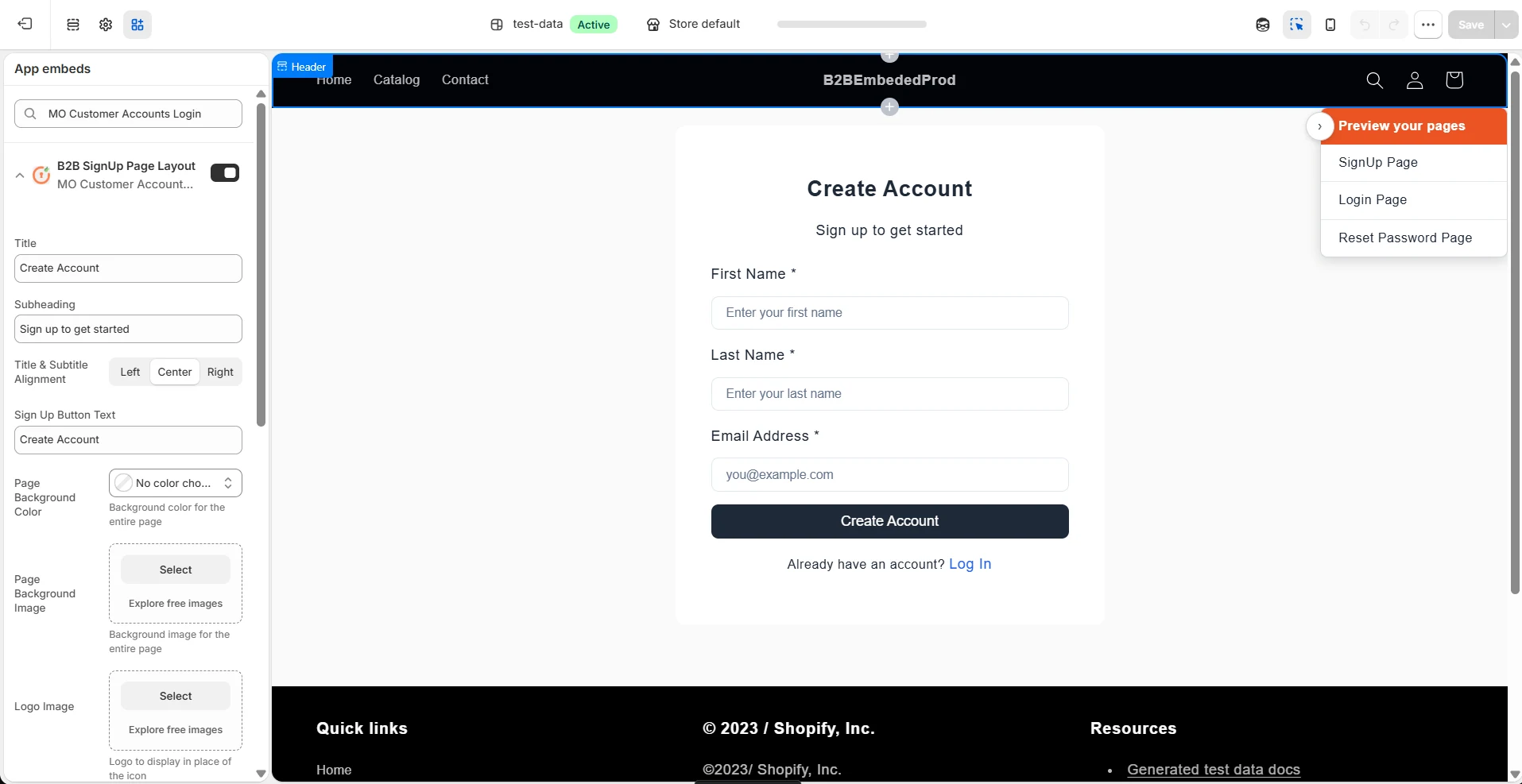
Sign-up Configurations
Feature Description
Using this feature, you can let new customers create an account on your Shopify store from a dedicated signup page. Customers who select sign up on the login page are taken to a signup form where they register and verify their identity before they can log in.
You can choose how new customers verify themselves (email one-time code, phone one-time code, or reCAPTCHA), customize the look of the signup page, and decide which fields appear on the signup form. This provides a familiar and straightforward registration experience, especially for users who prefer conventional login credentials over modern authentication methods.
Setup Instructions
-
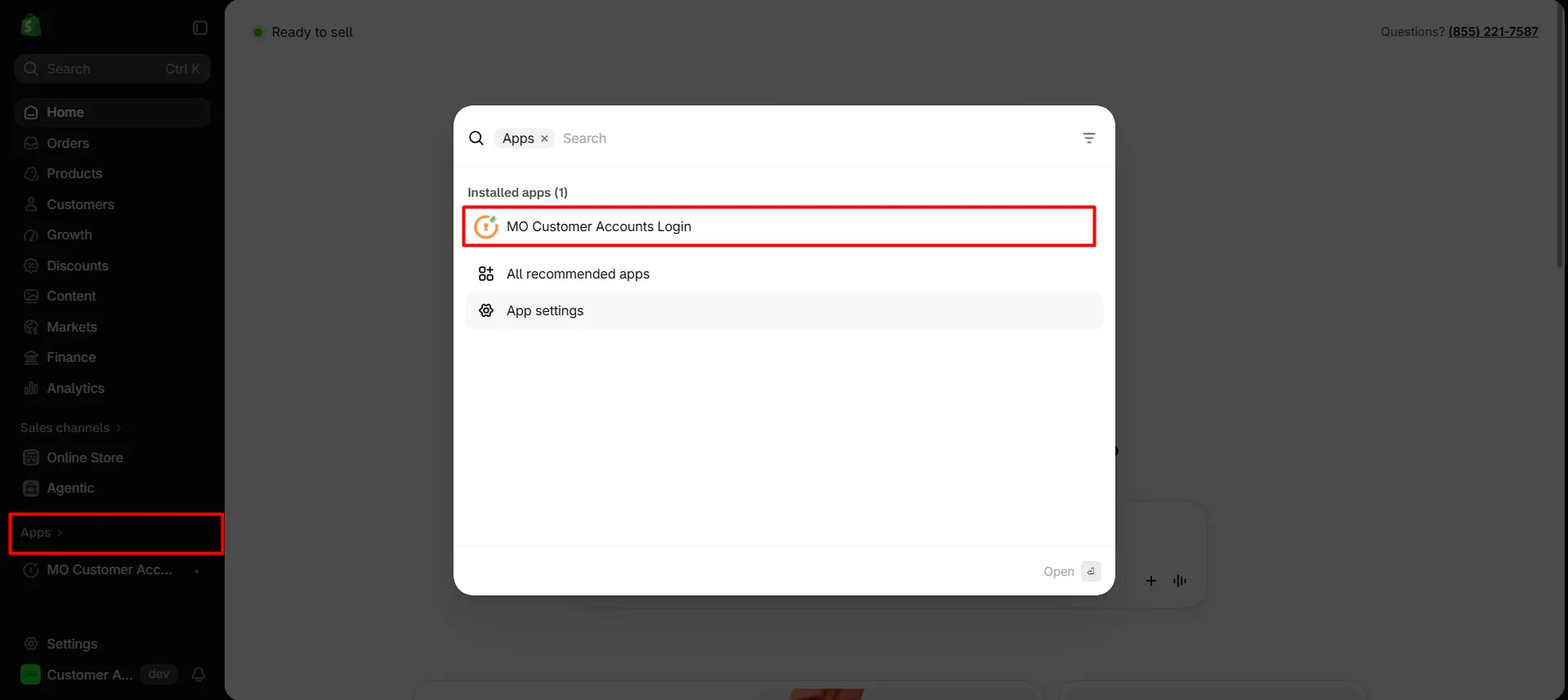
Navigate to the Shopify Dashboard, and open the Customer Accounts Login application.
-
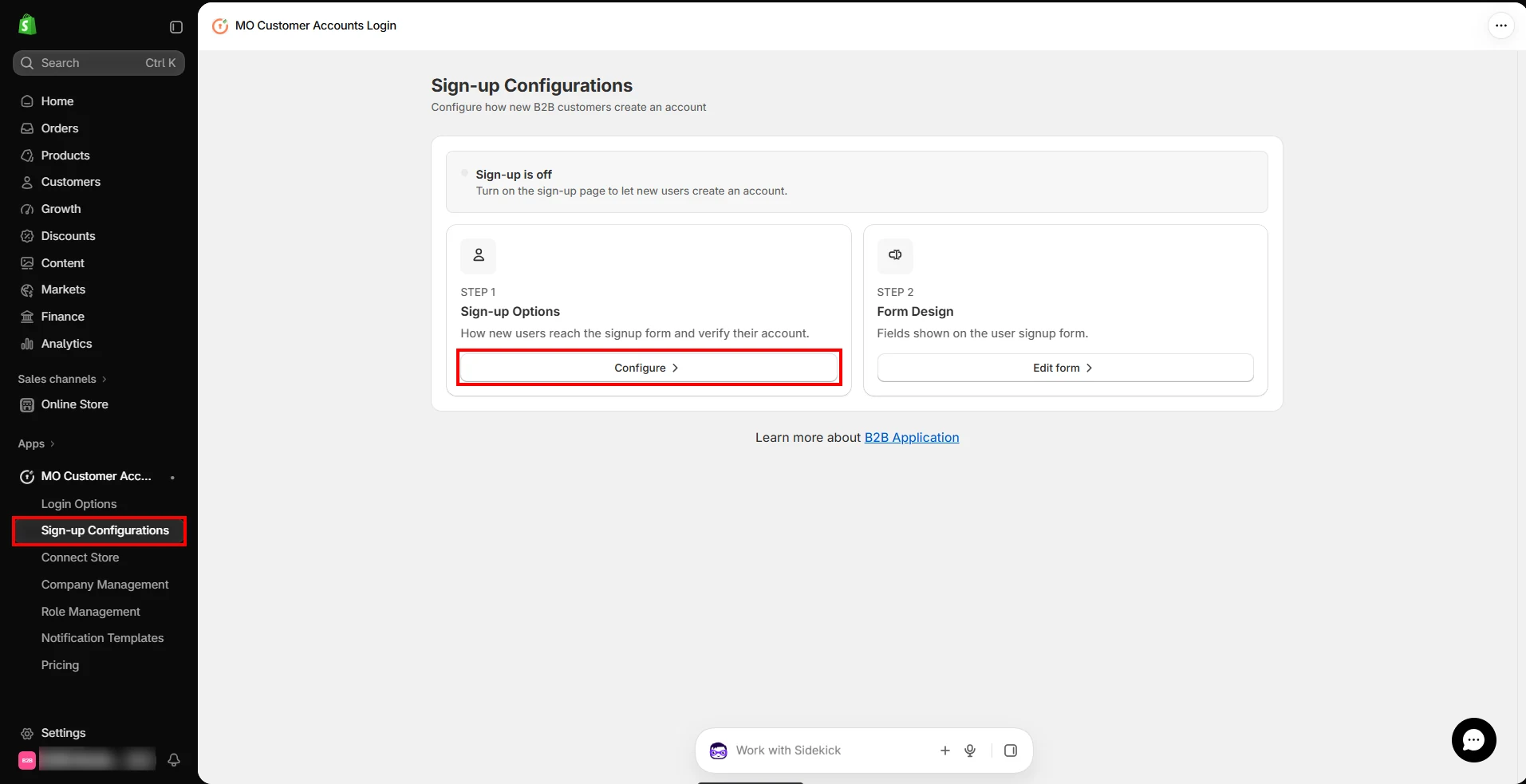
In the app's left navigation, click Sign-up Configurations.
-
In the Sign-up Options card, click Configure.
-
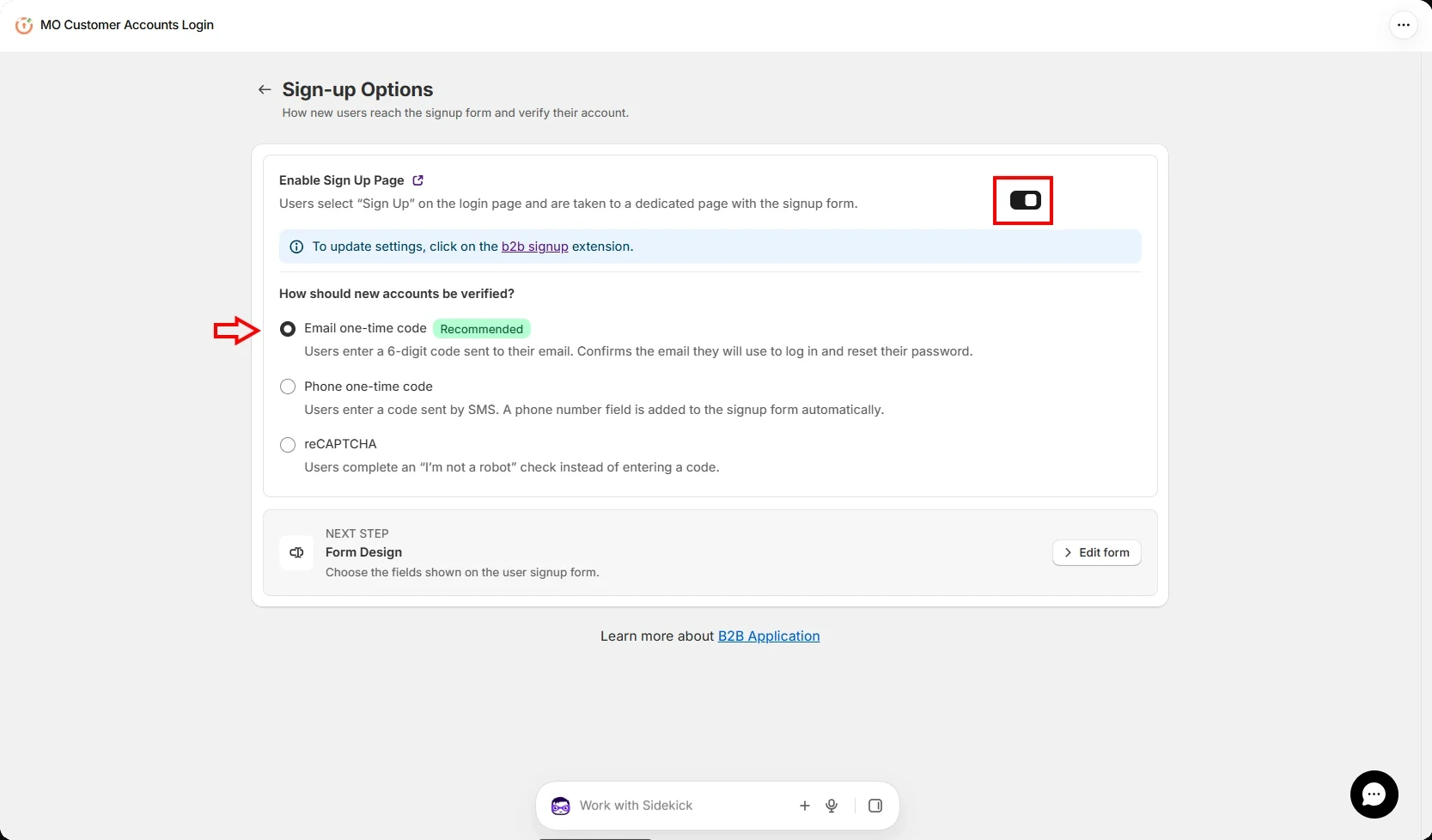
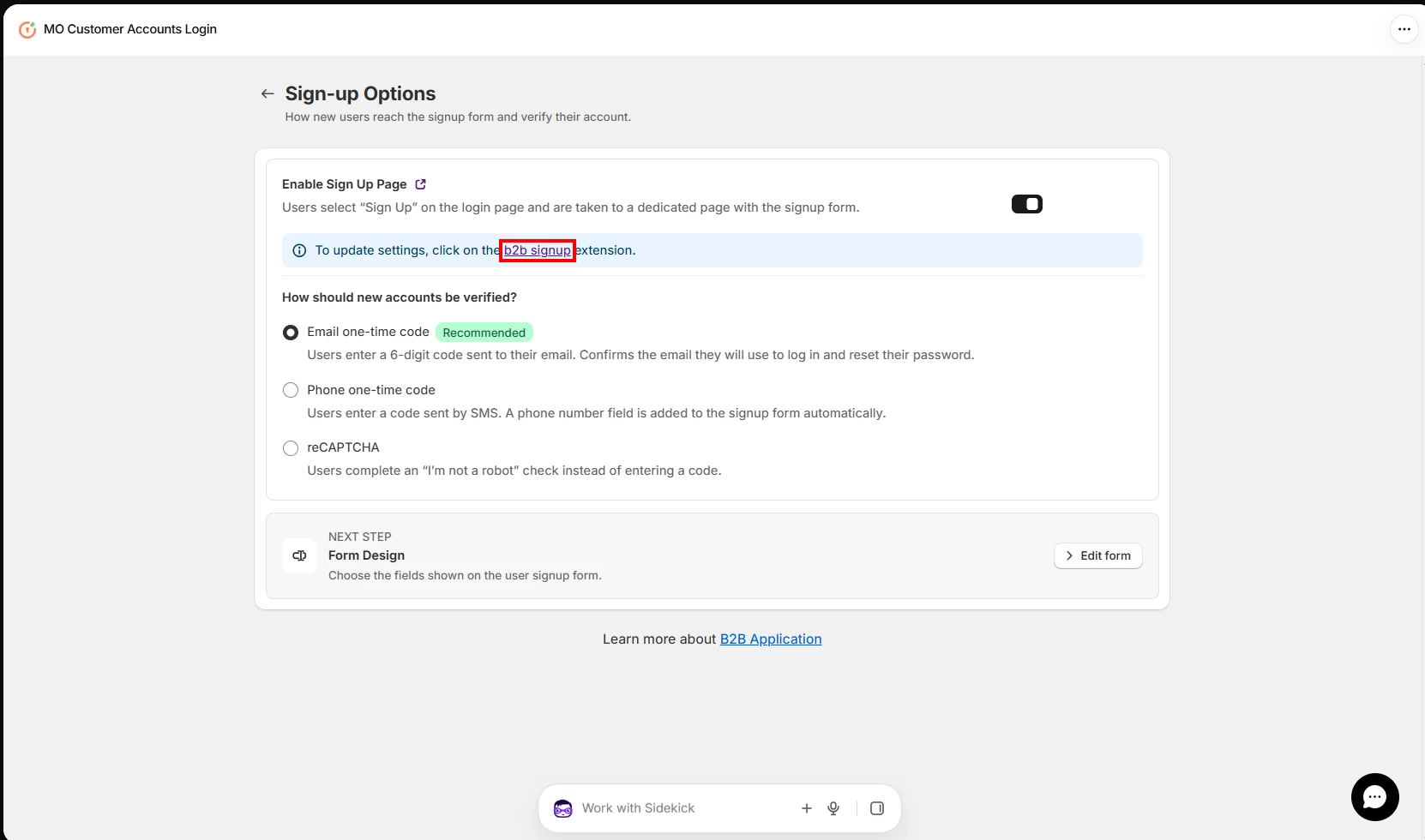
Turn on Enable Sign Up Page so customers who select sign up on the login page are taken to a dedicated page with the signup form.
-
Choose how new customers verify their identity during signup:
- Email one-time code: customers enter a 6-digit code sent to their email. This confirms the email they will use to log in and reset their password.
- Phone one-time code: customers enter a code sent by SMS. A phone number field is added to the signup form automatically.
- reCAPTCHA: customers complete an "I'm not a robot" check instead of entering a code.
-
For now, select Email one-time code and click Save.
-
Click the b2b signup extension link to update the signup page settings in the theme editor.
-
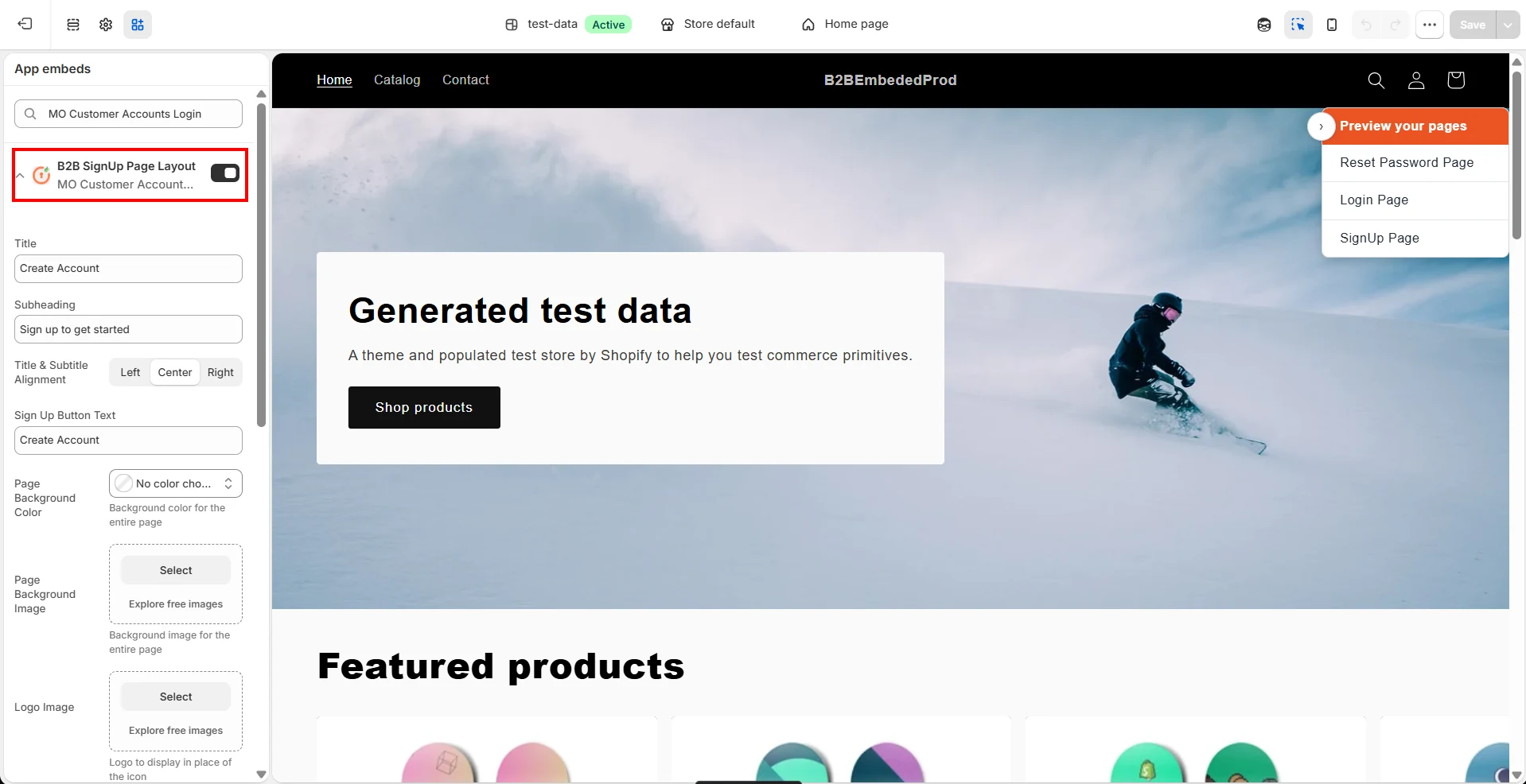
In the App embeds panel, B2B SignUp Page Layout is turned on automatically.
-
You can edit the Title, Subheading and their alignment, set the Page Background Color and Page Background Image, upload a Logo Image to replace the default icon, and change the Sign Up Button Text.
-
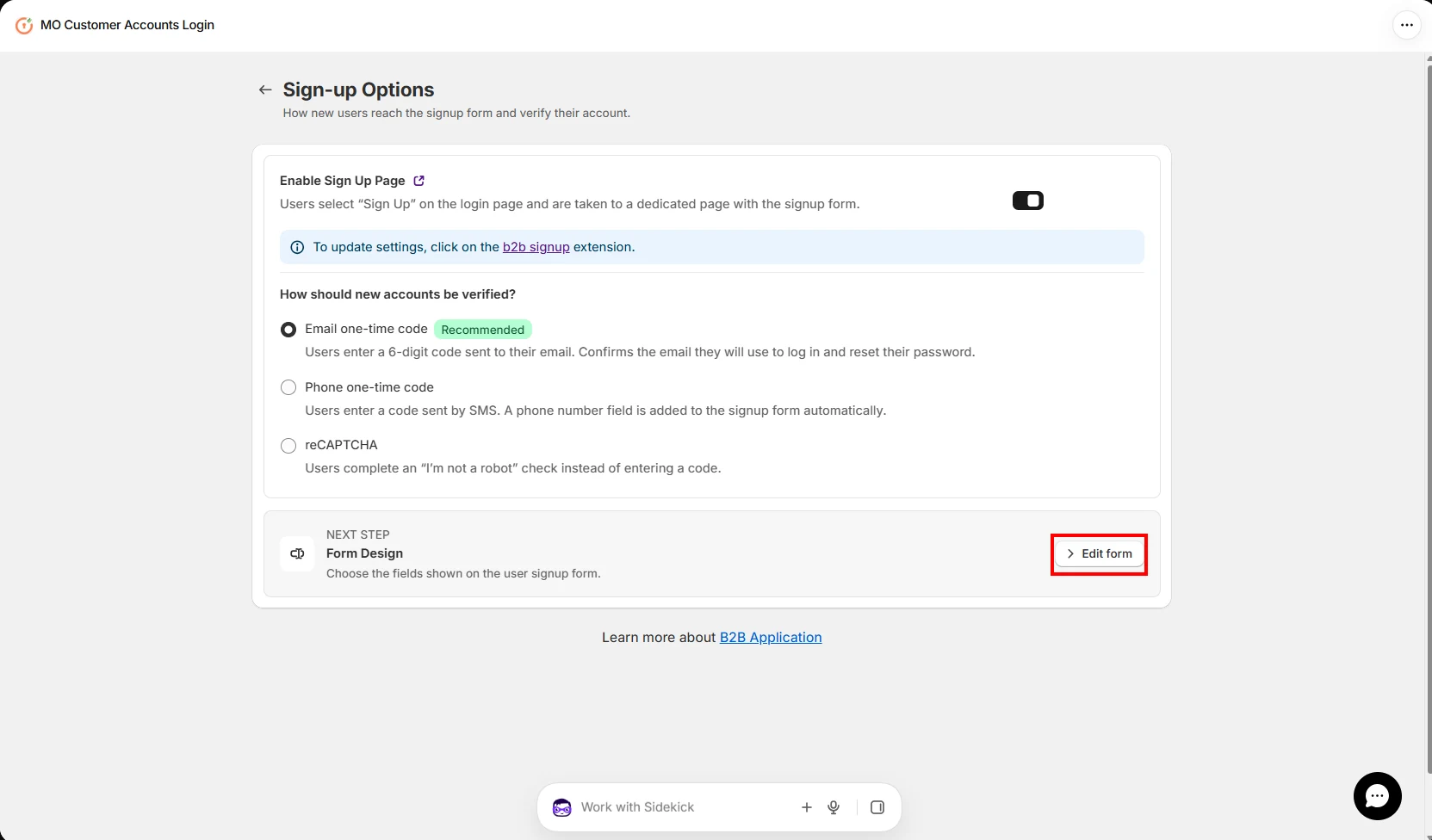
Go back to the Sign-up Options page. Next to Form Design, click Edit form.
-
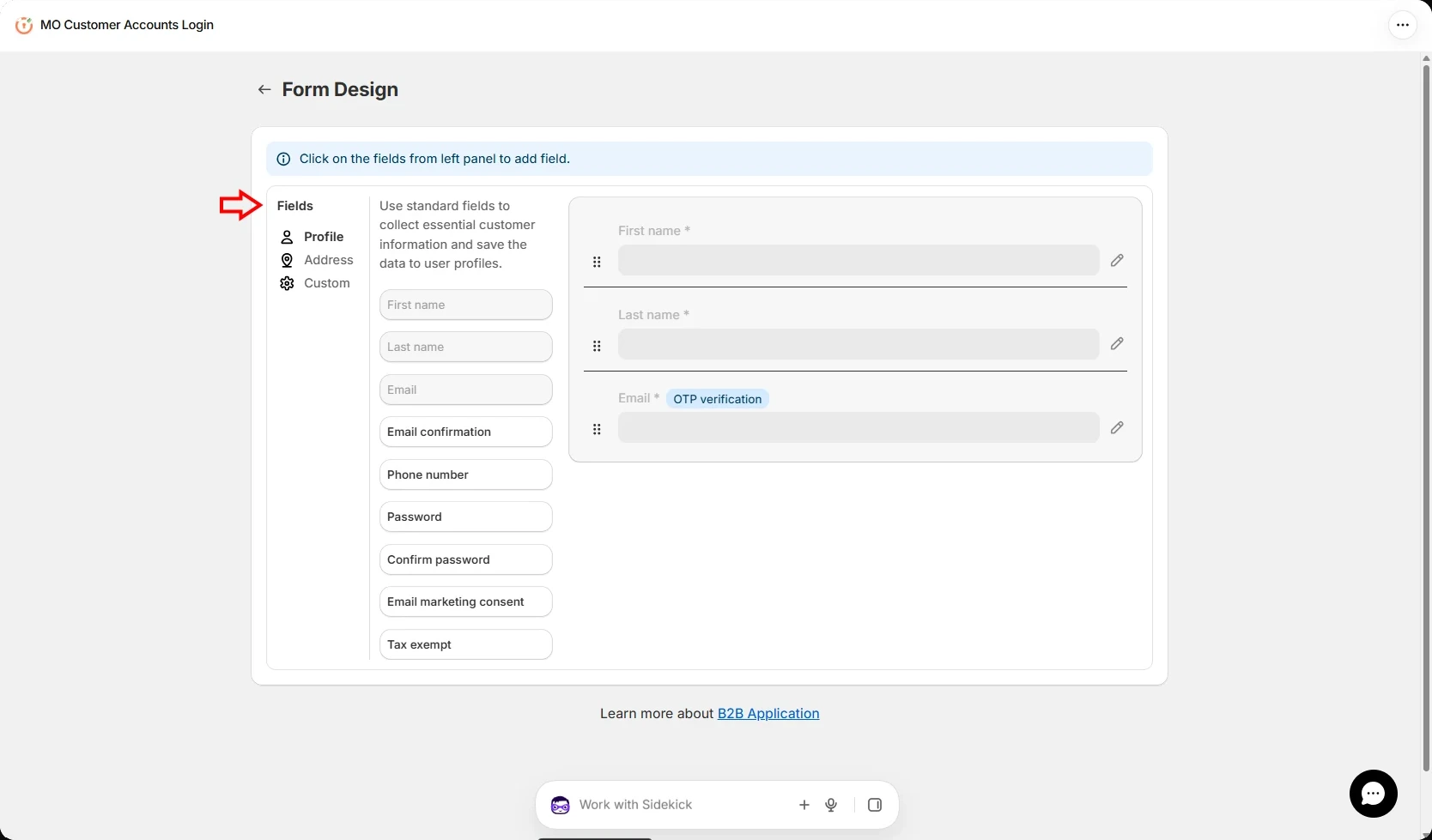
On the Form Design page, add fields to the signup form. Fields are grouped under Profile, Address, and Custom.
-
Under Profile, you can add more fields such as Email confirmation, Phone number, Password, and more.
-
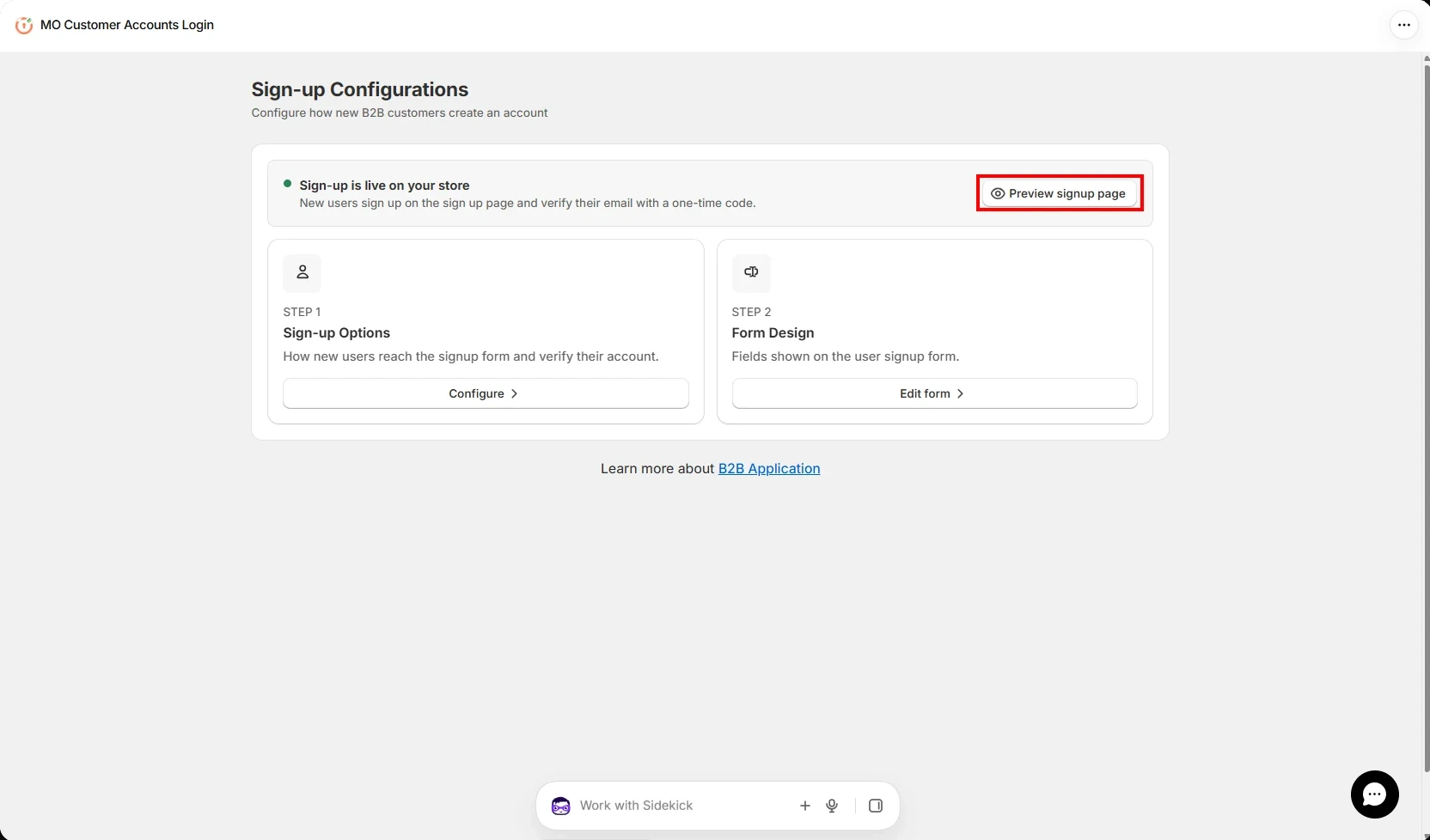
Go back to Sign-up Configurations. The signup page is now shown as live on your store.
-
Click Preview signup page to see how the form looks to customers.
-
The theme editor opens with the signup page. Use the Preview your pages menu to switch between the SignUp Page, Login Page, and Reset Password Page.
-
Confirm that the form shows the fields you selected.